Shopify B2B Customer Accounts and Store Access: Sign-In, Roles and Restricting Your Store
A wholesale buyer only gets their B2B prices, terms and checkout once Shopify knows who they are. That happens at sign-in. If sign-in is set up wrongly, buyers can’t reach their prices, or they order from your consumer store at retail prices without anyone noticing. Restrict the store carelessly and you shut out the prospects you wanted to sign up.
This guide covers how B2B buyers sign in, what each contact role allows, how to give a buyer access and tell them, and what your options are for keeping consumers out. Customer accounts, contacts and roles are on every plan with B2B: Basic, Grow, Advanced and Plus. Where the Help Center ties a feature to a plan, we say so. It is part of The Shopify B2B Playbook.
How B2B buyers sign in
B2B buyers use Shopify’s customer accounts. From Shopify’s Help Center:
- Customer accounts are required. Legacy customer accounts can’t be used for B2B customers or orders. On a store that still uses legacy accounts, switching affects your consumer customers too.
- No passwords. A buyer enters their email and gets a six-digit one-time code by email.
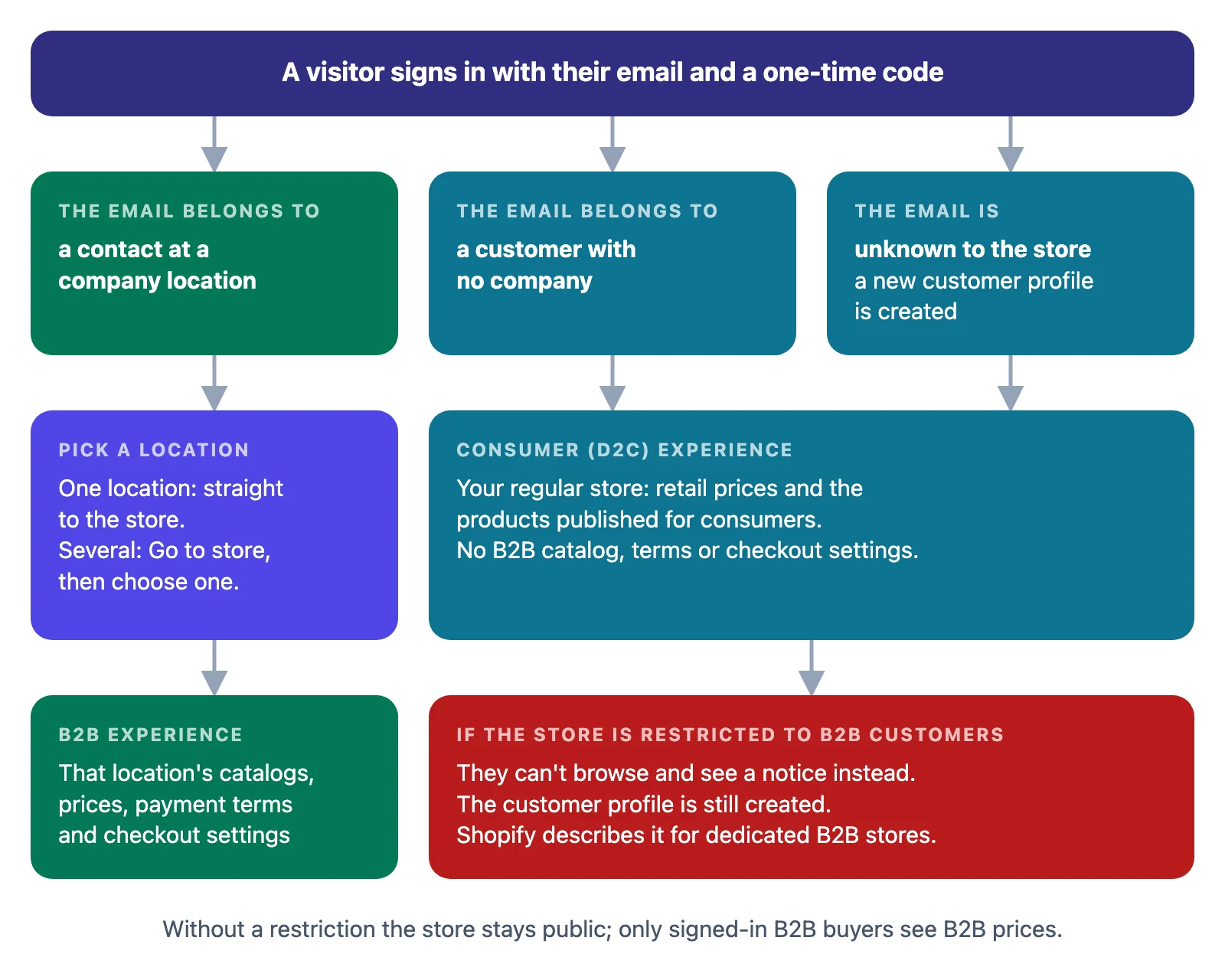
- The email decides the experience. A customer linked to a company location gets the B2B experience. A customer who isn’t linked to one, or who doesn’t sign in, is treated as a consumer (D2C). An email the store doesn’t know creates a new consumer customer profile.
- One location at a time. A buyer linked to one location goes straight to the store. A buyer with several locations clicks Go to store in their account and chooses a location before they can add anything to the cart. Name your locations so buyers can tell them apart; see companies, locations and contacts.
The sign-in page uses your checkout branding. The Customer information settings under Settings → Checkout apply only to consumers, not to B2B buyers.
Contact roles: Location admin and Ordering only
Each customer you add to a company gets a role at each location they can buy for. Both roles are on every plan with B2B (Shopify’s plan table lists them as location-level permissions).
| Ordering only | Location admin | |
|---|---|---|
| Place orders for the location | ✓ | ✓ |
| See their own orders | ✓ | ✓ |
| See every order placed for the location | — | ✓ |
| Edit the location’s billing and shipping addresses | — | ✓ |
From Shopify’s Help Center:
- A customer belongs to one company but can have access to several of its locations, with a role at each. A company can have up to 10,000 customers.
- One email per customer profile. If one person orders for two departments as separate logins, the Help Center suggests a plus address (name+dept1@…) for the second one.
- Addresses are filled in at checkout and can’t be edited there. A Location admin changes them before checking out, under Addresses in their account. The only other way to a different address is the location’s checkout setting for one-time addresses; see checkout settings.
- Payment terms, permissions and the other buyers at the location appear in the account as read-only.
What buyers can do in their account
From Shopify’s Help Center, a B2B buyer’s account shows their orders and the company location’s details. From there they can:
- Track orders and see order history (all of the location’s orders for a Location admin, their own for Ordering only).
- Pay an order on net terms: open it and click Pay now.
- Use saved payment methods.
- Reorder by duplicating a past order.
- Request a return.
- Edit their name and email under Account information, and addresses if they are a Location admin.
Giving a buyer access, step by step
The screenshots come from a test store; the dialog was cancelled and nothing was saved or sent.
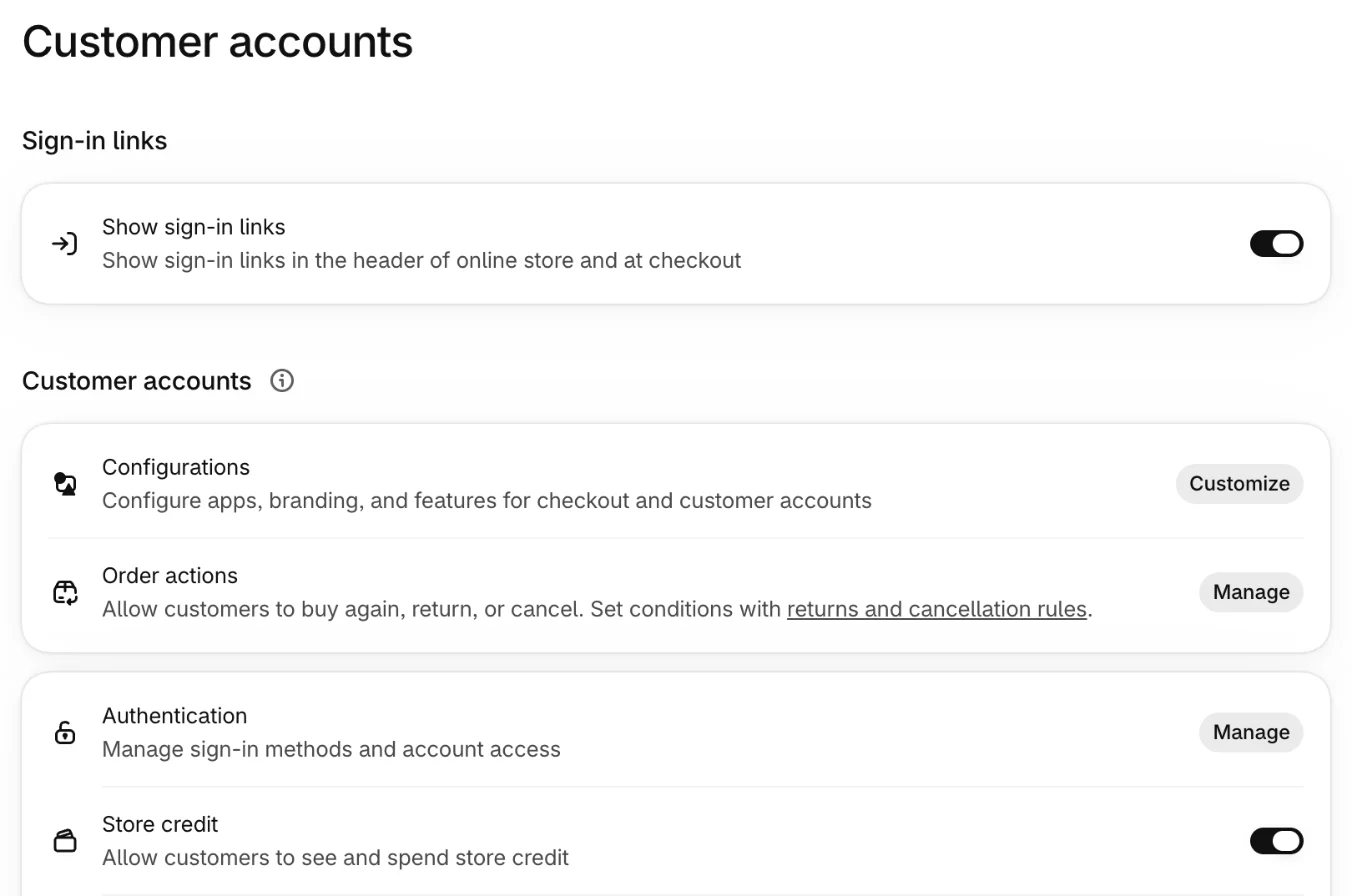
Step 1 — Check that customer accounts are on. Go to Settings → Customer accounts. Turn on Show sign-in links if you want a sign-in link in your store’s header and at checkout. The Help Center also describes choosing which version of customer accounts to link to; on our test store, which already used customer accounts, the page showed no such choice. If your store still has legacy accounts, switch before you invite B2B buyers.
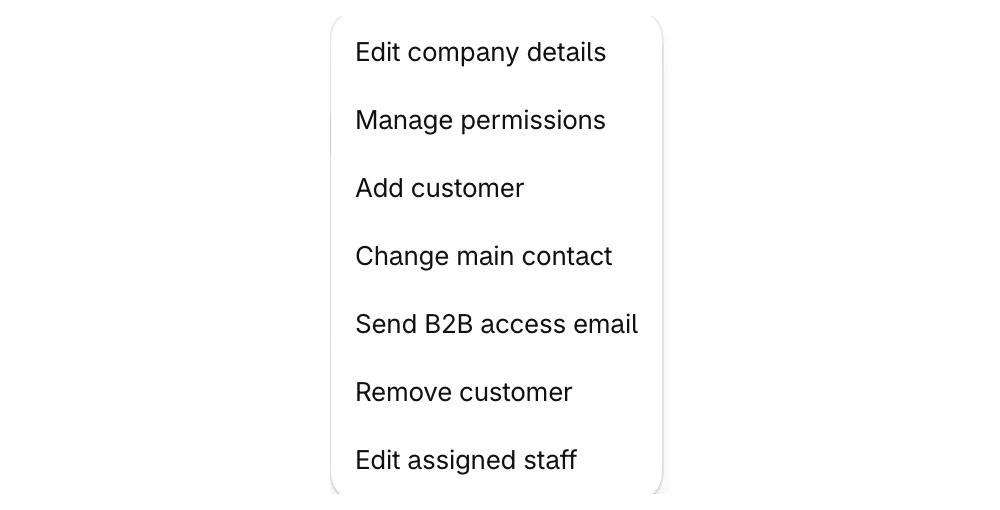
Step 2 — Open the company’s menu. Go to Customers → Companies and click the company. In the right-hand column, click ⋯ next to the company name. Add customer adds someone to the company; Send B2B access email tells existing buyers they can order; Manage permissions changes locations and roles. You can also add a customer from a location’s Customers section, or from the customer’s own page with Add to company.
Step 3 — Choose locations and a role. Pick the customer, or Add new customer, then tick each location they buy for and choose Ordering only or Location admin next to it. Add customer’s orders to this location moves their past orders under the location, which helps when you migrate an existing customer. Tick Notify customer that they can start placing B2B orders if you want Shopify to email them now, and click Save.
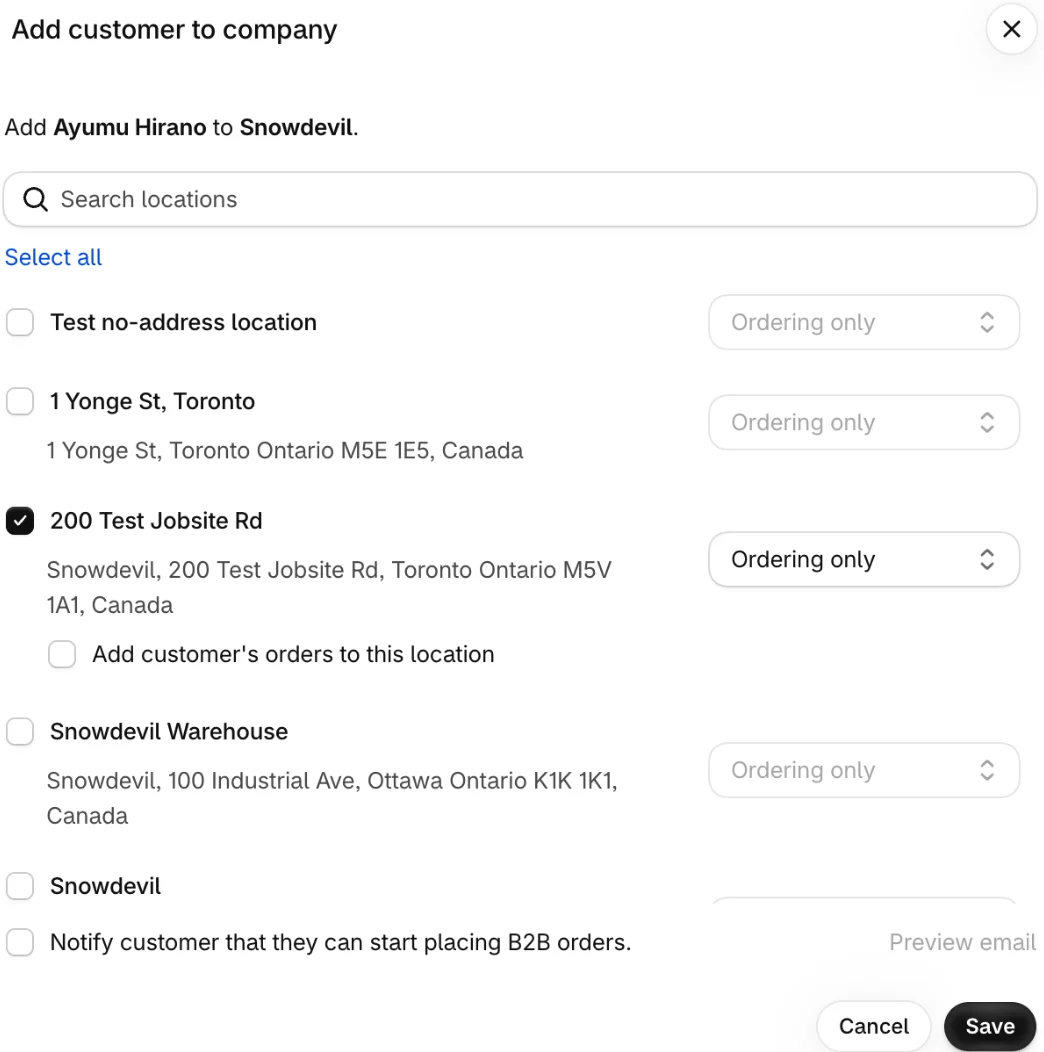
Shopify only emails the buyer when you tick that box, or when you send the B2B access email yourself from the company’s menu. Edit its wording under Settings → Notifications → Customer notifications → Accounts and outreach → B2B access email. To send it automatically when a company is approved, use the Shopify Flow template Send B2B access email to approved customer.
To take a location away from a buyer, open the customer, click Manage in Permissions and untick it. Remove from company keeps the customer as a consumer and can move their orders out of the company.
Letting prospects ask for an account
Company account requests let a prospective wholesale buyer fill in a form on your store. From Shopify’s Help Center:
- The form is built with the Shopify Forms app, using the Company and customer fields (company name and email are required).
- Each request creates a company, a location and a customer. It can’t add a customer to an existing company.
- New companies wait under Customers → Companies, on the Ordering not approved tab. They can’t order or see B2B prices until you approve them.
- To approve, open the company, click Manage permissions, choose locations and roles, and save. To reject, delete the company. The Flow template Allow ordering for companies created by company account requests can approve them automatically.
- Requests aren’t available on a dedicated store restricted to B2B customers.
The Help Center doesn’t state a plan for company account requests. We didn’t set up the form on our test store.
Who can see your store
By default, a B2B store is public. Anyone can browse; only signed-in B2B buyers see B2B prices, B2B-only products and B2B content. How far you can go beyond that depends on the kind of store. From Shopify’s Help Center:
| Blended store (B2B and consumers in one store) | Dedicated store (B2B only, a separate store) | |
|---|---|---|
| Who browses | Everyone: Shopify’s store-type guide says a blended store can’t be gated (see below) | Everyone, or only signed-in B2B buyers |
| Keep products from consumers | Leave them out of consumer catalogs | Products are B2B-only by default |
| Show different theme content to B2B buyers | Advanced and Plus, through the theme editor (see the note below) | Content per B2B market: Advanced and Plus |
| Hide single pages | A third-party app or custom Liquid | A third-party app or custom Liquid |
The Help Center isn’t consistent on theme content. Its pages on store types and account requests put B2B content in the theme editor on Advanced and Plus. Its blended-store checklist says customizing by market needs Advanced or higher, but customizing by customer type (B2B or consumer) is Plus only. Check your own theme editor before you plan around it.
Choose the store type carefully. Shopify warns that switching later means setting up companies, catalogs and your online store again.
Restricting a dedicated store
Step 4 — Restrict access (dedicated stores). Go to Online Store → Preferences. Under Store access, turn on Restrict access to B2B customers only and click Save. The admin describes it as B2B customers will need to log in and verify their account to access your store.

Once it’s on, according to the Help Center:
- Visitors who aren’t B2B customers can’t browse. They see a notice that they aren’t registered B2B customers.
- It doesn’t redirect every visitor to a sign-in page. For a full login wall you need a third-party app or custom Liquid.
- A sign-in attempt still creates a customer profile. The Flow template Delete customers after a specified amount of time removes profiles that were never added to a company.
- Company account requests stop working. If you need both, leave the store open and hide content from signed-out visitors instead.
- Buyers coming through the Shop app may be able to start checkout without signing in. Shopify suggests asking its Support to confirm your checkout login requirements.
The Help Center doesn’t state a plan for this setting, and it isn’t fully consistent about where it applies. The store-type guide says only a dedicated store can be gated, while the sign-in page also mentions what the restriction does in a blended store with B2B markets, and the switch was there on our blended test store. Since it stops everyone who isn’t a B2B customer from browsing, treat it as a setting for B2B-only stores.
What actually happens
Things we saw on a test store:
-
“Approved” is a column, not just a tab. The Companies list has an Ordering column showing Approved or Not approved for each company. On our test store, a company with no main contact showed Not approved. Check this column when a buyer says they can’t see their prices.

-
New buyers start as Ordering only. In Add customer to company, every location’s role was preset to Ordering only. Make someone a Location admin on purpose.
-
The notify box waits for a location. Notify customer that they can start placing B2B orders stayed greyed out until a location was ticked. Add customer’s orders to this location only appeared under a ticked location.
-
The customer picker marks existing buyers. Customers already in the company showed Already added.
-
The restriction sits next to Private mode. On our test store, Restrict access to B2B customers only was in the same Store access card as the password page (Private mode). The two aren’t the same: the password page shuts out everyone without the password, including B2B buyers.
We didn’t sign in as a buyer for this article, so the buyer-side screens above come from the Help Center.
Setting up access per business
This part is advice, not Shopify rules:
| Your business | Store type | Access |
|---|---|---|
| Same products for consumers and trade, wholesale is a sideline | Blended | Public store; B2B prices appear once buyers sign in |
| Trade-only brand, no consumer sales | Dedicated | Restricted to B2B customers, buyers invited by you |
| Trade-only, but you want new stockists to apply | Dedicated | Open store with a company account request form, B2B content hidden from signed-out visitors |
| Buyers ordering for several branches | Either | One customer per person, Location admin at the branches they manage, Ordering only elsewhere |
Make Location admin the exception. It lets the buyer change shipping addresses, and an address change can move a location to another market, with other prices and taxes (see international wholesale with Markets).
Where Shopify stops
Customer accounts give each buyer a sign-in to your store, but your sales reps aren’t buyers: on Shopify their route is a staff account in the admin. Mify FieldB2B gives reps their own portal and sign-in without a Shopify staff account. It can also give a company’s contacts a buyer portal: the rep or the merchant enables a contact and shares a sign-in link. Buyers order at their company’s prices, and the orders arrive in Shopify as draft orders for you to approve. See how reps log in and turning on the buyer portal.
Frequently asked questions
Do B2B buyers need a password to sign in to Shopify? No. B2B buyers sign in with customer accounts: they enter their email and get a one-time code. Legacy customer accounts can’t be used for B2B.
What is the difference between Location admin and Ordering only? Both can place orders for the location. A Location admin can also see every order placed for the location and edit its billing and shipping addresses; Ordering only sees just their own orders. Both roles are on every plan with B2B.
Can I make my Shopify store visible only to wholesale buyers? Yes, with Online Store → Preferences → Restrict access to B2B customers only, which Shopify describes for dedicated B2B stores. It doesn’t redirect every visitor to a sign-in page, and company account requests stop working while it’s on.
Does Shopify email B2B buyers when I add them to a company? Only if you tick Notify customer that they can start placing B2B orders, or send the B2B access email from the company page. You can edit the email under Settings → Notifications.
Why does a B2B buyer see retail prices? They are either not signed in, signed in with an email that isn’t linked to a company location, or their company isn’t approved for ordering. Check the customer’s company and permissions, and the Ordering column in the Companies list.