How reps log in (password, QR badge, store link)
Reps use the FieldB2B portal, a web app that works on phones, tablets and computers. They don’t sign in to Shopify. A rep can get in three ways.
1. Email and password
Reps go to https://fieldb2b.mifycom.app/portal/login and sign in with the email and password from when you added them.
A sign-in lasts 24 hours, after which they sign in again.
2. Their personal QR badge
Each rep has a login QR code. Scanning it signs them in as that rep with no password.
- In the app, open Sales Reps and click the rep.
- Find Portal QR Code. Click Download QR to print it, or Copy login link to send the link.
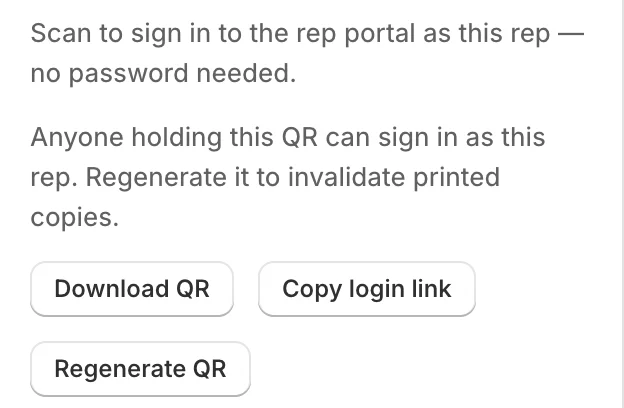
Treat the badge like a key: anyone holding it can sign in as that rep.
If a badge is lost, click Regenerate QR and confirm. Every printed or shared copy stops working immediately. The rep then sees “This QR code is no longer valid” if they scan an old one.
3. A link on your store
Your store has a sign-in page for reps at your-store.com/apps/b2b-portal, using your own store domain. It shows your logo and a Sign in button that opens the portal sign-in page. Share this address if your reps would rather start from your store.
When a rep can’t get in
- “Invalid email or password”: check the email, or reset the password. A rep you deactivated also gets this message.
- “Too many login attempts”: wait the number of seconds shown, then try again.
- “Forgot your password?” does not send an email. The admin has to reset the password in the app.