Shopify B2B Catalogs and Price Lists: How Shopify Picks a Price
In Shopify B2B, the catalog decides what a wholesale buyer can buy and what they pay. When the setup is wrong, the buyer usually doesn’t get an error. They get the retail price, or a product you meant to keep for another tier, and you hear about it when the invoice is disputed.
This guide covers what a catalog holds, how its prices are worked out, where you assign it, which catalog wins when several apply, and the limits that shape your tiers. Everything here works on Basic, Grow, Advanced and Plus unless we say Plus only. It is part of the Shopify B2B Guide.
What a catalog holds
A catalog has three parts:
- Products. By default a new catalog includes every product. You exclude the ones this group shouldn’t buy, and choose whether products you add to the store later join it automatically.
- A price list. One percentage adjustment for the whole catalog, plus fixed prices for the products or variants that need an exact number.
- Quantity rules and volume pricing. Minimums, maximums, increments and price breaks per variant. They live in the catalog too; they get their own article, quantity rules and volume pricing.
A catalog is Active or Draft. A draft lets you prepare products and prices without applying them. You can also archive a catalog from More actions. Its title is for you: Shopify’s Help Center says it isn’t shown to customers.
How a catalog price is worked out
| You set | What the buyer pays |
|---|---|
| A price adjustment, for example Decrease 5% | Your regular price minus 5%: a $70.00 product shows $66.50 |
| A fixed price on a product or variant, for example $9.50 | Exactly $9.50, whatever the percentage says |
| Neither | Your regular price |
A fixed price always overrides the catalog’s percentage for that variant. The adjustment can be an Increase as well as a Decrease, which is useful for a catalog that adds a margin, for example for a distributor’s smaller resellers.
Two settings next to the adjustment matter:
- Include compare-at price. When it’s on, Shopify adjusts your compare-at prices by the same percentage, so a “was” price still shows. When it’s off, compare-at prices are dropped, unless you enter one next to a fixed price. On a new catalog it was on.
- Set prices in. The currency the catalog’s prices are entered in. The admin’s own hint says customers will see prices in their market currency. Fixed prices are entered in the catalog’s currency. Prices worked out from the percentage get your market’s rounding and currency conversion in the online store and at checkout.
Where a catalog reaches buyers
A catalog does nothing until it’s assigned:
| Assigned to | Who gets it | Plans |
|---|---|---|
| A B2B market: a market whose condition is Company locations | the company locations the market lists, or all of them | Basic, Grow, Advanced, Plus |
| A company location directly | that location only | Plus only |
| A region market, for example a country | everyone in it, consumers included | all plans |
Below Plus, then, every wholesale price list reaches buyers through a B2B market. Never put a wholesale catalog on a region market: retail shoppers in that region would get it too.
Setting up a price tier, step by step
The example is a typical first tier: a −5% wholesale price for a group of company locations, with one product at a fixed price and one product left out.
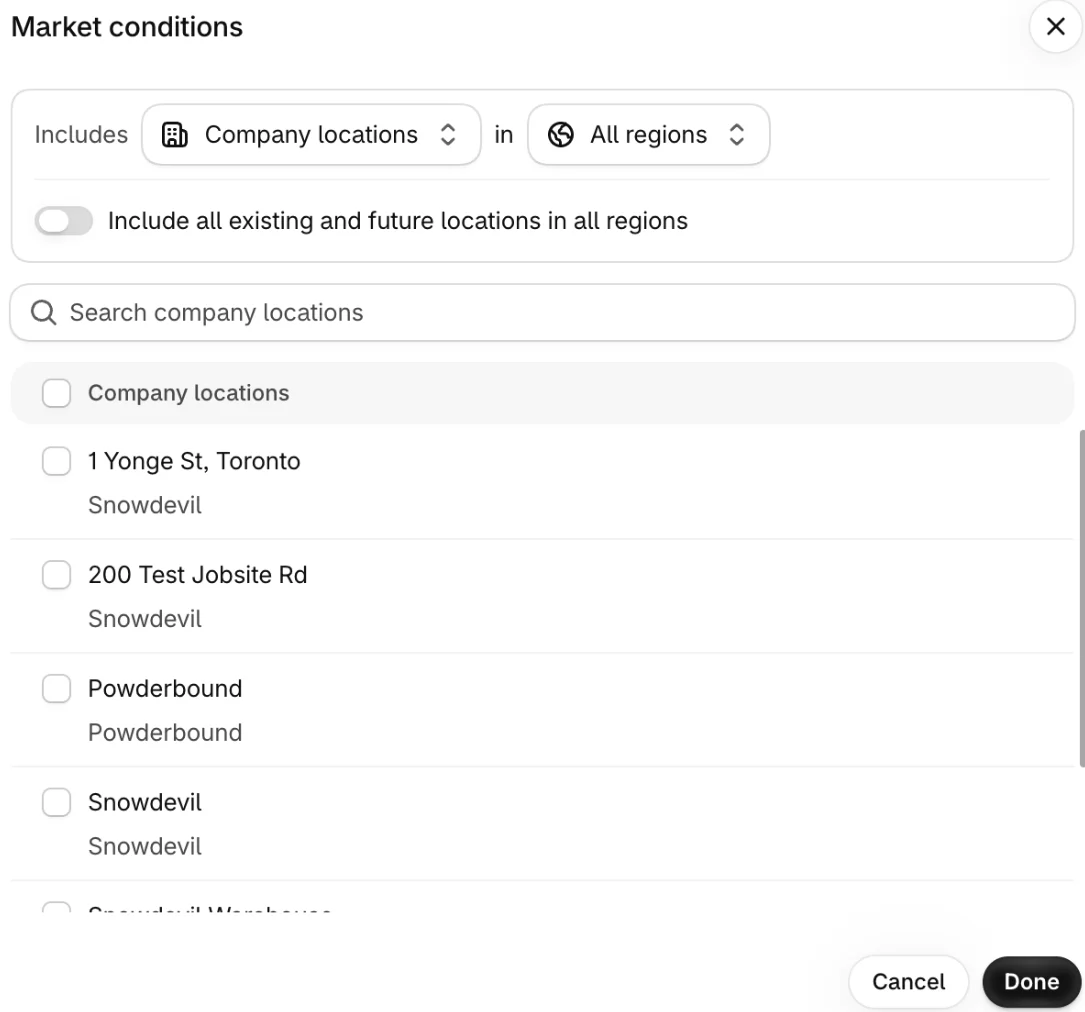
Step 1 — Create a B2B market. Go to Markets and click Create market. Name it after the tier (“Wholesale – Silver”). Under Includes, click Add condition, switch the condition from Regions to Company locations, and tick the locations that belong in this tier. Alternatively, turn on Include all existing and future locations in all regions for one market that covers every B2B buyer. Click Done, then Save.
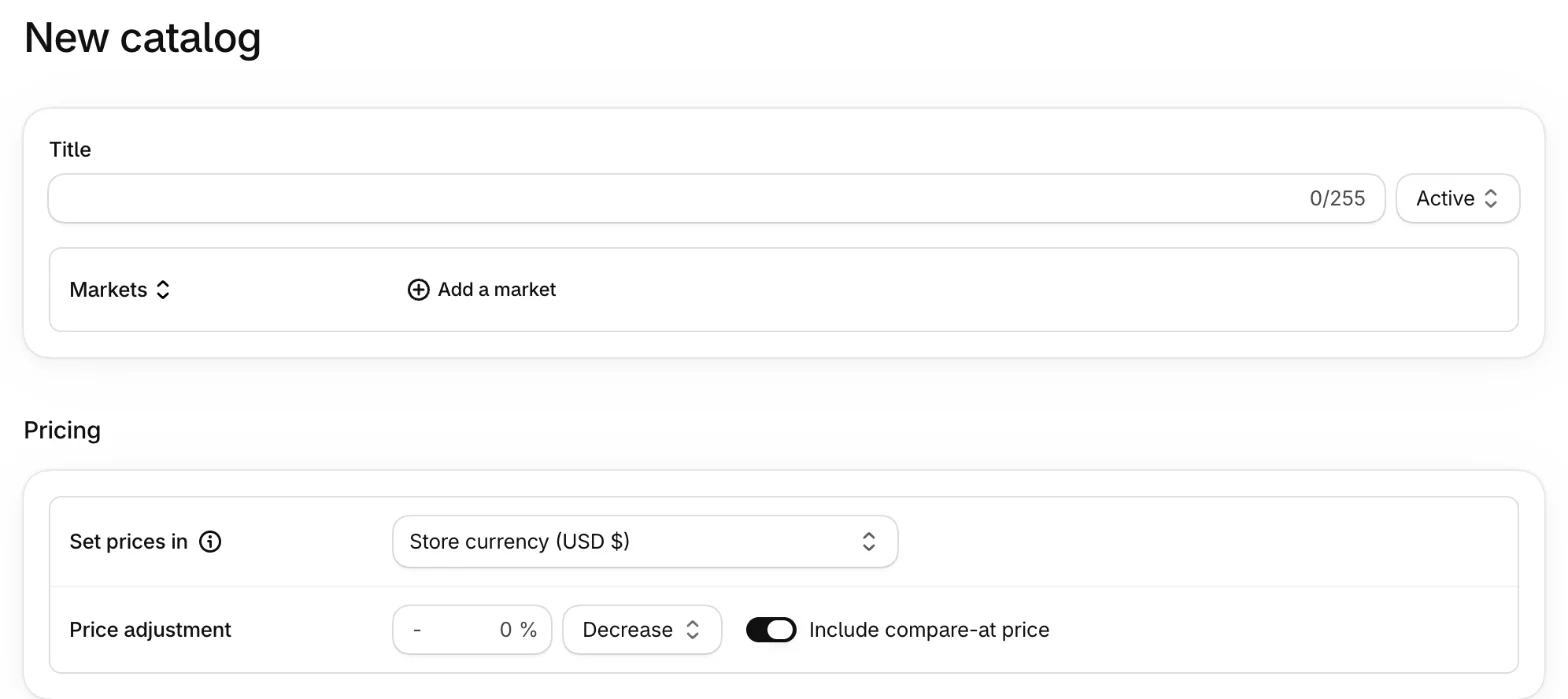
Step 2 — Create the catalog and assign it. Go to Markets → Catalogs and click Create catalog. Enter a Title and leave the status on Active, or pick Draft to prepare it first. Next to Markets, click Add a market. The picker has tabs for Regions, B2B, Retail and Channels: open B2B, tick the market from step 1, and click Done. (On Plus, the Markets selector also offers Company locations, to assign the catalog to locations directly.)
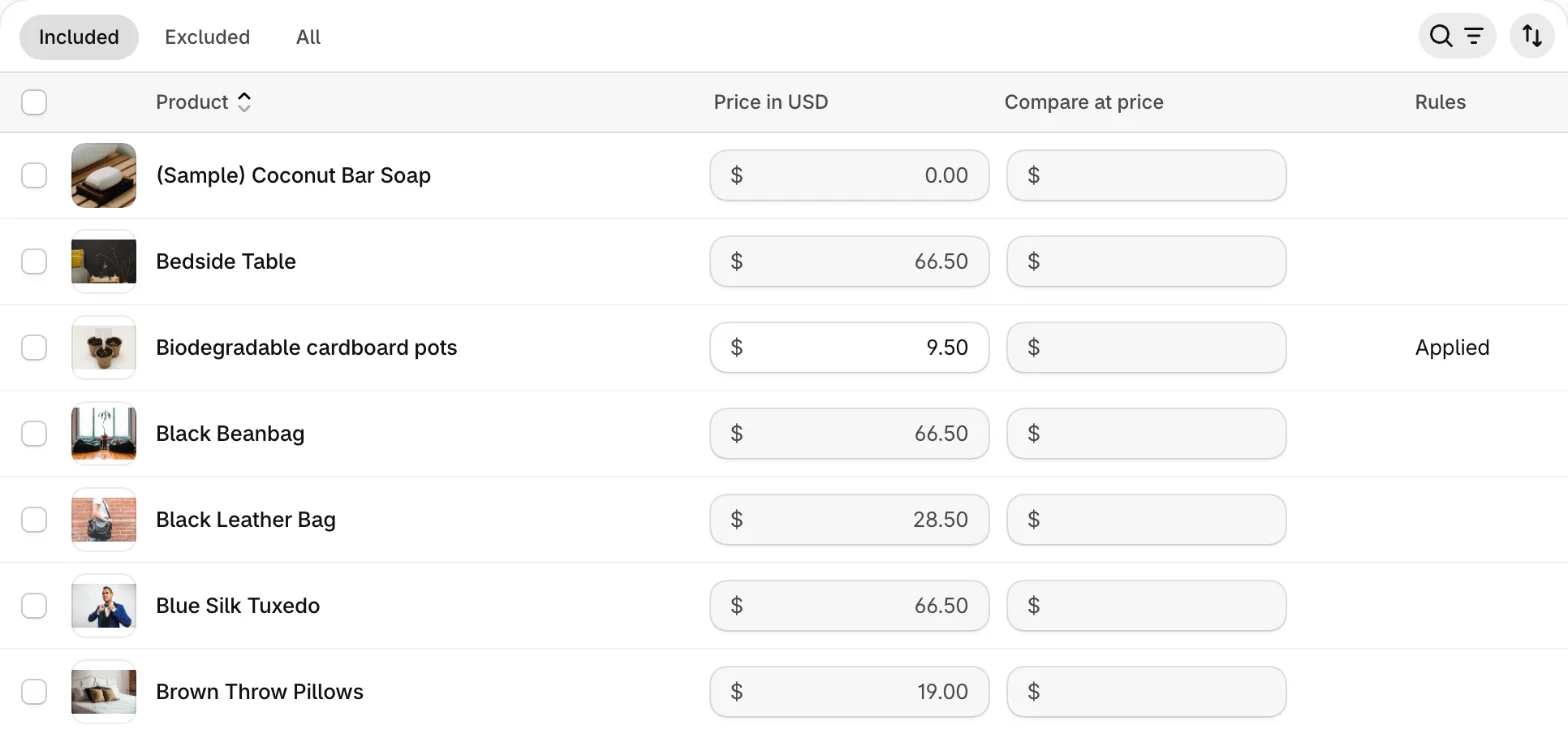
Step 3 — Set the prices. Under Pricing, choose the currency in Set prices in, enter the percentage, and choose Decrease or Increase. The product list below then shows each product’s price in this catalog. Type a number into a product’s price field to give it a fixed price. Products with variants open a list where you can price each variant. Prices worked out from the percentage stay grey; a fixed price shows in black. Rules shows Applied for a product with quantity rules or volume pricing in this catalog.
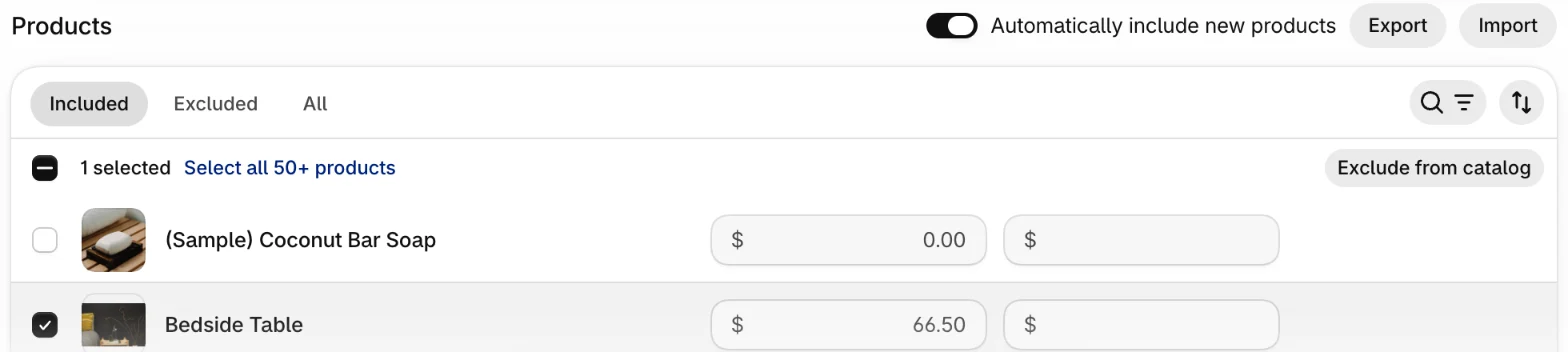
Step 4 — Leave out what this tier shouldn’t buy. The product list has Included, Excluded and All tabs. Tick the products to leave out and click Exclude from catalog. Then decide on Automatically include new products: on a new catalog it was on, so every product you create later is added at this catalog’s percentage. Turn it off if new lines should stay hidden from this tier until you choose otherwise.
Step 5 — Save and check the catalog list. Click Save, then go back to Markets → Catalogs. The list shows, for each catalog, its status, what it’s assigned to, how many fixed prices it has (Price overrides), its Overall adjustment and how many products it includes. It’s the quickest way to spot a catalog that is still a draft, or assigned to the wrong market.

The second row of that screenshot is a catalog assigned directly to two company locations: a Plus feature, on our test store. On Basic, Grow and Advanced, you’d see the name of a B2B market there instead.
When several catalogs apply
A location can be covered by more than one catalog. Shopify goes through four levels, and the first level that has a catalog for the buyer sets the price:
- catalogs assigned directly to the company location (Plus only);
- B2B markets that list this specific location;
- B2B markets that include all company locations;
- region markets: the catalogs your consumers in that region get.
Only when two catalogs sit on the same level does the lower price win. That’s why Shopify’s own documentation warns that “the lowest price doesn’t always apply”. A −30% catalog on a market for all company locations loses to a −10% catalog on a market that names the location.
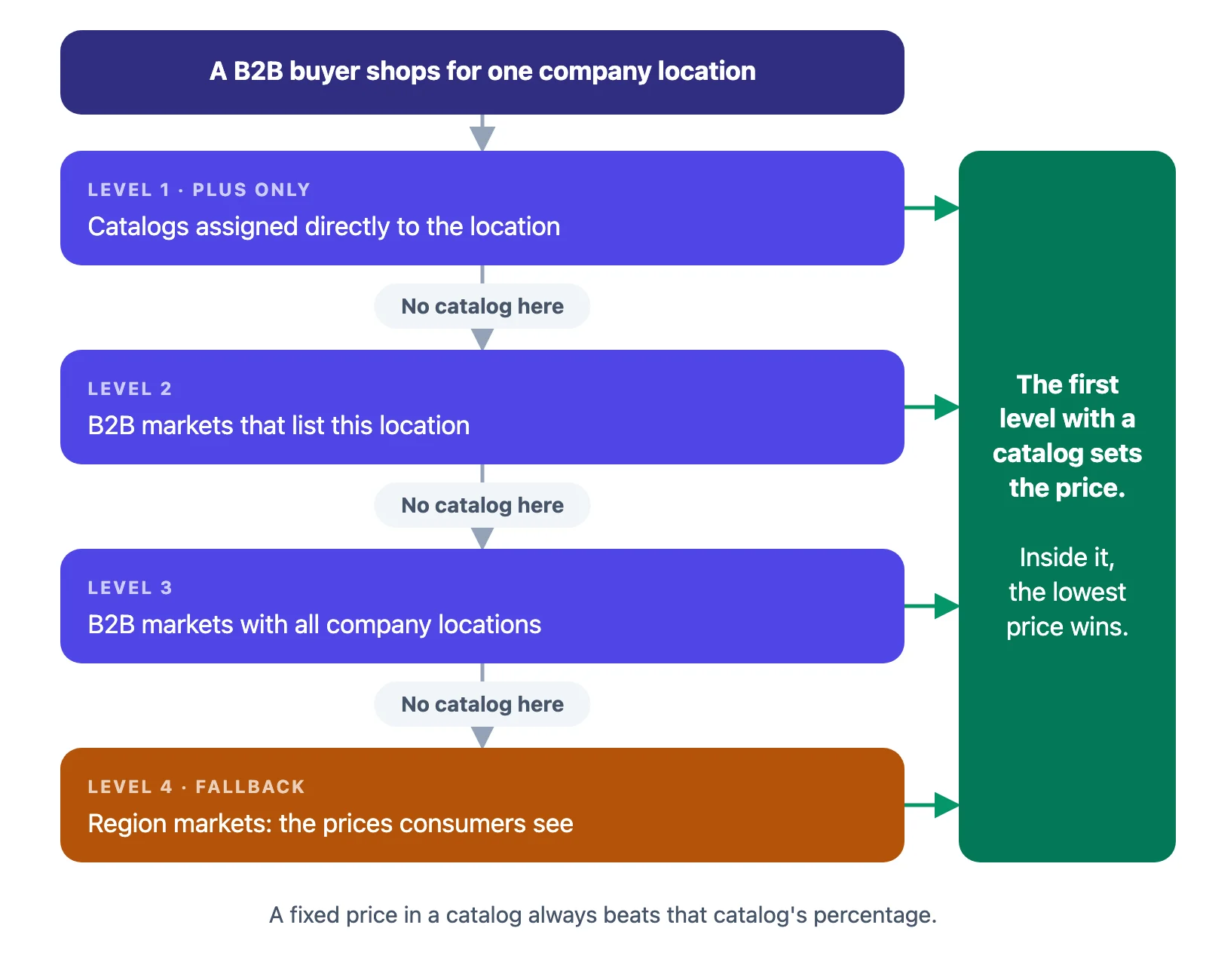
Level 4 is the trap. A B2B buyer whose location isn’t covered by any B2B catalog isn’t refused: they shop at the price of the region market they’re in, which is your retail price. If a region market has no catalog either, buyers see the products published to your Online Store at their regular prices.
The limits that shape your setup
From Shopify’s Help Center:
| Limit | Value |
|---|---|
| Active catalog assignments across active B2B markets | 3 on Basic, Grow and Advanced; no limit on Plus |
| How assignments count | one catalog on two active B2B markets = 2 assignments |
| Catalogs per company location | 25, on every plan (directly assigned and through markets) |
| Catalogs per store | no set maximum |
Three assignments fit three price tiers. They don’t fit a price list per customer. Shopify B2B features by plan walks through what to do when you hit that ceiling.
Editing many prices at once: CSV
Each catalog has Export and Import buttons above its product list, and the Catalogs list has Export and Import for several catalogs at once. The export can include All products, Only included products, Only products with fixed prices, Only products with quantity rules or Only products with volume price breaks. Shopify emails you the file.
In the file, each row is a variant, identified by SKU, or by handle plus option values. You set its Fixed Price, Compare At, quantity rules and up to 10 price breaks. Leaving both Fixed Price and Compare At blank removes the fixed price, so the variant goes back to the catalog’s percentage. Edit an export rather than starting from a blank file: the columns are then exactly what the import expects.
What actually happens: catalogs on a test store
What we saw while setting catalogs up on a test store, beyond what the Help Center spells out:
- A new market lists everything until you give it a catalog. The New market form shows its catalog as inherited: “All products”. Create the B2B market and its catalog together, or a buyer in a market without a catalog shops at retail.
- The location’s address picks its market. A location saved without a shipping address landed in the market for the store’s own country, with that market’s catalog. If a buyer sees prices you didn’t expect, check the location’s address before you check the catalog. (See companies, locations and contacts.)
- Fixed prices are easy to lose track of. In the product list, only the black figures are fixed prices. The Price overrides count in the Catalogs list tells you how many there are. Export Only products with fixed prices to review them, especially before you change the percentage, which won’t move them.
- A test store isn’t a guide to your plan. Our test store offered Company locations in the catalog’s assignment menu, a Plus-only feature by Shopify’s plan table. Check plan features against Shopify’s plan table, not against what a development store happens to show.
Designing your tiers
This part is advice, not Shopify rules:
| Situation | Setup |
|---|---|
| One wholesale price for everyone | One B2B market with Include all existing and future locations, one catalog with a percentage |
| Bronze, Silver, Gold | Three B2B markets that list their locations, one catalog each. That uses all 3 assignments below Plus |
| A few products need exact prices | Fixed prices in the tier’s catalog. Keep the list short and review it with the CSV export |
| A one-off price for one order | Don’t make a catalog: set the price on a draft order |
| A price list per key account | Plus, with catalogs assigned directly to each location |
Write down each tier’s rule (“Silver = −30%, fixed prices on 12 SKUs, no clearance items”) before you build it. Three catalogs are easy to set up and hard to untangle six months later.
Where Shopify stops
Catalogs set prices for buyers who order themselves. When sales reps order for them, the rep needs the same price the buyer would get, for the location they’re ordering for. Mify FieldB2B reads each company location’s B2B prices, quantity rules and volume pricing from Shopify, shows them in the rep’s portal and locks them into the quote. It can also stop reps from quoting products that aren’t in the location’s catalogs. See company locations on quotes, only allowing catalog products and quantity rules and volume pricing.
Frequently asked questions
What is the difference between a catalog and a price list in Shopify B2B? A catalog is the whole package for a group of buyers: which products they can buy, its price list, and quantity rules. The price list is the pricing part: one percentage adjustment plus fixed prices for specific products or variants.
Does a fixed price override the catalog’s percentage discount? Yes. A fixed price on a product or variant always wins over the catalog’s overall adjustment, and changing the percentage later doesn’t move it.
Which price does a buyer get when two catalogs apply? The first level with a catalog decides: a catalog assigned directly to the location (Plus only), then B2B markets that list the location, then B2B markets for all company locations, then region markets. Only between catalogs on the same level does the lower price win.
How many B2B catalogs can I have on Basic, Grow or Advanced? As many as you like, but only 3 active assignments across your active B2B markets, and a catalog on two markets counts twice. Plus has no assignment limit. Each company location can have up to 25 catalogs on any plan.
What does a B2B buyer see if no catalog covers their location? They aren’t blocked. They get the catalog of the region market they’re in, normally your retail prices, or the products published to your Online Store if that market has no catalog either.