Shopify B2B Quantity Rules and Volume Pricing: Minimums, Case Packs and Price Breaks
Wholesale buyers rarely order one of anything. You ship by the case, you don’t want to split a pack of six, and you’d rather sell 48 at a lower price than 12 at the full one. Shopify B2B handles all three in the catalog: quantity rules set how many a buyer can order, and volume pricing lowers the unit price as the quantity grows.
This guide covers what each setting does, the checks Shopify makes when you save them, how to set them up step by step, and what happens when a buyer has more than one catalog. Quantity rules and volume pricing are on every plan with B2B: Basic, Grow, Advanced and Plus. It is part of The Shopify B2B Playbook.
Two settings, one place
Both live in a catalog, per product variant, next to the variant’s price. A catalog is what a company location buys from; how catalogs reach buyers is in B2B catalogs and price lists.
| Setting | What it does | Example |
|---|---|---|
| Increment | The buyer orders in multiples of this number | 6 for a case of six |
| Minimum | The smallest quantity per order | 6 |
| Maximum | The largest quantity per order (optional) | 60 |
| Volume pricing | A lower unit price from a given quantity, up to 10 price breaks | $9.00 from 24, $8.50 from 48 |
You can use quantity rules without volume pricing, volume pricing without quantity rules, or both. Without a rule, a variant has Shopify’s default: minimum 1, increment 1, no maximum.
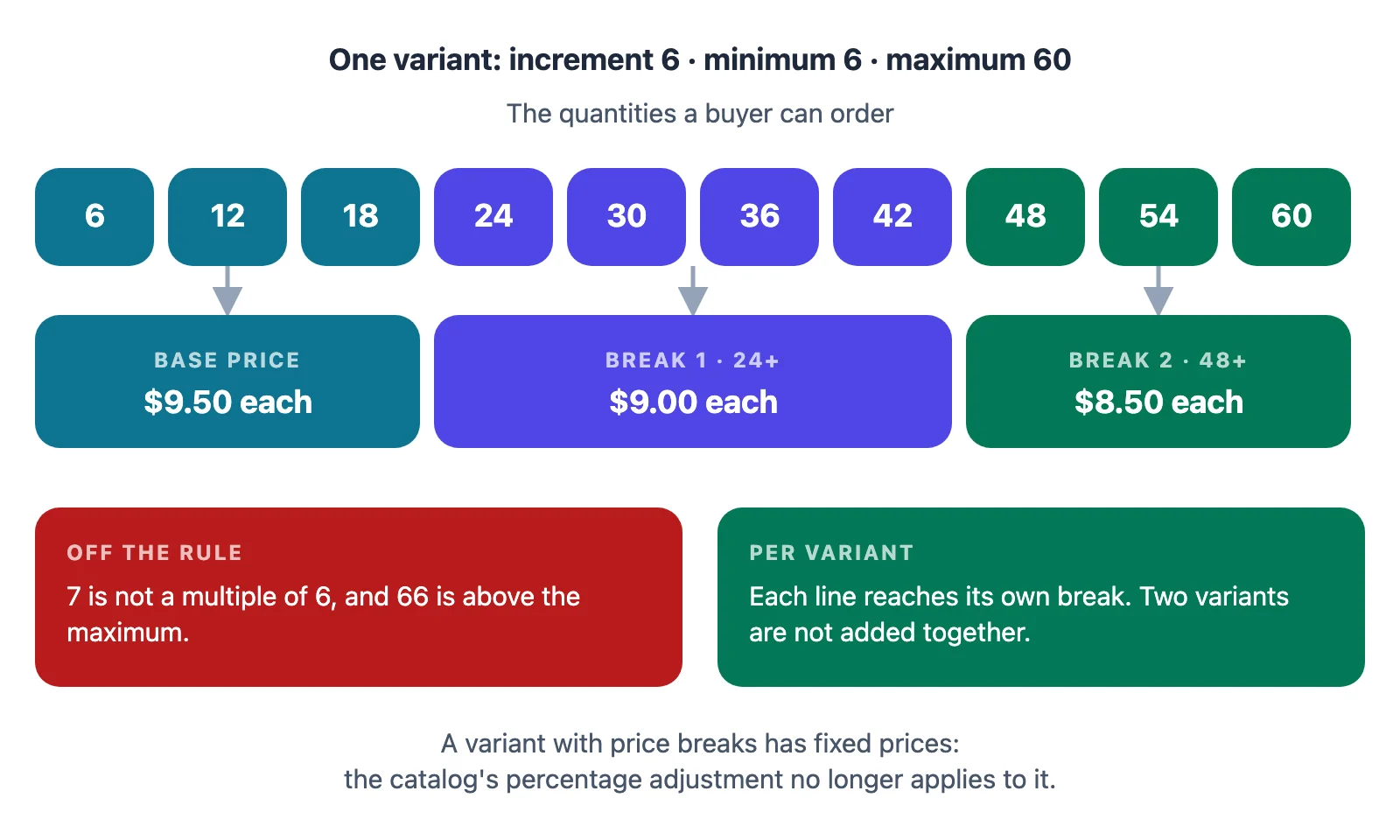
Everything is per variant. A buyer has to reach the quantity on each variant: 3 red and 3 blue don’t make a minimum of 6, and 24 of one size and 24 of another are two lines at 24, not one at 48.
The rules Shopify checks when you save
Shopify’s developer documentation lists the checks behind the admin form:
- The increment is a whole number of 1 or more, and no bigger than the minimum.
- The minimum is a multiple of the increment, and no bigger than the maximum.
- The maximum is a multiple of the increment.
- Every price break starts at or above the minimum, at or below the maximum, and on a multiple of the increment.
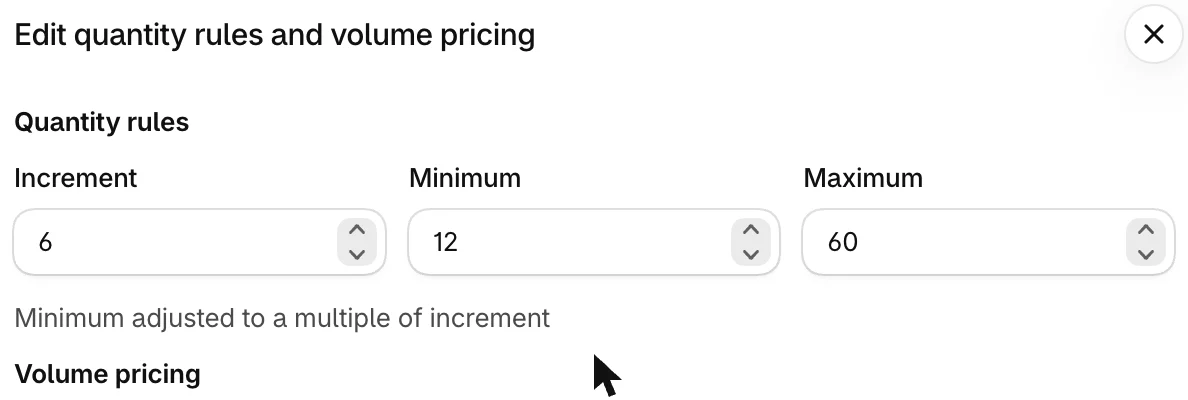
So a rule of “packs of 6, at least 8” can’t exist: the minimum has to be 6, 12, 18 and so on. On a test store, typing 8 into Minimum with an increment of 6 changed it to 12, with the note Minimum adjusted to a multiple of increment.
Volume pricing makes the price fixed
A catalog usually prices products with one percentage, for example 5% off. Volume pricing doesn’t stack on top of it. From Shopify’s Help Center: once you add volume pricing to a product, its price becomes fixed, and the catalog’s overall adjustment no longer applies to it.
In practice you set three prices for the variant: the price at the minimum, and one per break. In the example above, $9.50 is the price for 6 to 18 units, whatever the catalog’s percentage would have given.
Setting up quantity rules and volume pricing, step by step
The screenshots come from a test store. The catalog in them is assigned directly to two company locations, which is a Plus feature; below Plus, a catalog reaches buyers through a B2B market. The quantity rules and volume pricing screens are the same either way.
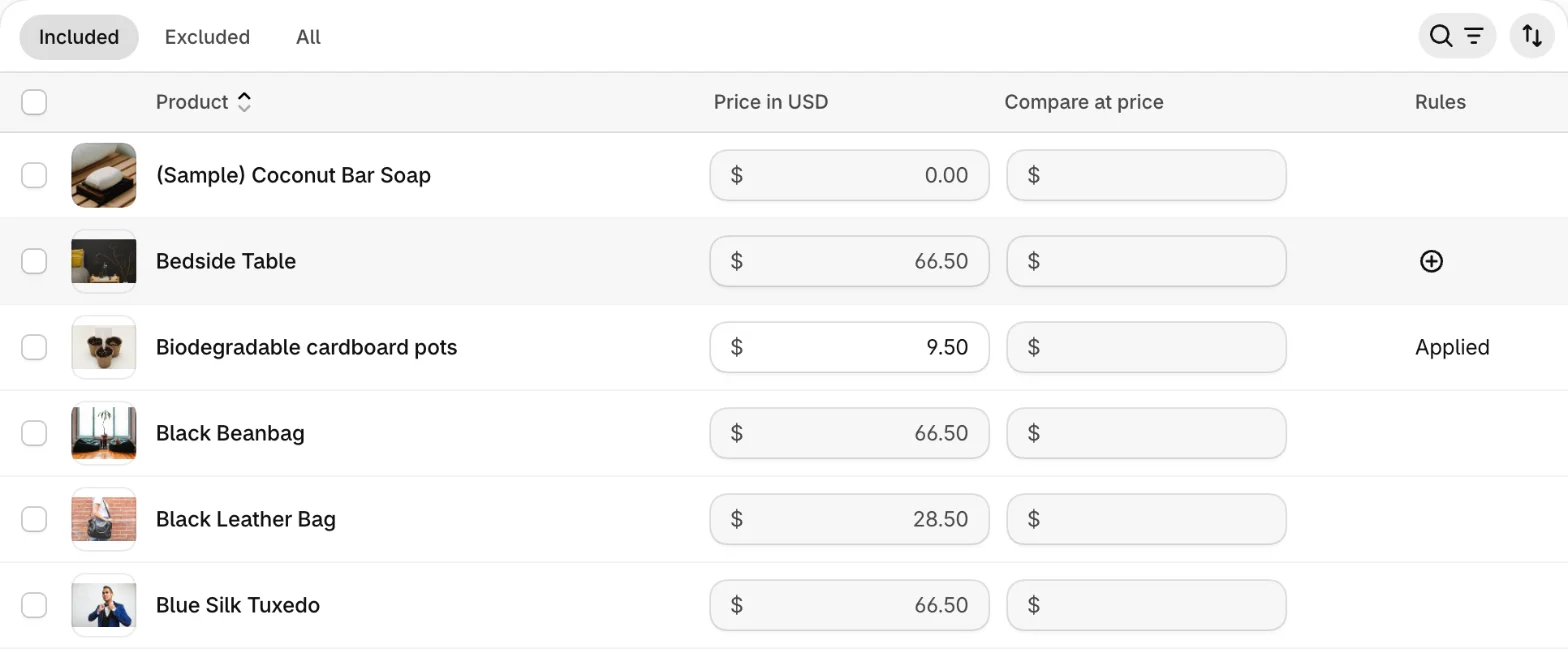
Step 1 — Open the catalog’s product list. Go to Markets → Catalogs and click the catalog. Its products are listed under Products, with a Rules column on the right. Hover over a product’s row and click the ⊕ in that column to add rules. A product that already has rules shows Applied.
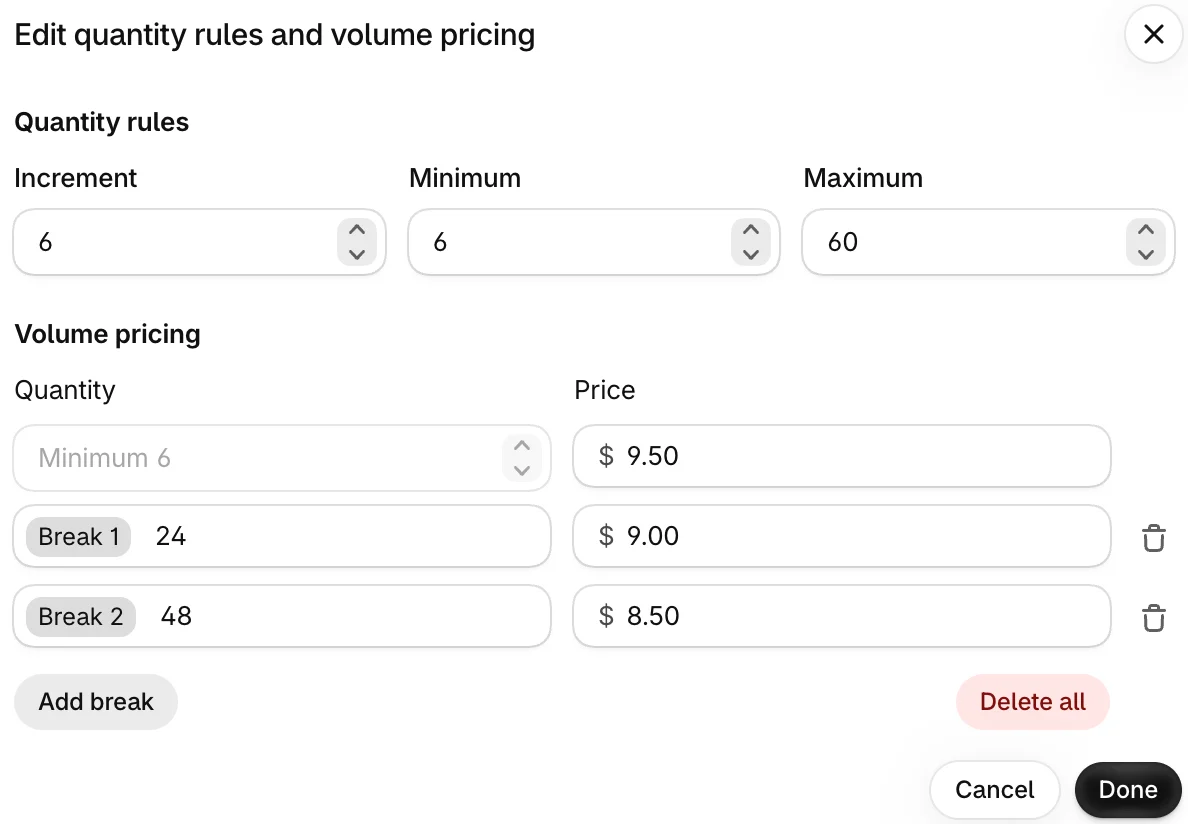
Step 2 — Enter the quantity rules. In Edit quantity rules and volume pricing, fill in Increment, Minimum and, if you want one, Maximum. For a case of six: increment 6, minimum 6. Leave Maximum empty unless stock or shipping really limits an order.
Step 3 — Add the price breaks. Under Volume pricing, the first row is the price at the minimum (here Minimum 6, $9.50). Click Add break, enter the quantity the break starts at and its unit price, and repeat for each break, up to 10. Click Done, then save the catalog.
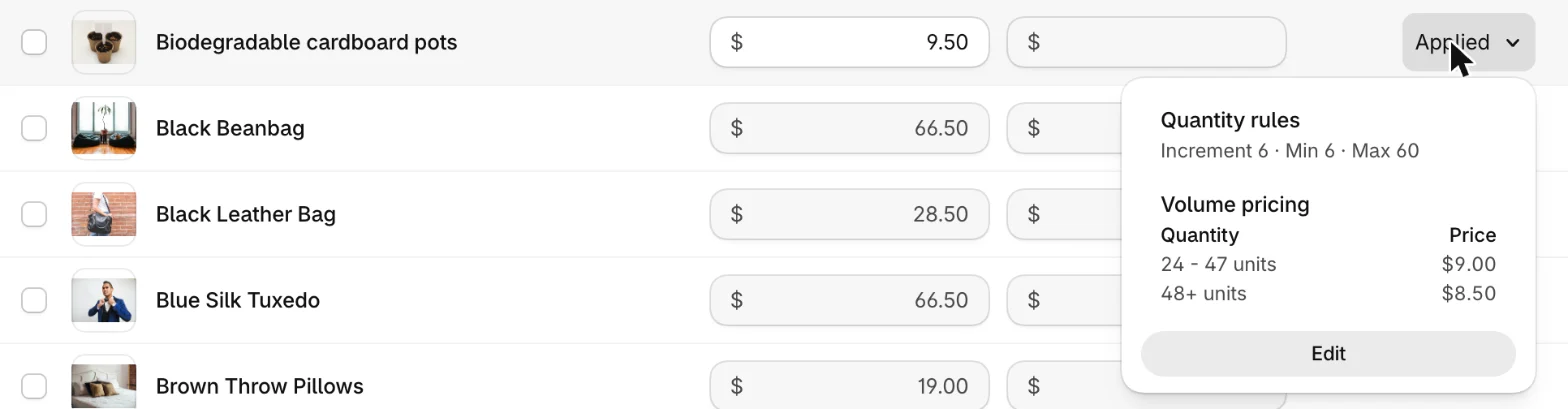
Step 4 — Check the summary. Click Applied in the Rules column. The summary shows the rule on one line and the breaks as quantity ranges, which is the quickest way to spot a typo.
For a product with several variants, Shopify’s Help Center says you can set the rules for all its variants from the product’s row, or open its variants and set each one. Price breaks are limited to 10 per product, applied to each variant.
Many products at once: CSV
A catalog’s Export file has a row per variant, with columns for the quantity rules (including Quantity Increment and Minimum Order Quantity) and up to 10 price breaks. Edit the file and Import it back into the same catalog. For a large range this is faster than the dialog.
When a buyer has several catalogs
A company location can have more than one catalog, and two of them can set different rules for the same variant. Shopify’s Help Center describes this for several catalogs assigned to the same location: the quantity rules and volume pricing come from the catalog with the lowest price for that variant. When two catalogs give the same price, they come from the catalog that was created first.
Two consequences:
- Rules travel with the price. If a promotional catalog undercuts your main catalog on a variant, the buyer gets the promotional catalog’s rules for it too, including no rules at all if it has none.
- Keep rules consistent across catalogs that can reach the same location. A case-pack rule set in one catalog and forgotten in the other will appear and disappear as prices change.
How Shopify chooses between catalogs for the price itself is covered in B2B catalogs and price lists.
What actually happens
Things we saw on a test store that the Help Center doesn’t spell out:
-
The admin corrects a minimum for you. A minimum that isn’t a multiple of the increment is rounded up as soon as you leave the field (8 became 12 with an increment of 6). Check the number before you click Done.
-
Breaks show as ranges. The summary turns breaks at 24 and 48 into “24 - 47 units” and “48+ units”. The price for quantities below the first break is the minimum row’s price.
-
Fixed prices stand out. In the catalog’s product list, prices worked out from the catalog’s percentage are grey, and fixed prices, including every variant with volume pricing, are black.
Showing rules to buyers
Shopify stores the rules; your storefront has to show them. The Help Center asks you to make sure your theme shows the minimum on the product page. Themes read each variant’s rule from Shopify’s quantity_rule object (minimum, maximum, increment). Before you rely on a rule, sign in as a test buyer on your own store and try a quantity that breaks it, in the product page, the cart and checkout. Shopify’s documentation describes what quantity rules restrict, but not what every theme shows when a buyer gets it wrong.
Choosing rules that work
This part is advice, not Shopify rules:
| You want | Set |
|---|---|
| Ship whole cases only | Increment = case size, minimum = case size |
| A minimum order value per product | Minimum only, increment 1 |
| Protect scarce stock | A maximum per order, as a multiple of the increment |
| Reward larger orders | 2–3 price breaks at round case counts (2 cases, 4 cases) |
Keep breaks few and far apart: three tiers are easy to remember and to quote; ten are not. And remember breaks never add variants together, so tier prices for a product sold in many sizes reward large orders of one size, not large orders overall.
Where Shopify stops
Quantity rules and price breaks reach buyers who order themselves through your store. A sales rep ordering for them needs the same rule and the same tier price for the location they’re ordering for, and a quote that follows them. Mify FieldB2B reads each location’s quantity rules and volume pricing from its Shopify catalog: the quantity control moves in steps of the increment, the cart prices each line at the break its quantity reaches, a line off its rule can’t be quoted, and the quote locks the tier price into the draft order. See quantity rules and volume pricing, quick order and quote discounts.
Frequently asked questions
Do I need Shopify Plus for quantity rules and volume pricing? No. Quantity rules (minimum, maximum, increment) and volume pricing are available on every plan with B2B: Basic, Grow, Advanced and Plus. They are set in a catalog.
How many price breaks can a product have in Shopify B2B? Up to 10 per product, applied to each variant. Each break starts at or above the minimum and on a multiple of the increment.
Can the minimum be any number when I sell in packs? No. The minimum has to be a multiple of the increment, and so does the maximum. With an increment of 6, the minimum can be 6, 12, 18 and so on.
Do different variants count together towards a minimum or a price break? No. Quantity rules and price breaks apply to each variant on its own. Three red and three blue don’t meet a minimum of six.
Does the catalog’s percentage discount apply to a product with volume pricing? No. Once a product has volume pricing, its prices are fixed and the catalog’s overall adjustment no longer applies to it.
Which quantity rules apply when a company location has two catalogs? The rules and price breaks come from the catalog with the lowest price for that variant; on a tie, from the catalog created first.