Turn on the buyer portal and invite buyers
Available on: Starter, Growth, Business
The buyer portal gives your customers their own sign-in to browse your catalog at their company’s agreed prices and place orders themselves.
- Buyer orders arrive in Shopify as draft orders for you to approve. Buyers never pay in the portal.
- Buyers can’t change prices or discounts.
- The company’s assigned rep still earns their usual commission.
Check it’s turned on
The buyer portal is on unless you turned it off.
- Open Settings in the app.
- Under Buyer self-service portal, make sure Let buyers sign in and order themselves is ticked. If you change it, click Save.
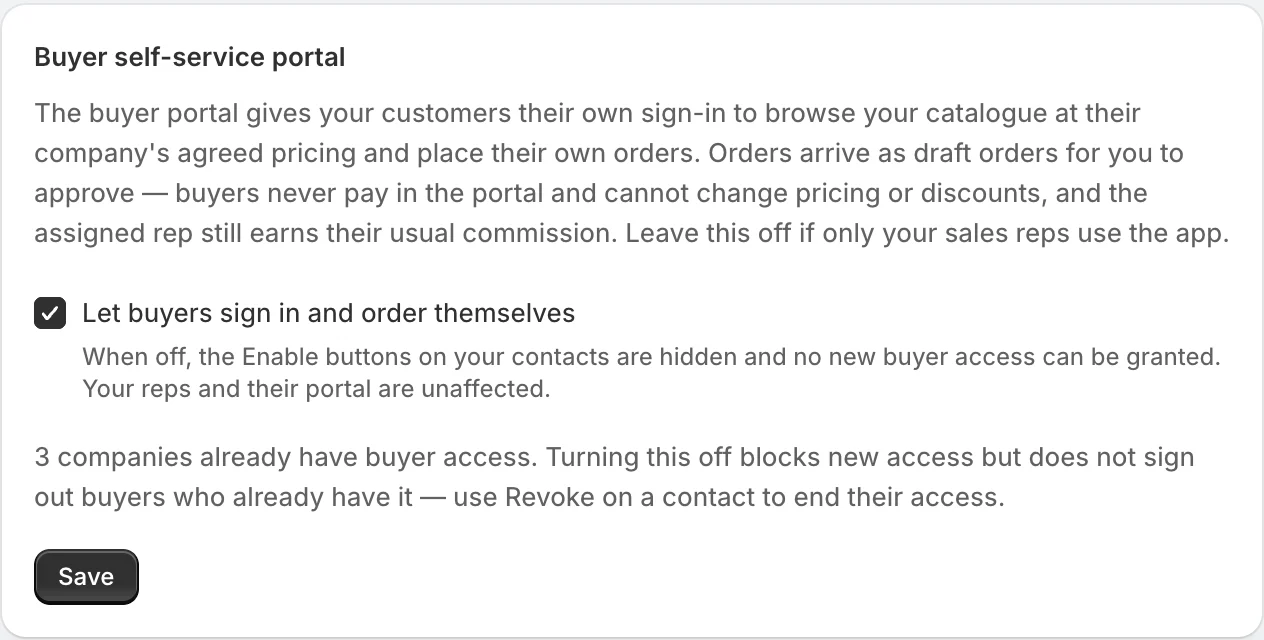
When it’s off, the Enable buttons are hidden and nobody can be given new access. Buyers who already have access keep it until you revoke them.
Before you invite a buyer
- The buyer must be a contact at a company.
- The company must have an assigned rep. Otherwise you’ll see “Assign a rep to this company first”. See Assign reps to companies.
- Your plan must include the buyer portal and have room for the company. See Plans and limits compared.
Invite a buyer
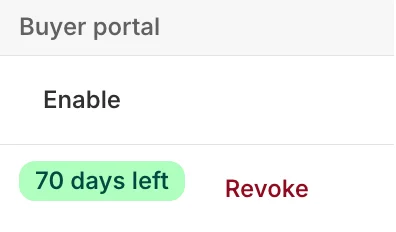
From the app: open Companies, open the company, and click Enable next to the contact in the Buyer portal column. A contact who has access shows how many days their link has left, and a Revoke link.
From the rep’s portal: the Companies page has a Buyer portal access button that lists the contacts at the rep’s companies.
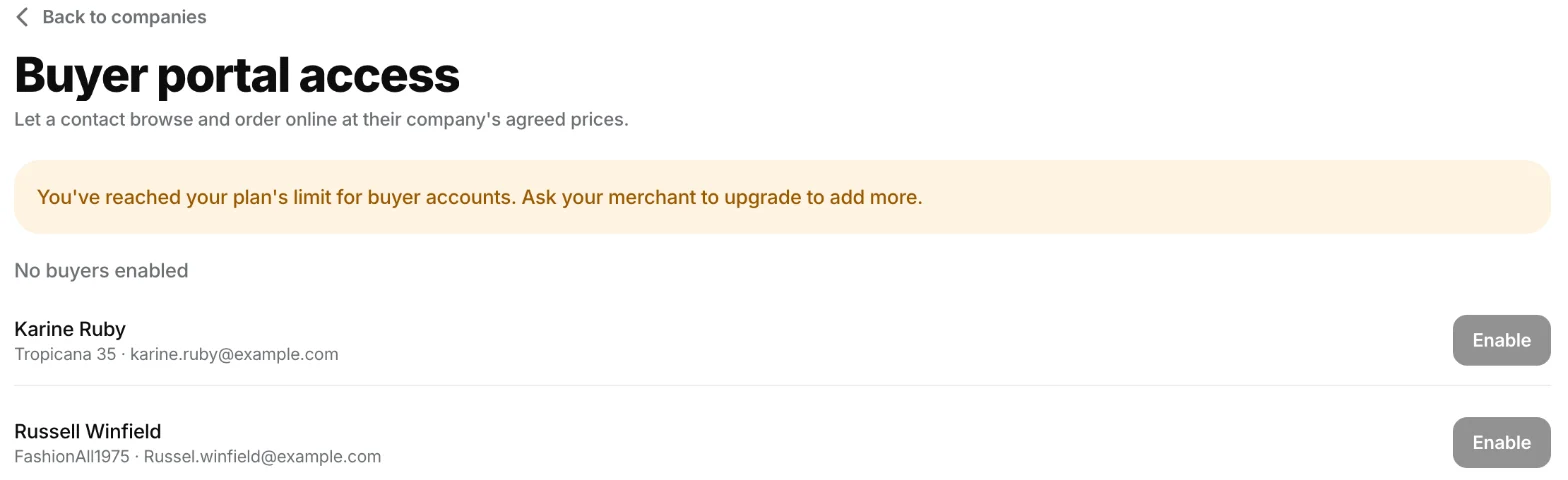
- The rep opens Buyer portal access and finds the contact.
- They click Enable. The portal shows Their login link.
- They share it in one of three ways:
- Email it, which opens the rep’s own email app with a message ready.
- Copy link.
- Let the buyer scan the QR code.
The link is the buyer’s sign-in, with no password. Give it only to that contact.
What buyers see
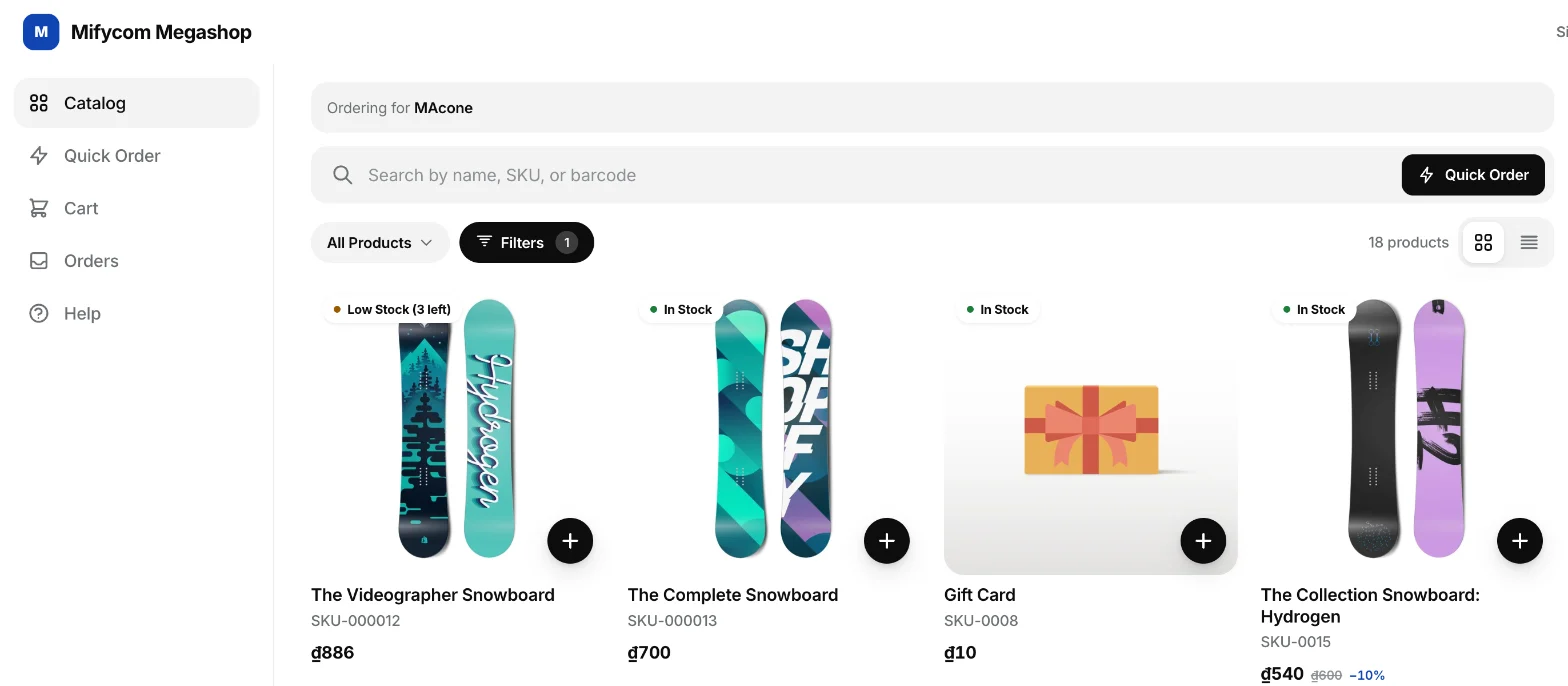
Buyers get their own portal with your catalog at their company’s prices, a cart, Quick Order for pasting a list of SKUs, their Orders and a Help page.
How long a link lasts
A link works for 90 days. The rep sees how many days are left next to each buyer. Links expiring soon are listed on the rep’s Buyer portal access page and on your dashboard.
To give a buyer a fresh link, click Send link. Older links keep working until they expire.
To end a buyer’s access, click Revoke. Every link sent to that contact stops working immediately.
A buyer who opens an expired or revoked link sees “This link is no longer valid. Ask your sales rep to send you a new one.”
Related
Related articles
- Install FieldB2B and choose a planInstall Mify FieldB2B from the Shopify App Store and choose a plan, which you need to do before you can use the app.
- Add a sales rep and give them accessCreate a sales rep in FieldB2B, set their commission and discount limit, and share their login.
- Choose a company mode: Shopify B2B sync or app-managedDecide whether FieldB2B reads your B2B companies from Shopify B2B or manages them in the app, and what each mode syncs.