Shopify B2B Checkout Settings Explained: Order Approval, Ship-To Addresses and Payment
A B2B buyer’s checkout looks like a normal Shopify checkout, but two settings on their company location decide what it does: whether the order goes straight through or waits for your approval, and whether the buyer can send it to an address that isn’t the location’s. Get them wrong and you either approve every order by hand when you didn’t need to, or ship a wholesale order to an address nobody checked.
This guide covers both settings, what the buyer sees at checkout, which payment and shipping options B2B buyers get, and how to change the settings for one location or many companies at once. The checkout settings are on every plan with B2B: Basic, Grow, Advanced and Plus. It is part of The Shopify B2B Playbook.
Where the settings live
Checkout settings belong to the company location, next to its payment terms. You can set them in three places:
| Where | Path | Changes |
|---|---|---|
| One location | Customers → Companies → company → location → Checkout ✎ | That location |
| A whole company | The company page → Checkout ✎ | Every location of the company |
| Many companies | Companies list → tick companies → ⋯ → Edit checkout settings | Every location of the selected companies |
There are two settings:
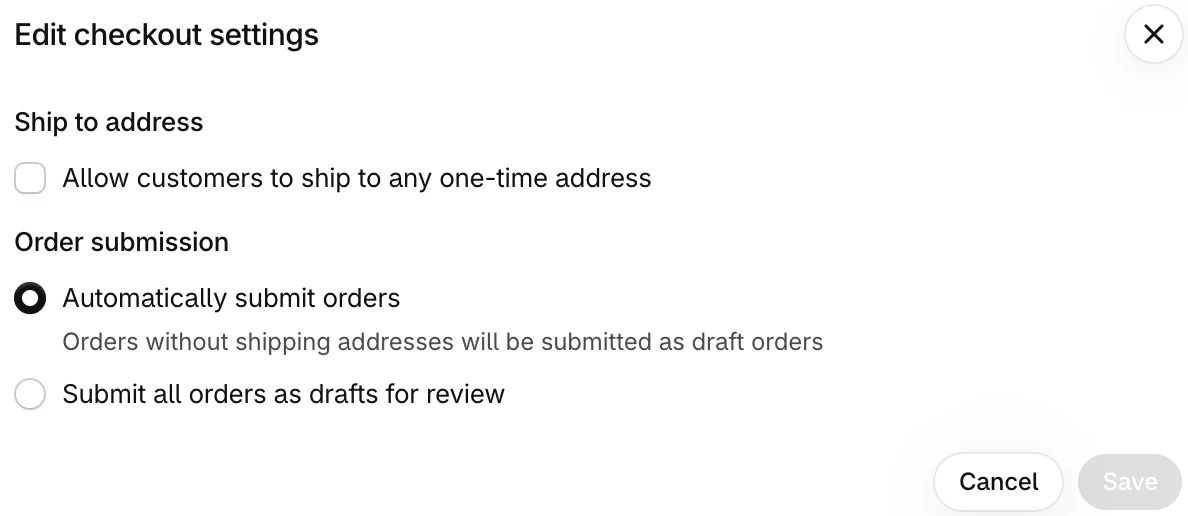
- Ship to address: Allow customers to ship to any one-time address, off by default.
- Order submission: Automatically submit orders or Submit all orders as drafts for review.
Payment terms and deposits sit next to them on the location; they are covered in payment terms and deposits.
Ship to address
By default a buyer can only ship to the location’s shipping address. It’s filled in at checkout and can’t be changed. That is usually what you want: the location’s address decides its market, its taxes and its prices, so a buyer who can type any address can send goods somewhere you never checked.
Tick Allow customers to ship to any one-time address and the buyer can enter a different address at checkout. From Shopify’s Help Center: the address is used for that order only and isn’t saved to the location, a location keeps one saved shipping address, and the buyer can’t change the address after placing the order.
For a site that receives goods regularly, add it as its own location instead (see companies, locations and contacts). It then gets its own address, terms and catalogs, and its orders are reported under it.
Order submission
Automatically submit orders creates an order as soon as the buyer finishes checkout. Submit all orders as drafts for review turns every checkout into a request: Shopify creates a draft order in Orders → Drafts, and nothing is charged at checkout.
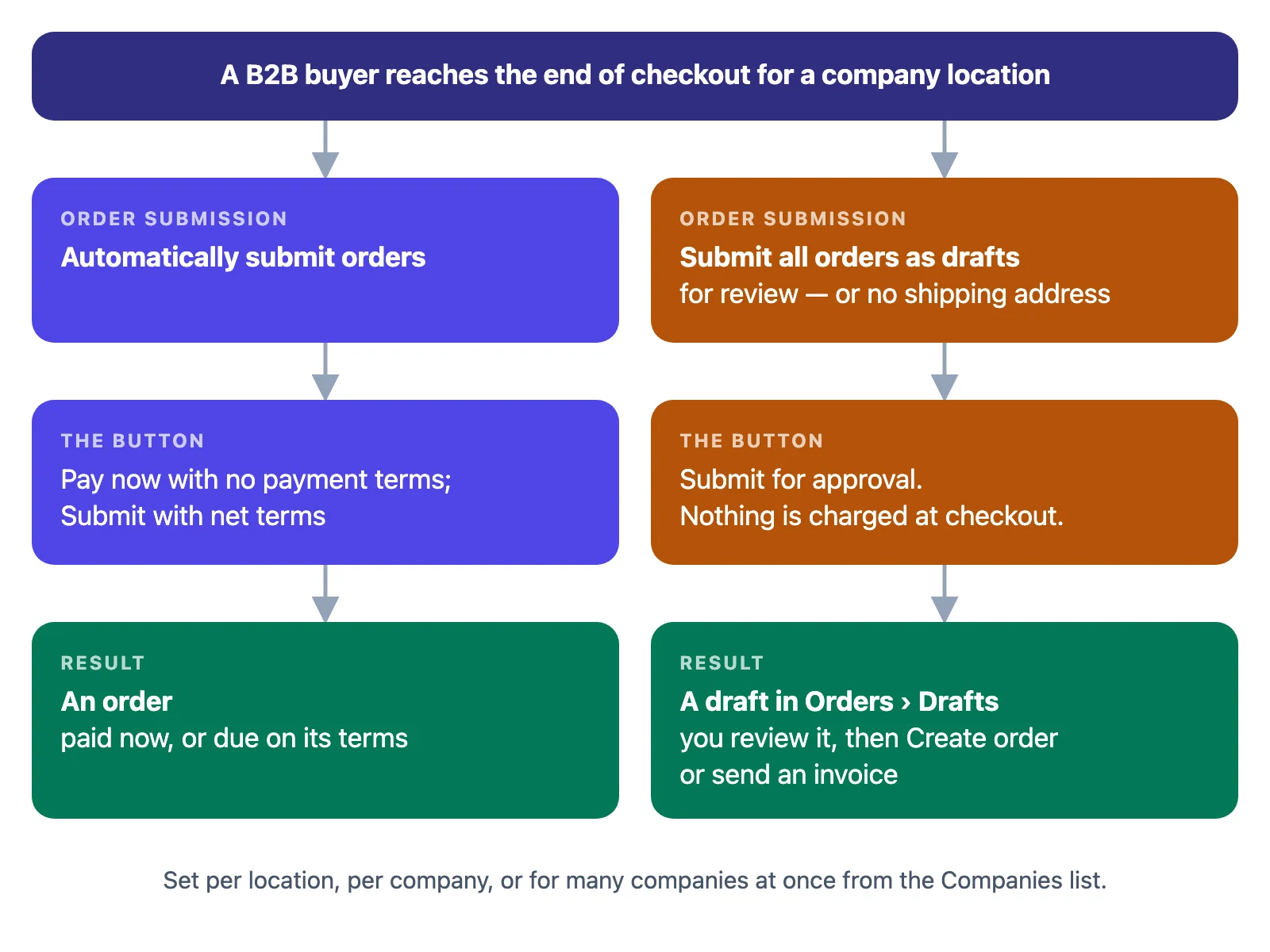
From Shopify’s Help Center, a draft submitted this way works like this:
- The buyer sees Submit for approval, and a note that payment is due once the order is confirmed.
- Prices on the draft are locked.
- You open it in Orders → Drafts, check it, and click Create order, or send an invoice for the buyer to pay. A saved card can be charged from the draft.
- Manual payment methods (bank transfer, check, cash) aren’t offered at the first checkout; they appear once you send the invoice.
- On Plus, a deposit is shown at checkout but not captured; you collect it after you confirm.
Use drafts for review when every order needs a human check first: stock, freight on heavy orders, credit limits. For trusted accounts on net terms, automatic submission saves you a step on every order.
What the buyer sees at checkout
- The location’s addresses, filled in. Shipping and billing come from the location. The shipping address is locked unless you allow one-time addresses.
- A button that matches the setup. Pay now with no payment terms, Submit with net terms, Submit for approval when the location sends orders as drafts.
- A PO number field, so buyers can match your invoice to their purchase order.
Payment methods
From Shopify’s Help Center:
| Method | B2B checkout |
|---|---|
| Cards through Shopify Payments, saved (vaulted) cards, ACH in the US | Yes |
| Third-party payment providers | Yes |
| Apple Pay, PayPal | Yes, but not their accelerated (express) checkout buttons |
| Manual methods: bank transfer, check, cash, money order | Yes, but not on orders with payment terms, or at the first checkout of a draft for review |
| Shop Pay, Shop Pay Installments, Shop Cash | No |
| Gift cards | Off by default; Plus only, on request to Shopify Support |
Payment methods are set store-wide, not per location. To hide a method from some buyers you need a payment customization (an app or a Shopify Function).
Shipping methods
- Each B2B market needs shipping zones. If a B2B market has none in your shipping profiles, its buyers see no shipping options at checkout.
- No local delivery or Shop Promise at B2B checkout. You can still pick local delivery on a draft order you create yourself.
- Pickup in store is off by default for B2B. Shopify Support can turn it on; it then shows to all B2B buyers for that location.
- On a draft with a shipping method already set, the buyer can’t change it at checkout.
Changing checkout settings, step by step
The screenshots come from a test store; nothing was saved.
Step 1 — Open the location. Go to Customers → Companies, click the company, then the location under Locations. In the right-hand column, the Checkout card shows the current settings, for example Ship to location address and Automatically submit orders, just under Payment terms.
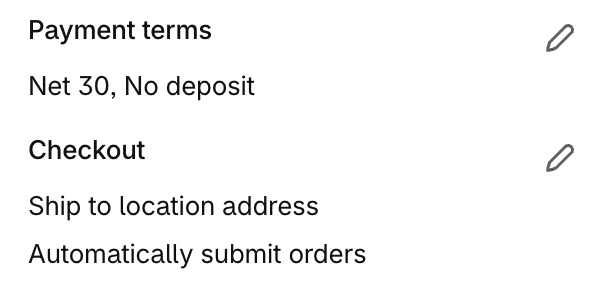
Step 2 — Edit the settings. Click the pencil on Checkout. In Edit checkout settings, tick or untick Allow customers to ship to any one-time address, choose Automatically submit orders or Submit all orders as drafts for review, and click Save.
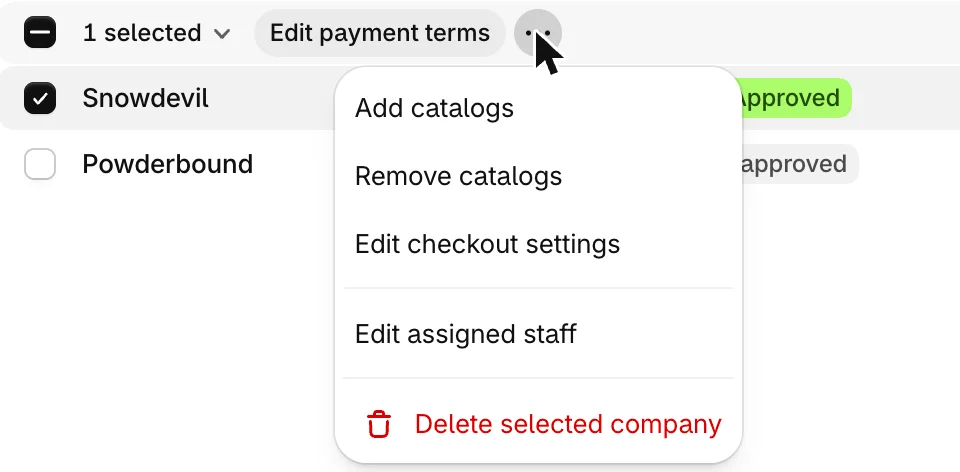
Step 3 — Or change many companies at once. In the Companies list, tick the companies, click ⋯ next to Edit payment terms, and choose Edit checkout settings. The same two settings apply to every location of the selected companies.
When you create a new location, Copy an existing location copies the checkout settings along with its customers, catalogs, payment terms and tax settings.
What actually happens
Things we saw on a test store:
- No shipping address means a draft. With Automatically submit orders selected, the admin notes Orders without shipping addresses will be submitted as draft orders. A location saved without a shipping address therefore behaves as if it were set to drafts. Give every location an address.
- Mixed settings show as “Mixed”. When a company’s locations have different settings, the company page’s Checkout card says Mixed ship to setting. The Locations list on the company page shows each location’s terms and submission on one line, for example “Net 30 · Automatically submit orders”, which is the quickest way to audit them.
- A draft order you send still ships to the location. On a draft order tied to a company location, the checkout used the location’s address even with one-time addresses allowed. See draft orders for wholesale.
Plan differences
The two checkout settings, net terms, saved cards, ACH, PO numbers and checkout to draft are on every plan with B2B. What changes by plan:
| Feature | Plan |
|---|---|
| A different B2B checkout per market (contextual checkout through Markets) | Advanced and Plus |
| Deposits on company locations and draft orders | Plus only |
| Gift cards and abandoned checkouts for B2B | Plus only, on request to Shopify Support |
See B2B features by plan for the full table.
Choosing settings per account
This part is advice, not Shopify rules:
| Account | Ship to address | Order submission |
|---|---|---|
| Trusted, on net terms, one delivery address | Location only | Automatically submit |
| New account, or near its credit limit | Location only | Drafts for review |
| Orders often need freight quoted | Location only | Drafts for review |
| Contractor delivering to changing job sites | One-time addresses | Drafts for review, so you check each address |
| Chain with fixed branches | Location only, one location per branch | Automatically submit |
Start strict and loosen per account. Moving an account from drafts to automatic is a single setting; recovering a shipment sent to the wrong address is not.
Where Shopify stops
Checkout settings shape the orders buyers place themselves. When a sales rep orders on their behalf, the order is a draft order: Shopify ships it to the company location on the draft, and the buyer can’t pick another one at checkout. Mify FieldB2B turns a rep’s cart into a Shopify draft order at the location’s prices, and two settings cover ship-to: the customer can choose another of their company’s locations, or type a new address, on the quote’s payment page; and a rep can add a new ship-to address when creating the quote, which FieldB2B adds to the company as a location. See how a rep creates a quote, letting customers choose where a quote ships and letting reps add a ship-to address.
Frequently asked questions
How do I make Shopify B2B orders wait for my approval? Set the company location’s order submission to Submit all orders as drafts for review. Buyers then see Submit for approval, and each checkout creates a draft order you review and turn into an order. It’s available on every plan with B2B.
Can B2B buyers ship to a different address at checkout? Only if the location allows it. Tick Allow customers to ship to any one-time address in the location’s checkout settings; the address applies to that order only and isn’t saved.
Why did a B2B order arrive as a draft when the location auto-submits orders? With Automatically submit orders, an order without a shipping address is submitted as a draft. Check that the location has a shipping address.
Can I change checkout settings for many companies at once? Yes. In the Companies list, select the companies, open the ⋯ menu and choose Edit checkout settings.
Can B2B buyers use Shop Pay? No. Shop Pay, Shop Pay Installments and Shop Cash aren’t available at B2B checkout. Cards, saved cards, ACH in the US, Apple Pay and PayPal (without their express buttons) and manual methods are.