Shopify B2B Companies, Locations and Contacts: How to Model Your Wholesale Customers
Every other part of Shopify B2B — catalogs, prices, payment terms, checkout — attaches to the way you model your customers. Get the model right and the rest is configuration. Get it wrong and you end up with one “location” holding five addresses, buyers who can’t order for the branch they manage, and draft orders Shopify refuses.
This guide covers the three objects, what lives on each, the limits, and how to model the customer shapes you’ll actually meet. Everything here works on every plan with B2B: Basic, Grow, Advanced and Plus. It is part of the Shopify B2B Guide.
Three objects
Company — the business you sell to. It has a name (buyers see it when they sign in), an optional company ID for your own reference, notes and metafields. On its own it doesn’t buy anything.
Company location — the place that orders. Almost every B2B setting lives here:
- name and an optional location ID
- shipping address and billing address
- tax ID, tax settings and exemptions
- catalogs (which products, at what prices)
- payment terms
- checkout settings: whether buyers may ship to a one-time address, and whether orders go through automatically or as drafts for your review
- the contacts allowed to order for it
Contact — a customer who buys on behalf of the company, linked to one or more of its locations with a role at each.
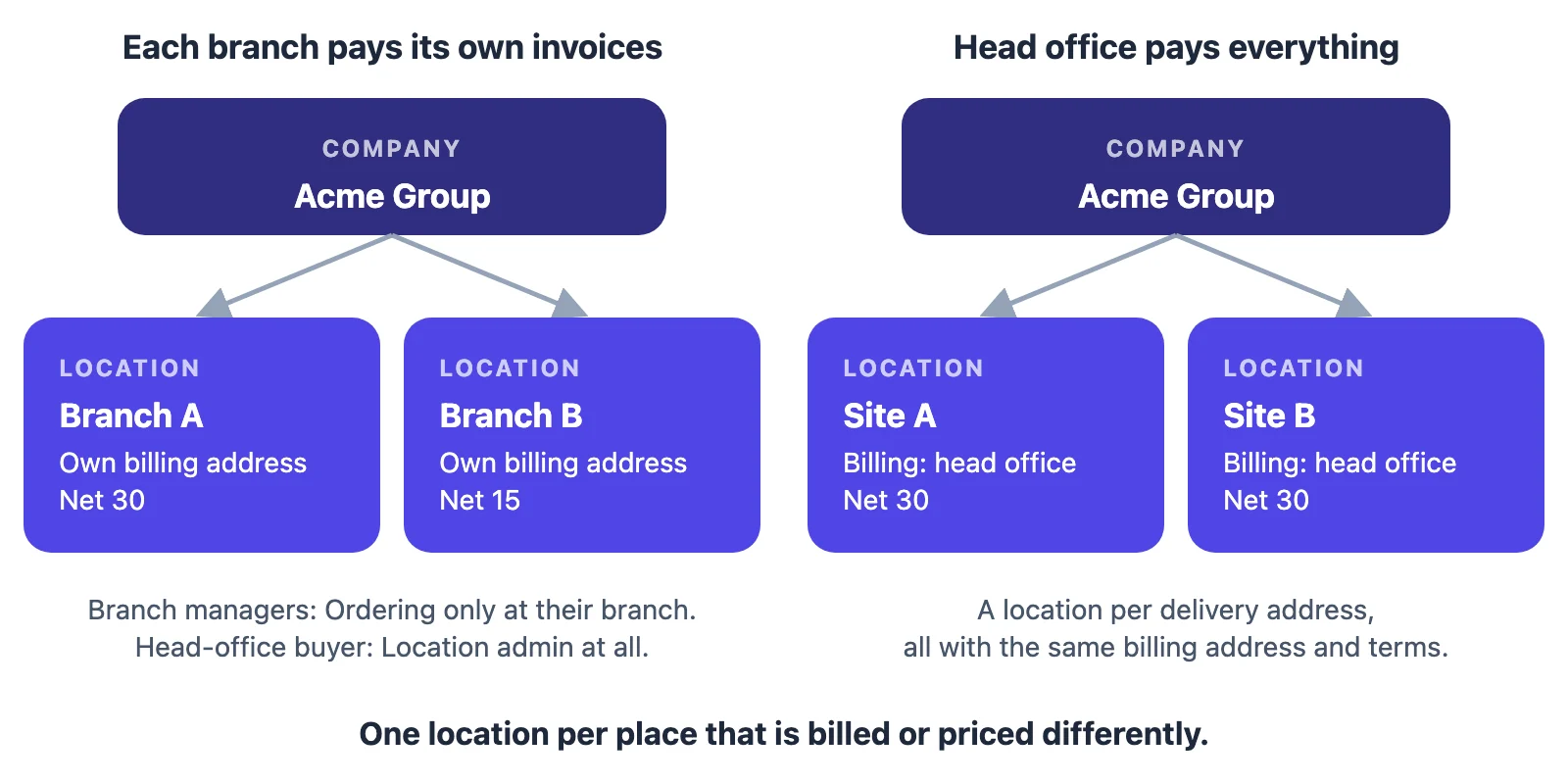
Rule of thumb: one location per place that is billed or priced differently. A company with twelve branches that each receive their own invoice is twelve locations, not one location with twelve addresses.
Limits to know
From Shopify’s Help Center:
| Limit | Value |
|---|---|
| Companies | unlimited |
| Locations per company | 10,000 |
| Customers per company | 10,000 |
| Customers per location | 50 |
| Catalogs per location | 25 |
| Companies per customer | 1 |
The last one surprises people. A customer can be a contact at many locations of one company, but not at two companies. If the same person really buys for two businesses, they need two customer profiles — and since two customers can’t share an email address, Shopify suggests a “+” address (for example jane+acme@…) for the second one.
Contacts and roles
A contact’s access is set per location, with one of two roles:
| Role | Can do |
|---|---|
| Ordering only | Place orders for that location and see their own order history |
| Location admin | Place orders, see every order placed for that location, and edit its billing and shipping addresses |
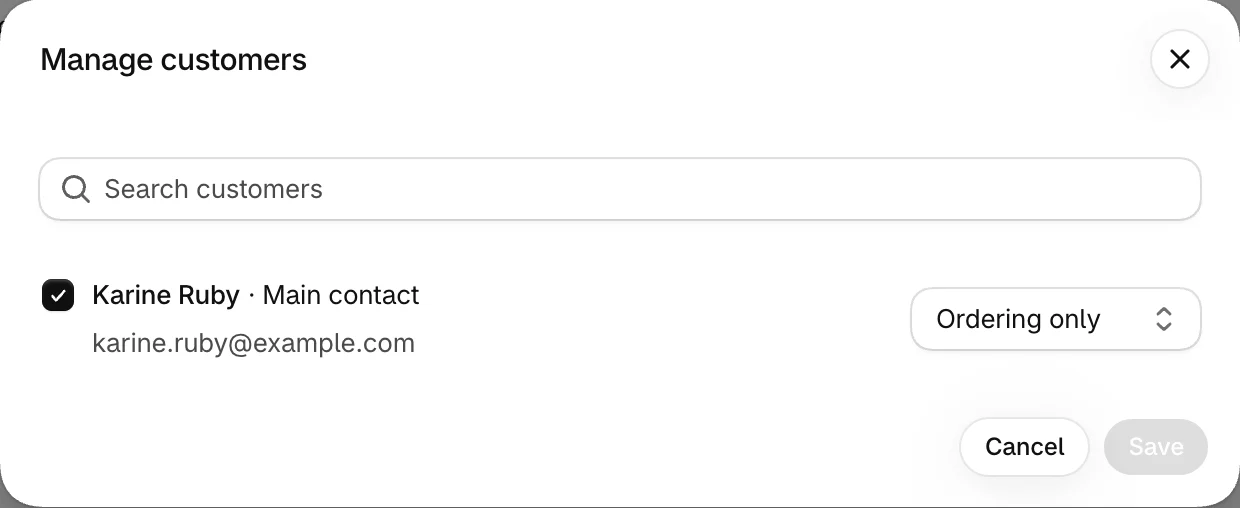
The same person can be Location admin at one location and Ordering only at another. When you create a company, its main contact gets Ordering only by default — on our test store the main contact showed exactly that — so promote them if they should manage the location.
What actually happens: no role, no order
Shopify enforces the role on every B2B order, including draft orders you build for the buyer. A draft for a contact at a location where they have no role is rejected with “No role assigned for company location”. We hit this repeatedly on test stores: a buyer who orders for three sites needs a role at all three.
Creating a company, step by step
Step 1 — Open Companies. In the Shopify admin, go to Customers → Companies and click Add company (top right). The list shows each company’s ordering status, number of locations and main contact.

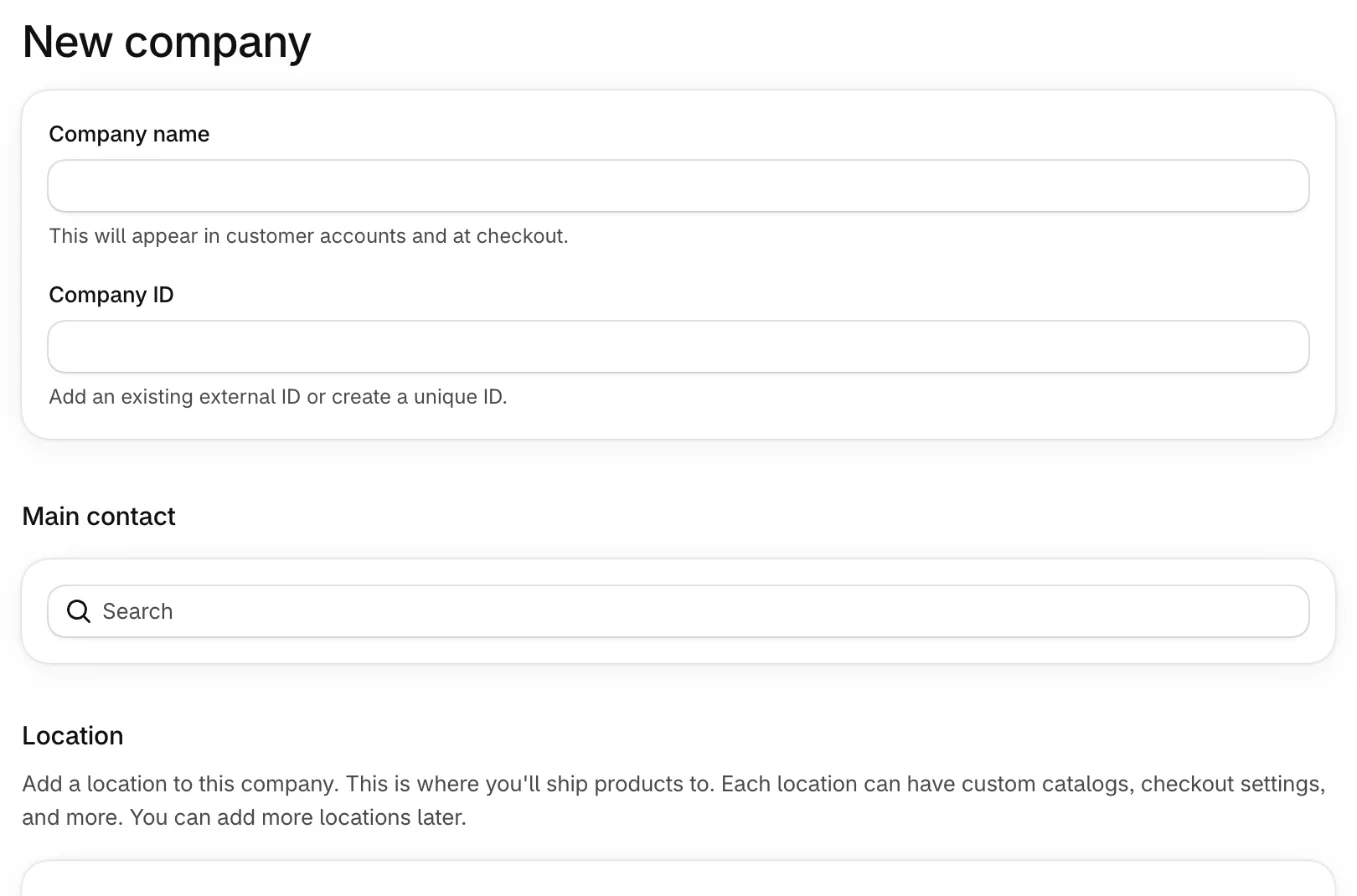
Step 2 — Name the company and pick its main contact. The company name appears in customer accounts and at checkout. The company ID is optional: use your ERP or accounting system’s customer number if you have one. Search for the main contact among your customers, then add the first location further down the same form.
Step 3 — Add the other locations. From the company page, add a location for every place that orders. Three things we noticed on a test store:
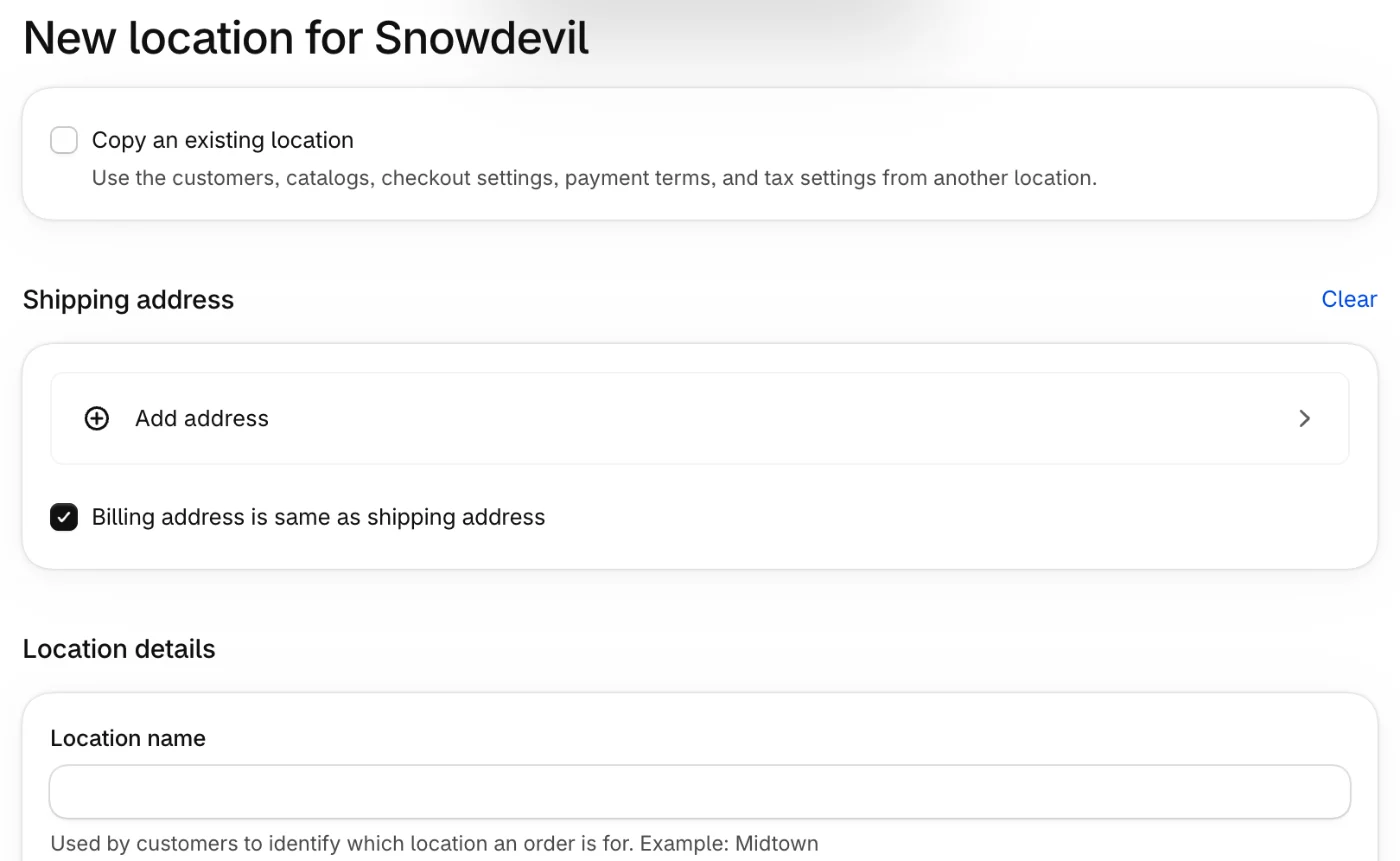
- “Copy an existing location” at the top of the form copies the customers, catalogs, checkout settings, payment terms and tax settings from another location. Use it for every new branch of an existing account; it’s the easiest way to keep branches consistent.
- The shipping address is optional, but don’t skip it. A location saved without one was created fine — and landed in the market for the store’s own country, not the market for where the buyer is. A location’s country decides its market, and so its currency and catalogs.
- The location name is what buyers see. The form says it’s used by customers to identify which location an order is for. “Acme — Airport Hotel” beats “Location 2”.
Step 4 — Give each contact a role at the location. On the location’s page, open the ⋯ menu on the Customer card and choose Manage customers. Tick the customers who may order for this location and pick Location admin or Ordering only for each, then click Save. Repeat on every location the person orders for.
Adding existing customers
You can add a customer who already shopped with you as a consumer. Shopify offers to move their existing orders to the location. Only consumer orders move — canceled or deleted ones don’t — and it’s all or nothing, not a selection. If you remove a customer from a company later, they become an ordinary consumer again.
A customer linked to a company location gets the B2B experience when they sign in. Any customer who isn’t is a consumer and sees your regular store. Buyers sign in with new customer accounts (email and a one-time code); legacy accounts can’t be used for B2B. Sign-in, invitations and restricting the store are covered in customer accounts and store access.
Buyers with several locations
When a buyer has access to more than one location, they choose the location they’re buying for after signing in, and every price, catalog and term follows that choice. Name locations so the choice is obvious.
Letting businesses apply: account requests
Instead of creating every company yourself, you can add a company account request form to your store. Each request creates a company that can’t order until you approve it; the Companies list has an “Ordering not approved” view and an Ordering column showing which companies are approved. You approve by assigning the contact to locations with permissions, and reject by deleting the company.
Importing in bulk
Shopify has no native CSV import for companies. Its Help Center points to a third-party import app for bulk loads of companies and locations. For a few dozen accounts, creating them by hand with “Copy an existing location” is often quicker than preparing an import file.
Deleting
Deleting a company deletes all its locations; its customers are removed from it but stay in your customer list. A company that has orders can’t be deleted.
Models that work
| Customer shape | Model |
|---|---|
| Single shop | 1 company, 1 location, 1–2 contacts (owner as Location admin) |
| Chain, each branch pays its own invoices | 1 company, a location per branch with its own billing address and terms; branch managers Ordering only at their branch, a head-office buyer Location admin at all |
| Chain, head office pays everything | 1 company, a location per delivery address, all with the head office as billing address and the same terms |
| Branches priced differently (e.g. two countries) | Separate locations; each location’s country sends it to the right market |
| Same person buying for two businesses | Two companies, two customer profiles (one company per customer) |
Where Shopify stops
The company model is built for buyers ordering for themselves. When your sales reps order on their behalf, they need to see which company, which location and which contact — with that location’s prices. Mify FieldB2B syncs your Shopify companies, locations and contacts, lets you assign reps to companies, and puts the location on every quote. It copies each contact’s roles, and when a rep quotes at a location where the contact has no role, it says so and still creates the draft at that location’s prices, for the person only — so Shopify doesn’t refuse it. See choosing a company mode, assigning reps to companies and company locations on quotes.
Frequently asked questions
Can a customer belong to more than one company in Shopify B2B? No. A customer can be added to only one company, though to many locations within it. For a second company, create a second customer profile with a different email address.
What is the difference between Location admin and Ordering only? Ordering only places orders and sees their own order history. Location admin also sees every order placed for that location and can edit its billing and shipping addresses. Roles are set per location.
How many locations can a Shopify B2B company have? Up to 10,000 locations and 10,000 customers per company, with up to 50 customers and 25 catalogs per location.
Can I import companies from a CSV file? Not natively. Shopify’s Help Center points to a third-party import app for bulk imports of companies and locations.
Do I need Shopify Plus to use companies and locations? No. Companies, locations, contacts and roles work on Basic, Grow, Advanced and Plus.