International Wholesale with Shopify Markets: Currency, Catalogs and Taxes for B2B
Selling wholesale abroad on Shopify isn’t a separate feature. It’s the same companies, catalogs and checkout, sorted by markets. A market decides which currency a buyer sees, which catalog prices them, which taxes and shipping rates apply. For a B2B buyer, the market comes from one thing: the shipping address of their company location.
This guide covers what a B2B market is, how Shopify decides which market a location belongs to, how currency, taxes, shipping and draft orders follow from it, and how to set one up step by step. B2B markets are on every plan with B2B: Basic, Grow, Advanced and Plus. A different storefront or checkout per market needs Advanced or Plus. It is part of The Shopify B2B Playbook.
What a market is
A market is a group of buyers defined by conditions. When you add a condition, Shopify offers four kinds:
| Condition | Who it covers |
|---|---|
| Regions | Everyone in the chosen countries, consumers and B2B buyers alike |
| Company locations | B2B buyers: specific company locations, or all of them in chosen regions |
| POS locations | Sales at your retail locations |
| Channels | Buyers on a given sales channel |
A market with a Company locations condition is a B2B market. For each market you can customize the currency, the catalogs, taxes and duties, shipping, the theme and the checkout. Whatever a market doesn’t set, it inherits.
There are three ways to include company locations, from Shopify’s Help Center:
- All company locations in all regions: one market for every B2B buyer.
- All company locations within a region: every location whose shipping address is in the chosen regions, including locations you add later.
- Specific company locations: the locations you tick, wherever they ship.
Which market a location lands in
A company location can match several markets at once. Shopify uses its shipping address to decide. The Help Center’s example: a location shipping to Canada matches the Canada region market, a B2B market for all locations, a B2B market for all locations in Canada, and a market that names it. Move its address to Japan and it matches the Japan markets instead.
When several match, the most specific market wins. Shopify’s developer documentation gives the order: company location markets first (one that names the location before one for all locations), then retail locations, then regions. A location that matches nothing gets your store’s backup region.
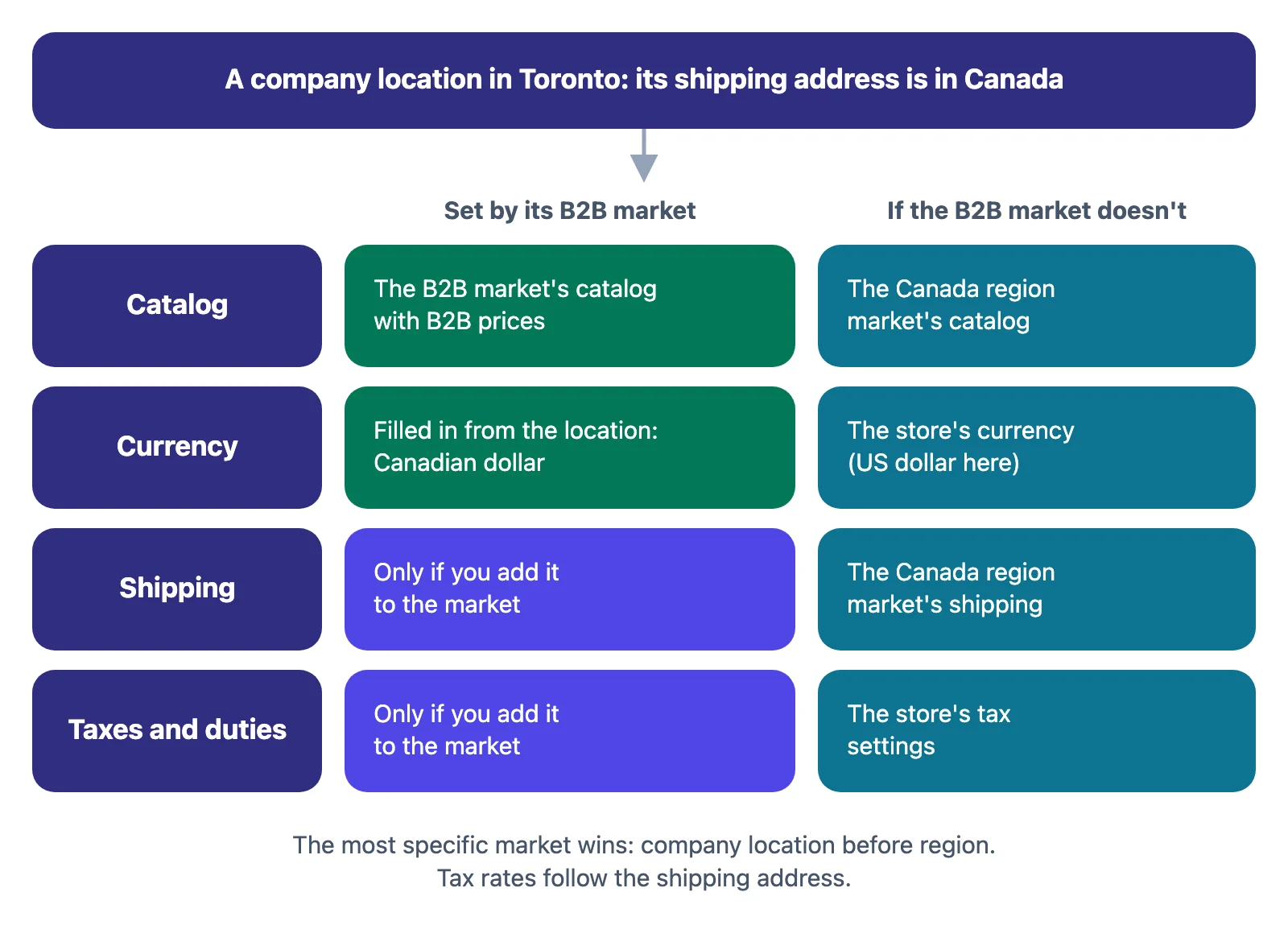
The catalog works the same way. A B2B buyer gets the catalogs of the most specific level that has any; if no B2B market gives them one, they fall back to the region market’s catalog, which is your retail price. The full order is in B2B catalogs and price lists.
Currency
The buyer sees prices in the market’s currency. From Shopify’s Help Center:
- A market’s currency is, by default, the currency of its region. You can pick another one for the market.
- Prices are converted with automatic currency conversion or a rate you set, and you choose whether converted prices are rounded.
- The catalog’s currency doesn’t change what buyers see. Buyers always see the market’s currency. The catalog’s currency and prices are what you receive from the sale.
- Selling B2B in several currencies requires Shopify Payments.
Fixed prices in a catalog are entered in that catalog’s currency. A catalog’s percentage adjustment, on the other hand, follows your market’s conversion and rounding.
Taxes, duties and shipping
- Tax rates follow the shipping address. If an order ships outside its market, Shopify charges the tax rate for the address. The order keeps its market.
- Price inclusions are set per market. The Help Center’s example: orders in a United States market show prices without tax, orders in a Germany market with tax included.
- Duties and import taxes are set per market as well.
- Each B2B market needs shipping zones. If its buyers’ countries aren’t in your shipping profiles, they see no shipping options at checkout (see checkout settings).
Tax IDs and tax exemptions belong to the company location, not to the market; see companies, locations and contacts.
Draft orders in another currency
From Shopify’s Help Center, for a draft order to a B2B customer:
- The market comes from the company’s shipping address, and with it the currency. Before you add a customer, the draft shows your backup region’s market.
- You can’t change a draft’s market after it’s created. You can still pick another currency, with a warning about pricing.
- The exchange rate is fixed when the draft is created and used on the invoice. If you save the draft and edit it later, the whole order is repriced at the current rate.
- Custom line items, discounts and shipping you add to a draft are shown in your store’s currency.
How draft orders work as wholesale quotes is in draft orders for wholesale.
Setting up a B2B market, step by step
The screenshots come from a test store; nothing was saved.
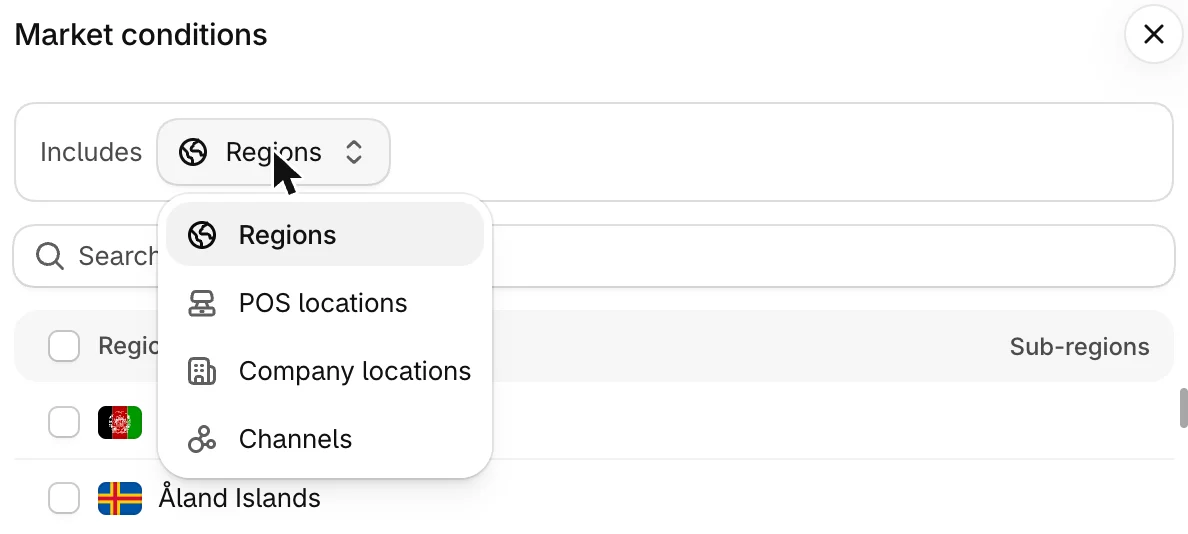
Step 1 — Create the market and add a condition. Go to Markets and click Create market. Enter a name, then click Add condition next to Includes. In Market conditions, open the Includes menu and switch it from Regions to Company locations.
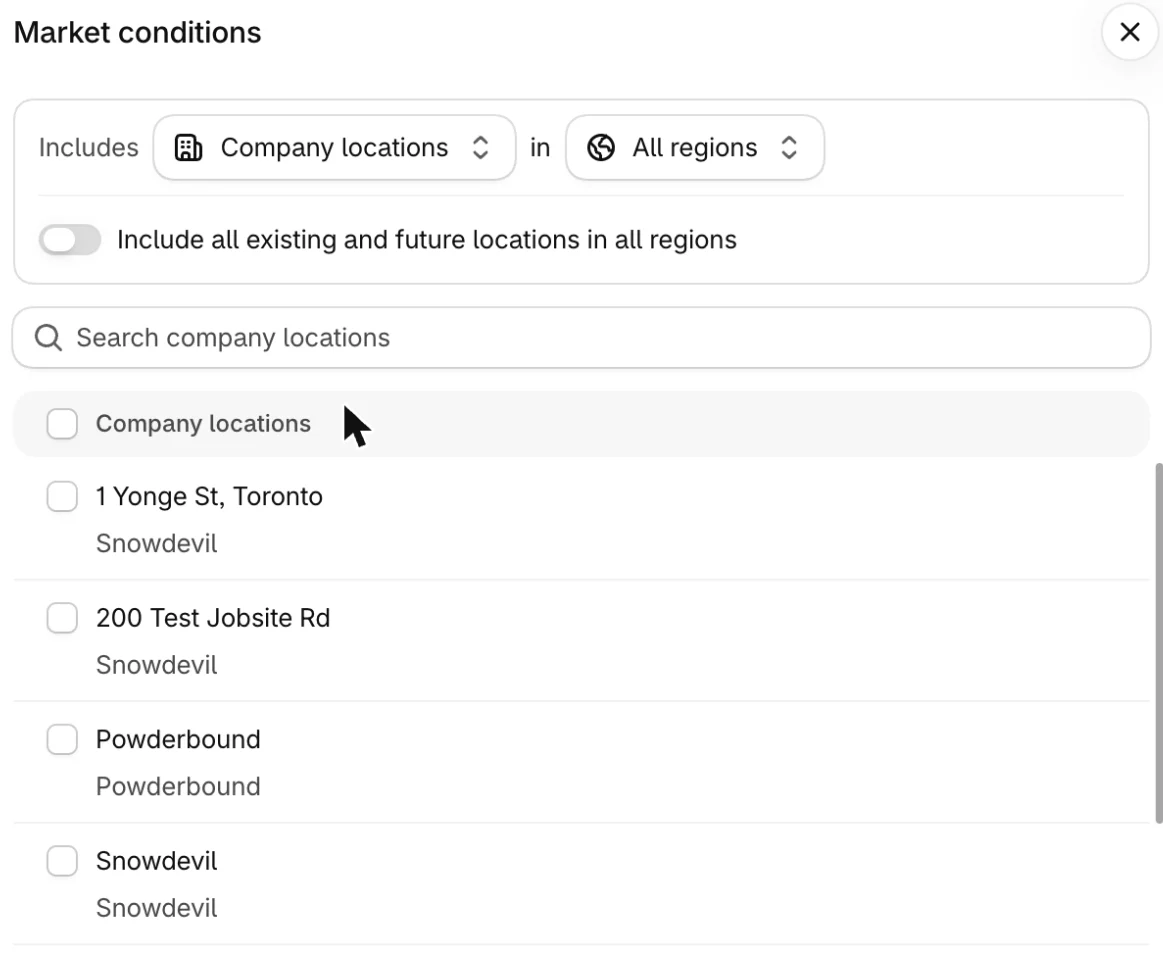
Step 2 — Choose the locations. Pick a region next to in (here All regions), then either turn on Include all existing and future locations in all regions, or tick specific locations. Click Done. The Help Center notes that the existing-and-future setting is chosen when you create the market and can’t be changed after you save it.
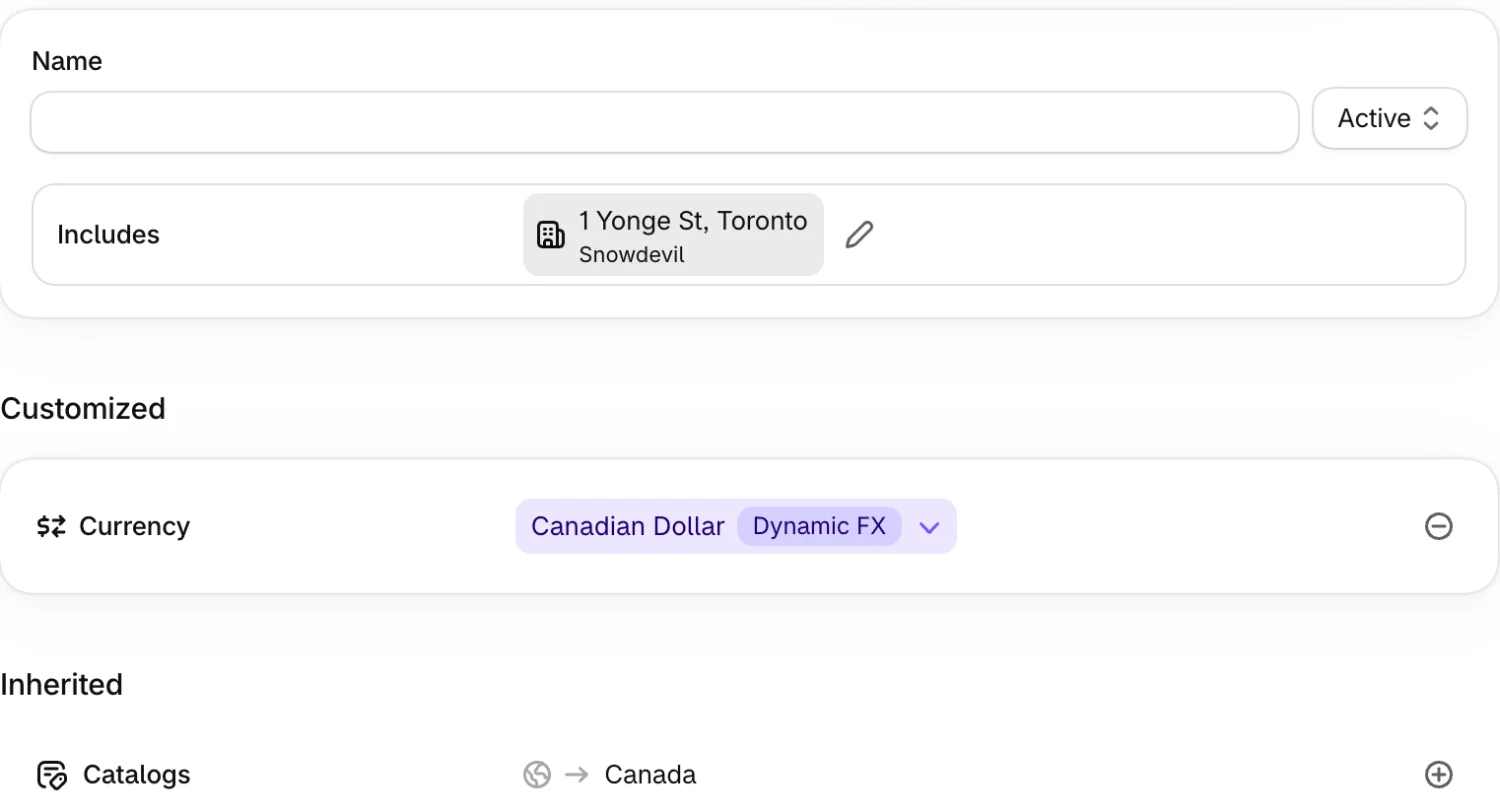
Step 3 — Check the currency it picked. Back on the market, Includes lists the location. Under Customized, Shopify has added Currency with the location’s currency: here Canadian Dollar, with Dynamic FX. Under Inherited, Catalogs points to the Canada region market until you give this market its own catalog.
Step 4 — Set rounding and the exchange rate. Click the currency to change it. Choose the currency, the Price rounding (Round up to the nearest $1.00 CAD or Do not round prices) and the Exchange rate (FX): Dynamic follows the current rate, Manual uses one you enter. Click Done.
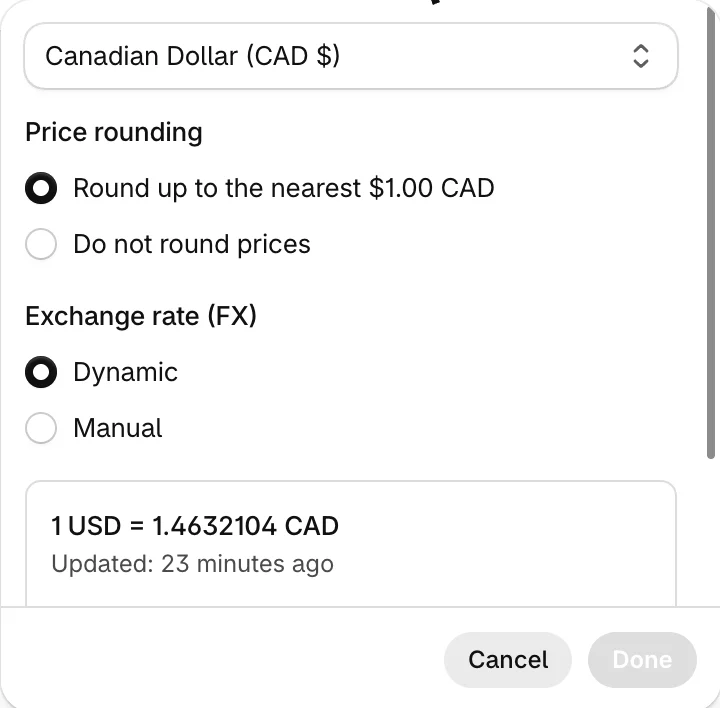
Step 5 — Review taxes and shipping, then add a catalog. The Inherited list shows where the rest comes from: Taxes and duties from your store settings, Shipping from the region market. Click ⊕ on a row to set it for this market instead. Click Save, then assign the market a catalog with your B2B prices, as described in B2B catalogs and price lists.

What actually happens
Things we saw on a test store:
- Currency fills itself in. As soon as the market included a location in Toronto, the form moved Currency from inherited to customized and set it to Canadian dollars. Before that, it showed the store’s currency. Check it before you save: it’s the currency every buyer in the market will see.
- A B2B market without a catalog still has prices. Its Catalogs row inherited the Canada region market’s catalog, so buyers in it would have paid the Canadian retail price. Assign the catalog in the same sitting.
- A location without an address lands at home. A location saved without a shipping address landed in the market for the store’s own country, not the market for where the buyer is. Give every location an address before you rely on a market.
Plan differences
| Feature | Plan |
|---|---|
| B2B markets with company location conditions | Basic, Grow, Advanced, Plus |
| Up to 3 active catalog assignments across active B2B markets (a catalog on two markets counts as two) | Basic, Grow, Advanced |
| Unlimited catalog assignments, catalogs assigned directly to a location | Plus |
| A different storefront, theme or checkout per market | Advanced and Plus |
Each company location can have up to 25 catalogs on any plan. Shopify’s B2B pages don’t say whether a B2B buyer is sent to a market’s own domain or language; if that matters to you, test it with a buyer account on your store. See B2B features by plan for the full table.
Planning markets for wholesale abroad
This part is advice, not Shopify rules:
| You sell to | Set up |
|---|---|
| Wholesale buyers in one or two countries besides your own | One B2B market per country (all company locations within that region), each with its catalog |
| Many countries at one wholesale price | One B2B market for all company locations, with local currencies |
| A few key accounts abroad with negotiated prices | A B2B market that names those locations; on Plus, catalogs assigned to them directly |
| A buyer with branches in several countries | One location per country, so each branch gets its own market, currency and taxes |
Mind the three-assignment limit below Plus: a market per country plus a market per price tier adds up quickly. Fixed prices in each market’s currency avoid prices that move with the exchange rate.
Where Shopify stops
Markets price the buyers who order themselves. When a sales rep orders for a location abroad, they need the price of that location’s market, not your domestic one. Mify FieldB2B prices each company location through Shopify’s B2B pricing with the location’s country, so a Canadian location gets its Canadian B2B price. A new ship-to address a rep adds must be in the same country as the location, so the quote stays in its market. The quote email, PDF and payment page are written in the customer’s language in Shopify. See choosing a company mode, how a rep creates a quote and letting reps add a ship-to address.
Frequently asked questions
Do I need Shopify Plus to sell B2B internationally? No. B2B markets, multiple currencies and catalogs per market work on Basic, Grow, Advanced and Plus. Below Plus you have up to 3 active catalog assignments across B2B markets. A different storefront or checkout per market needs Advanced or Plus.
Which currency does a B2B buyer see? The currency of the market their company location belongs to, which follows the location’s shipping address. The catalog’s currency doesn’t change it; it’s what you receive.
Why does a B2B buyer abroad see my retail prices? Their location isn’t in a B2B market with a catalog, so they fall back to the catalog of the region market they’re in. Add the location to a B2B market and give that market a catalog.
Can I change the currency of a B2B draft order? You can pick another currency on the draft, but not its market, which comes from the company’s shipping address when the draft is created. The exchange rate is fixed at creation; editing a saved draft later reprices it at the current rate.
Does a B2B market charge tax based on its country? Tax rates follow the order’s shipping address. The market decides whether prices include tax and whether duties are charged.