Quantity rules and volume pricing
In Shopify B2B mode, a catalog’s price list can set quantity rules and volume pricing per product variant. FieldB2B reads them for the company location being quoted and applies them in both portals. Nothing to set up in the app.
Quantity rules
A rule has a minimum, an increment and, optionally, a maximum. The portal shows it on the product card, for example Packs of 6 · Max. 60, and on the product page as Packs of 6 · Max. order: 60 units, and the quantity control follows it: it starts at the minimum and moves in steps of the increment, so a typed 7 becomes 6.

The rule is checked on the whole cart line. Adding 42 to 24 already in the cart is refused when the maximum is 60, with the message Order in packs of 6, at least 6, up to 60. (or Order at least 6. for a plain minimum).
In Quick Order, a pasted quantity is moved onto the rule, and a line that still breaks it is marked with the message and left out: 2 items were not added.
A quote can’t be created while a line breaks its rule. A cart made with Reorder from an old quote is only checked at that point.
Volume pricing
When a variant has price breaks, the card shows Volume pricing from the lowest break price, and the product page lists the tiers under Volume pricing: Quantity and Unit price, for example 24+ at the lower price. The row for the current quantity is highlighted.
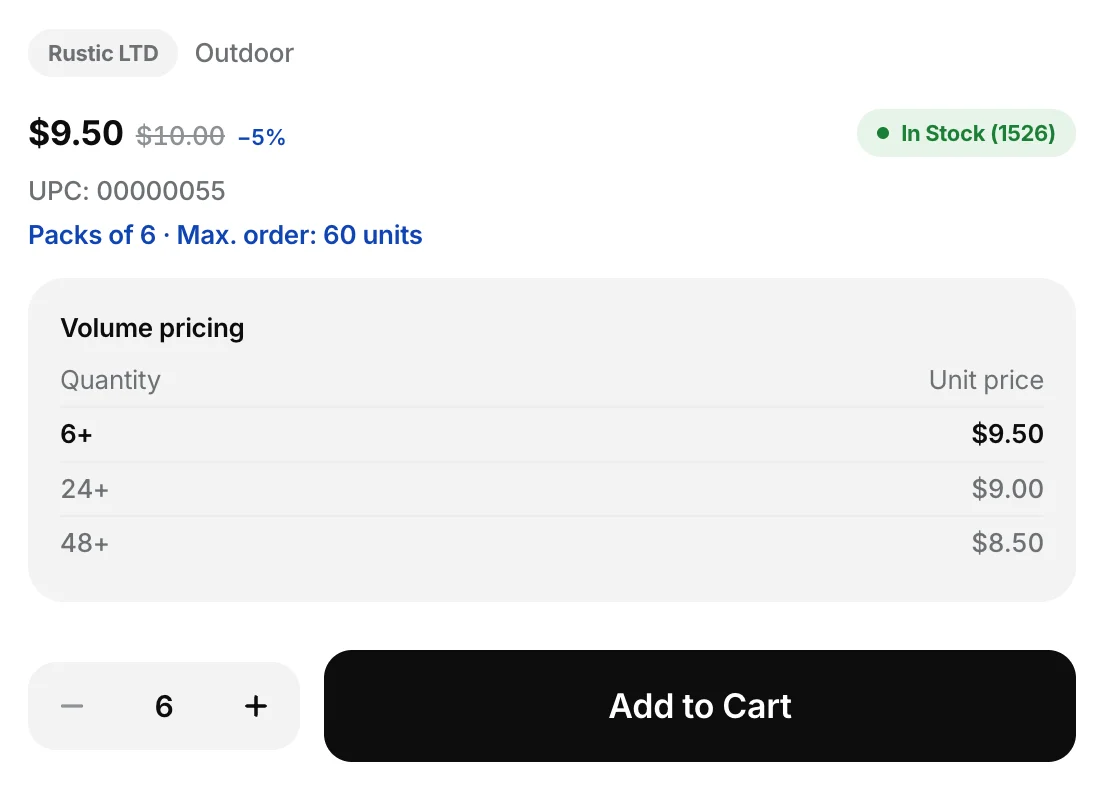
In the cart, each line is priced at the tier its quantity reaches, and the price updates when the quantity changes. The quote locks that unit price into the draft order.
A rep’s line discount comes off the tier price, and the rep’s maximum discount is checked against it. When a quantity change moves a line to another tier, a discount that no longer fits is flagged on the line before the quote is created.
The PDF and the email show the unit price the quote locked in, not the tier table.
Where it applies
- Shopify B2B mode only, for the location being quoted. Companies managed in the app have no rules or breaks.
- Rules and breaks are per variant: pick another size or colour and the product page reads that variant’s.
- Buyers in the buyer portal see and follow the same rules and prices.
Related
Related articles
- Show metafields on the product pageShow facts you keep in Shopify metafields, like when a sold-out size is back, on the product page your reps and buyers see.
- Company locations: prices, addresses and termsIn Shopify B2B mode, the company location a rep picks sets the quote's prices, the addresses on the draft order, and its payment terms and tax exemption.
- Add payment terms to draft ordersPut a company location's Shopify payment terms, such as Net 30, on the draft order behind every quote, and show them on the quote, PDF and email.