Let reps add a ship-to address to a quote
Sometimes a customer needs goods sent to a site that isn’t one of their company locations yet. With this setting on, the rep can type that address in the Create Quote dialog. FieldB2B adds it to the company in Shopify as a new location, and the quote ships there at the customer’s usual prices. It works in Shopify B2B mode only.
Turn it on
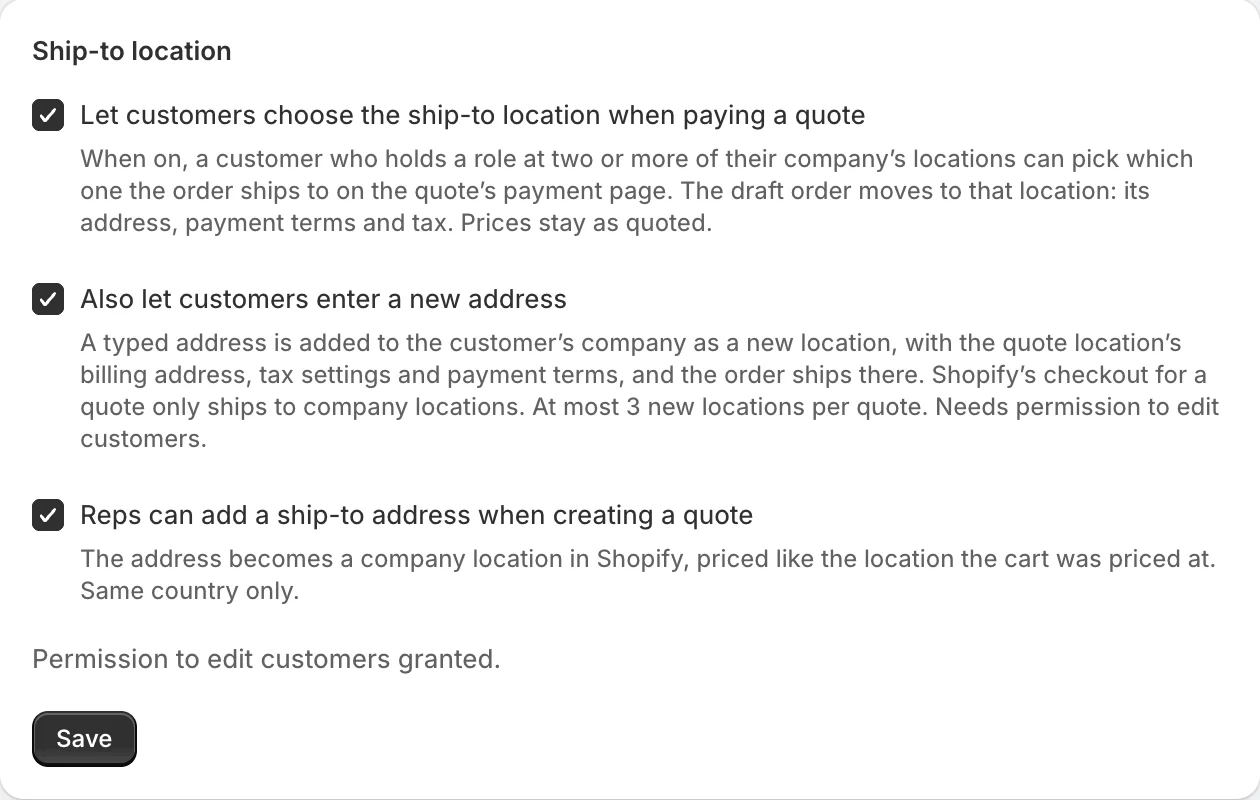
- In the app, open Settings and find Ship-to location.
- Tick Reps can add a ship-to address when creating a quote.
- Click Save. If Shopify asks you to let FieldB2B edit customers, approve it. The app needs it to add locations to a company.
When the permission is in place, the section says Permission to edit customers granted. If you declined, it says reps cannot add a new ship-to address. Save again to grant it.
This setting is separate from letting customers choose where a quote ships. You can turn on either one, or both.
Add the address when creating a quote
-
Build the cart for the customer as usual, at the company location you picked.
-
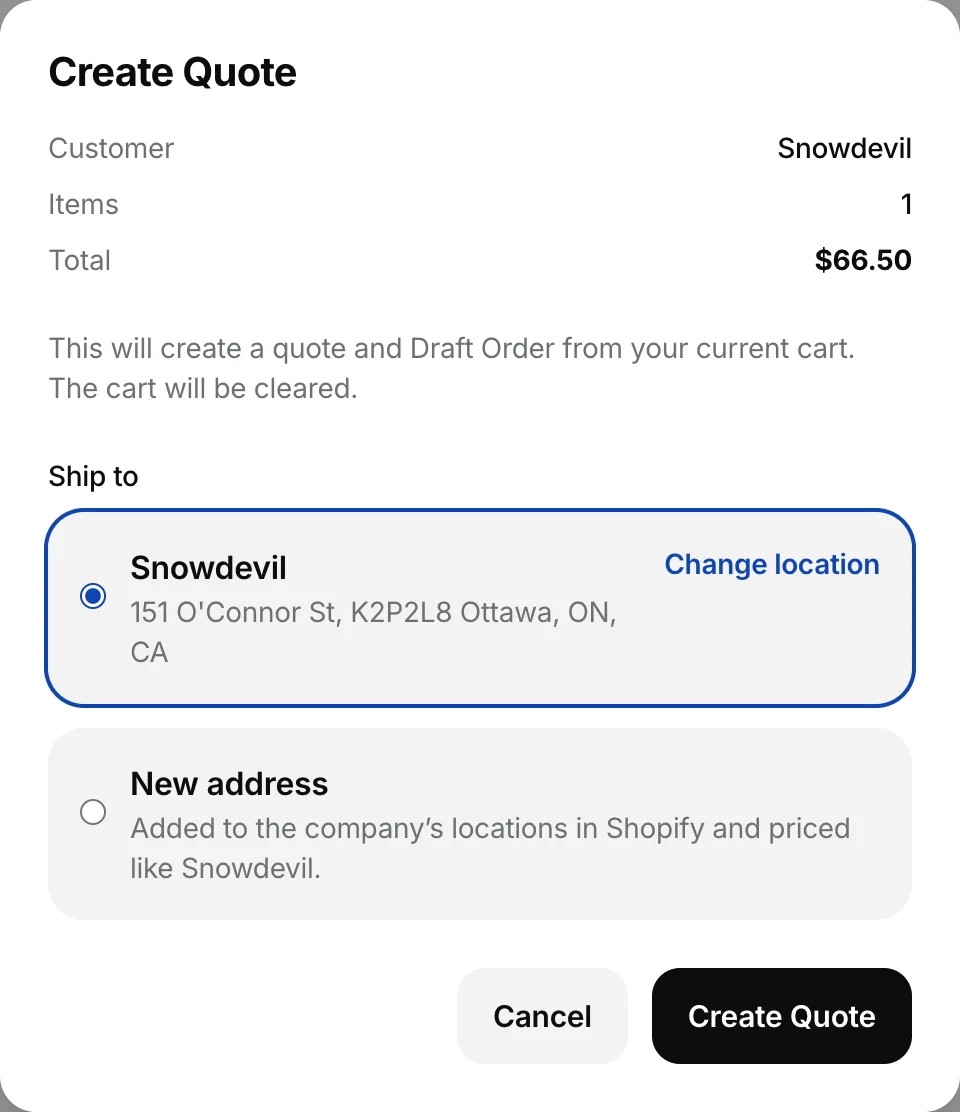
Click Create Quote. The dialog shows Ship to with two choices: the cart’s location with its address, and New address.
-
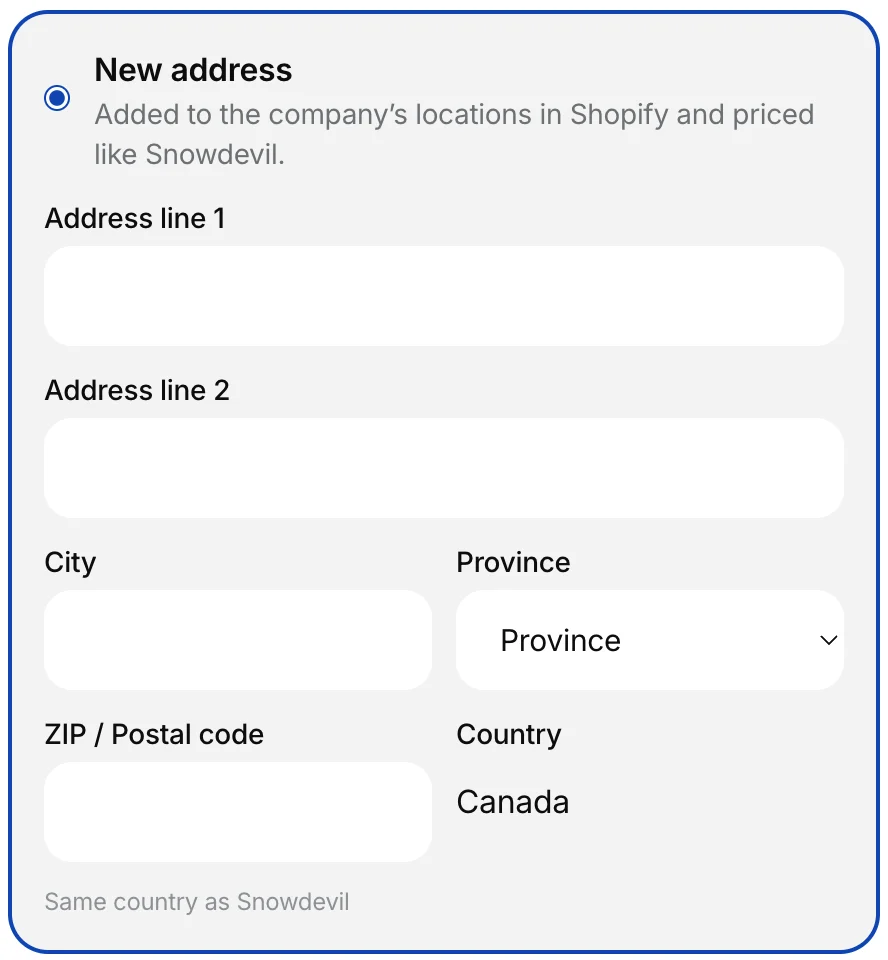
Choose New address and fill in Address line 1, City, the state or province where the country has them, and ZIP / Postal code. The country is fixed to the cart location’s country.
-
Click Create Quote.
To ship to another existing location instead, click Change location. It opens the customer’s company card, where you pick that location before quoting.
What happens
- A new company location in Shopify. It is named after the street and city, for example “500 King St W, Toronto”. It copies the cart location’s billing address, tax settings and payment terms. The contact gets the same role there as at the cart’s location.
- Prices stay the same. The new location has no B2B catalog of its own, so it is priced like the cart’s location. The quote’s prices are the cart’s prices, and a later cart at the new location shows the same prices.
- The quote ships there. The quote page and the PDF show the new address. Shopify’s checkout ships to it and works out tax for it.
- Next time, it’s on the company card. The new location appears with the company’s other locations, so reps and customers can pick it again.
Things to know
- Same country only. The address must be in the same country as the cart’s location.
- An address that already exists is reused. If the company already has a location with the same address and the same prices, the quote goes there and nothing new is added. If that location has its own prices, the rep is asked to choose it on the company card first.
- The location stays in Shopify. FieldB2B never deletes it. Remove it in Shopify if you don’t want it.
- The cart is kept if something fails. The rep can fix the address and try again, or create the quote for the cart’s location.
- The contact needs a role at the cart’s location. If the contact holds no role there in Shopify, the Ship to section doesn’t appear.
Messages in the dialog
- “The new address must be in the same country as …”: the address is in another country. Use an address in the cart location’s country.
- “This address is already the location …, which has its own prices. Choose it on the company card first.”: pick that location on the company card, then create the quote.
- “A new address can’t be added for this customer right now. Create the quote for the cart’s location, or ask the merchant.”: the setting is off, the permission is missing, or the customer isn’t set up in Shopify for it, for example the contact has no role at the cart’s location.
- “The new address could not be added. Try again, or create the quote for the cart’s location.”: Shopify refused the address. Check it and try again.
Related
Related articles
- Let customers choose where a quote shipsIn Shopify B2B mode, let the customer pick which company location a quote ships to, or type a new address, on the quote's payment page before checkout.
- How a rep creates a quote (cart to draft order)How a sales rep builds a cart for a customer in the portal, turns it into a quote, and sends it. Every quote is a Shopify draft order.
- Quote discounts: per line or on the whole quoteHow reps discount a quote, line by line (percent, amount off or a set price) or on the whole quote, and how the rep's maximum discount limits it.