How a rep creates a quote (cart to draft order)
A quote in FieldB2B is a Shopify draft order with the prices locked in. The customer pays it through Shopify checkout, and the order lands in your Shopify admin like any other.
Build the cart
-
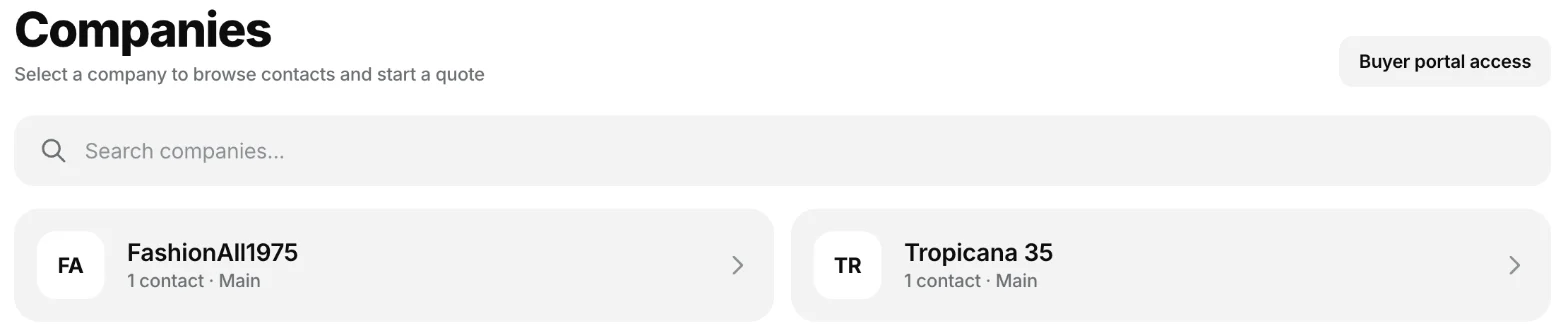
In the portal, open Companies and pick the company. If it has several locations, choose one. Then pick the contact you’re quoting for and open their Catalog.
-
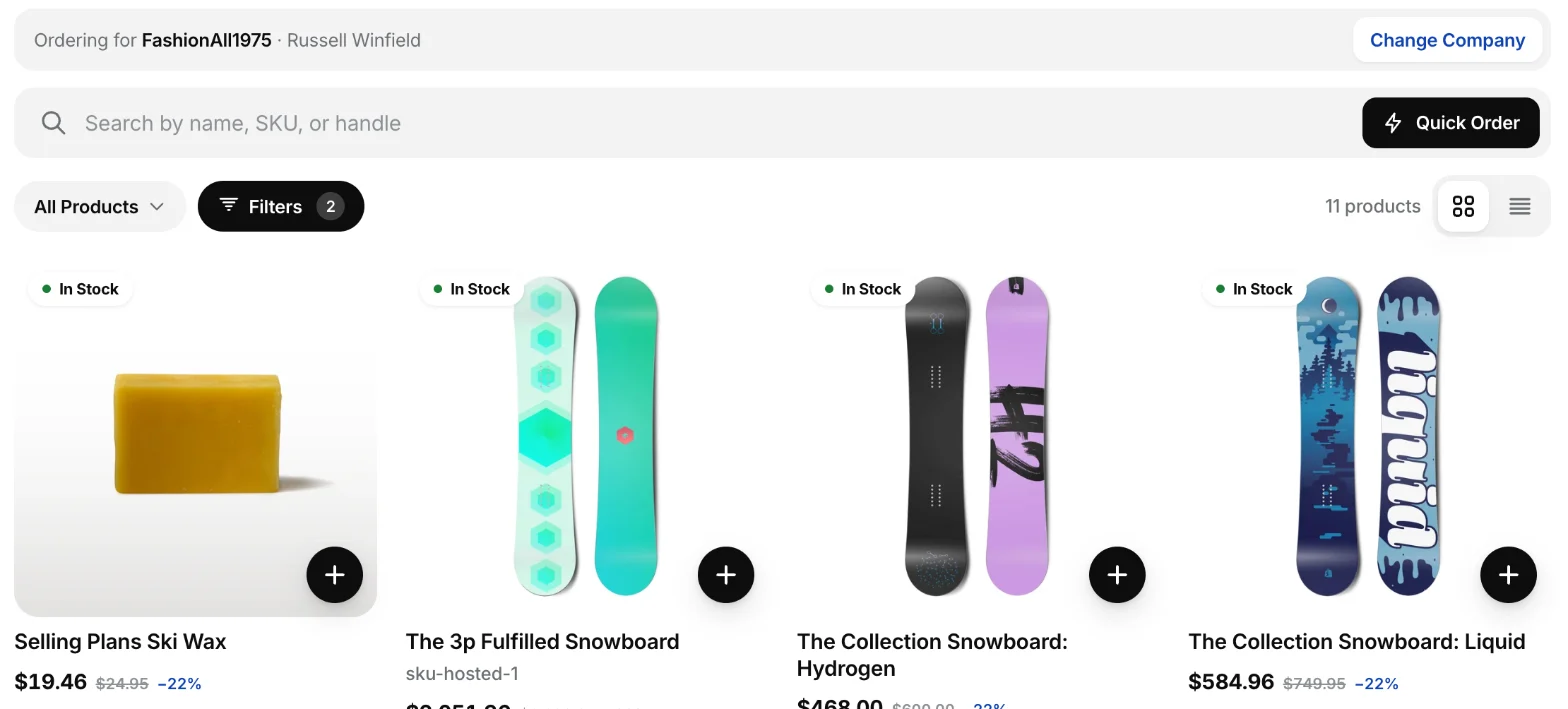
Browse the Catalog: search by name, SKU or barcode, or filter by collection. Prices are that company’s prices: its Shopify B2B price, or your price minus the company’s default discount.
-
Add products to the cart and set quantities.
-
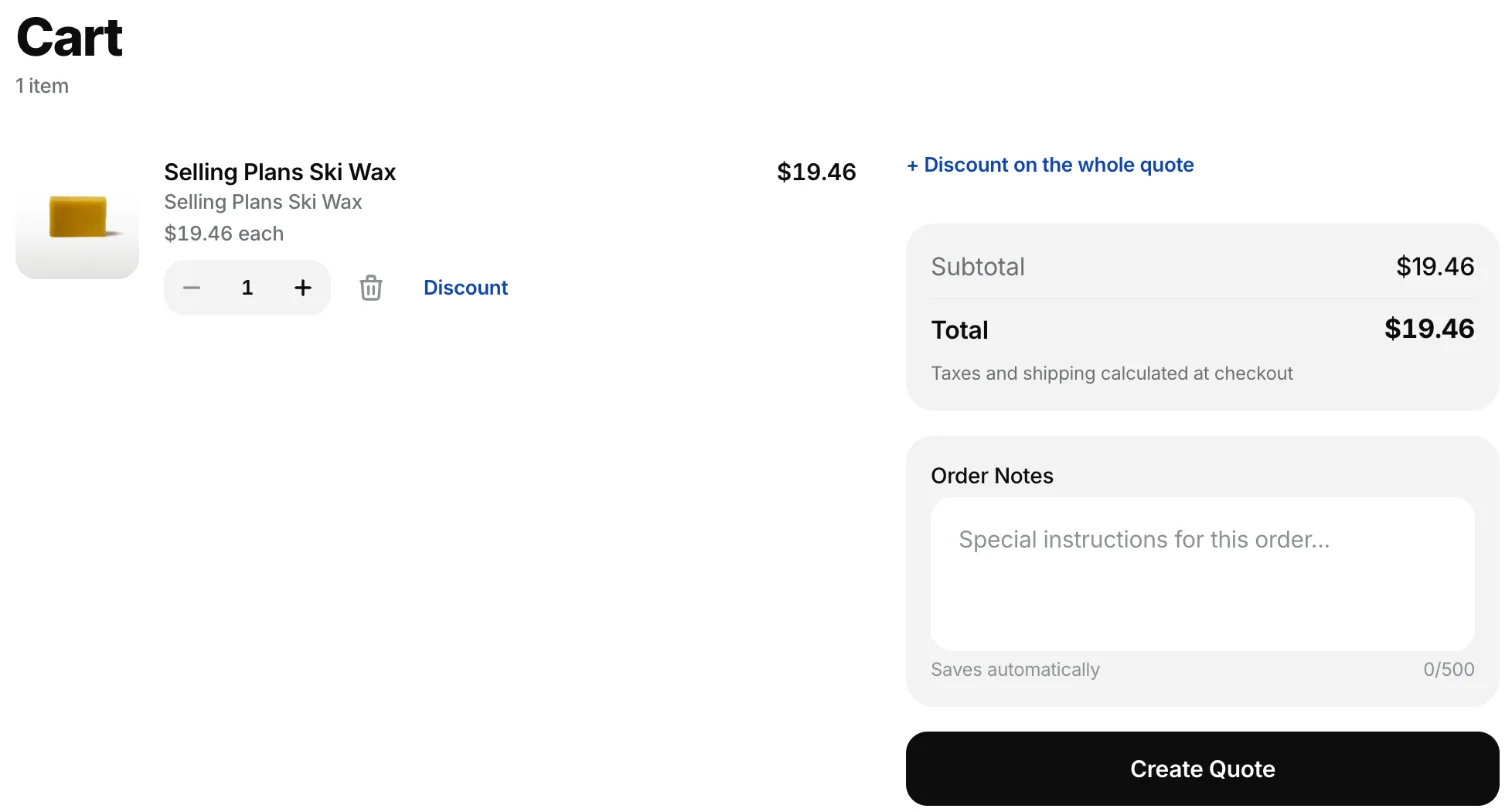
Open Cart. Add Order Notes if needed; they save automatically.
-
Optionally add a discount. See Quote discounts.
Create the quote
Click Create Quote. FieldB2B creates a draft order in Shopify for that customer with the agreed prices, and opens the quote.
The quote starts as Draft. It is valid for your store’s quote expiry period: 30 days unless you change it in Settings (anywhere from 1 to 90 days).
Send it to the customer
On the quote:
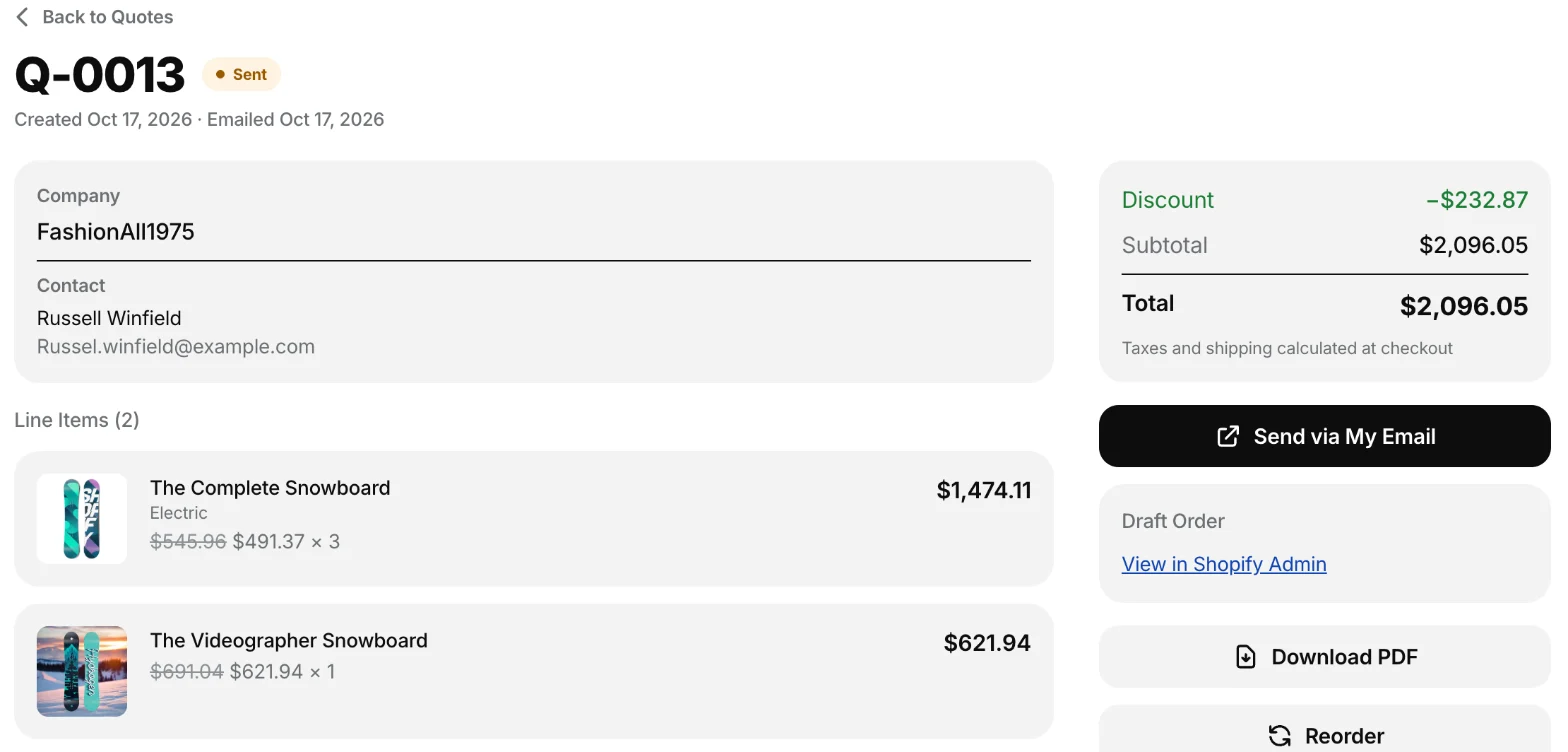
- Click Download PDF. The PDF lists the products and prices, and has a QR code the customer can scan to open checkout for this quote.
- Click Send via My Email. Your own email app opens with the customer’s address, a subject and a message already filled in.
- Attach the PDF you downloaded and send the email. The email app can’t attach it for you.
Sending marks the quote as Sent.
When the customer orders
When the customer completes checkout, the draft order becomes an order in Shopify and the quote shows Converted. The rep’s commission is created at that point. See How commissions are calculated.
The Quotes page lists every quote with its status, and you can filter by status.
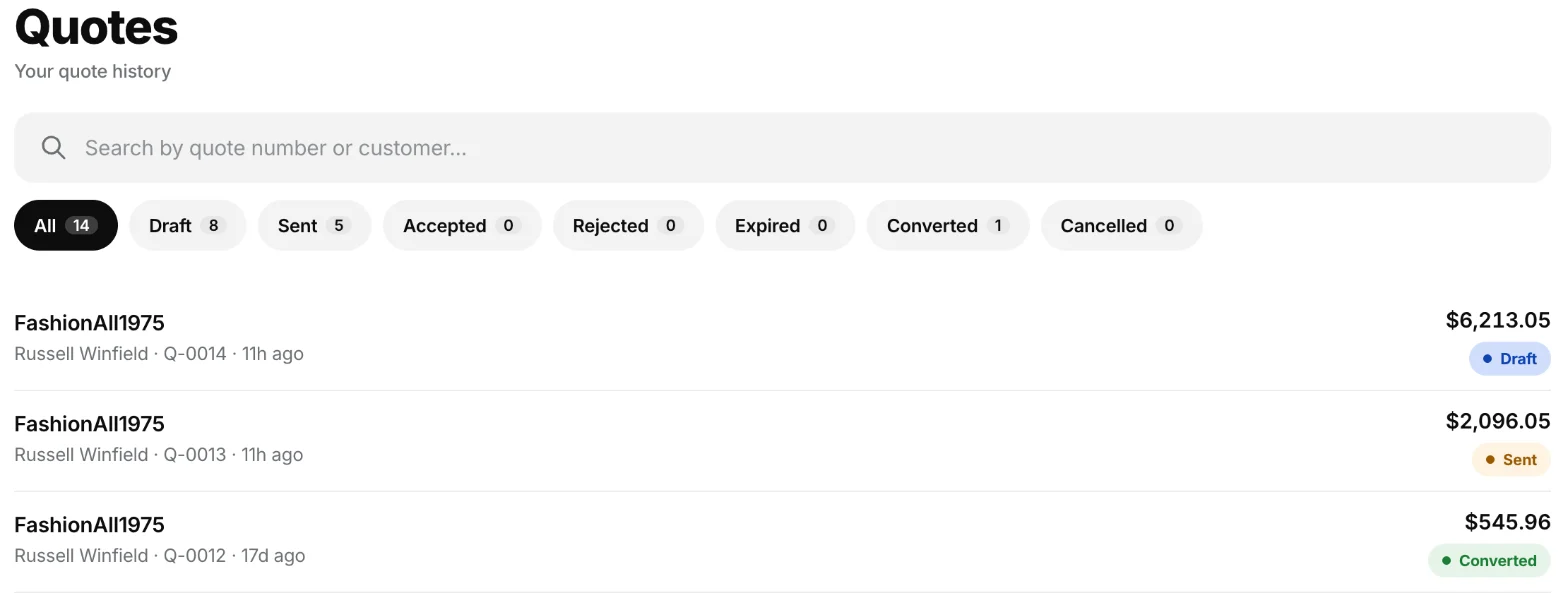
A quote past its expiry date shows Expired. From any quote, Reorder puts the same products back in the cart to start a new one.
Related
Related articles
- Quote discounts: per line or on the whole quoteHow reps discount a quote, line by line (percent, amount off or a set price) or on the whole quote, and how the rep's maximum discount limits it.
- Quick Order: paste a SKU listFill a cart in one go by pasting a list of SKUs or barcodes with quantities, in the rep portal or the buyer portal.