Let customers choose where a quote ships
Shopify’s checkout for a quote only ships to the company location on the quote. With this setting on, the customer can pick another of their company’s locations, or type a new address, on the quote’s payment page. They don’t need to ask the rep for a new quote. It works in Shopify B2B mode only.
Turn it on
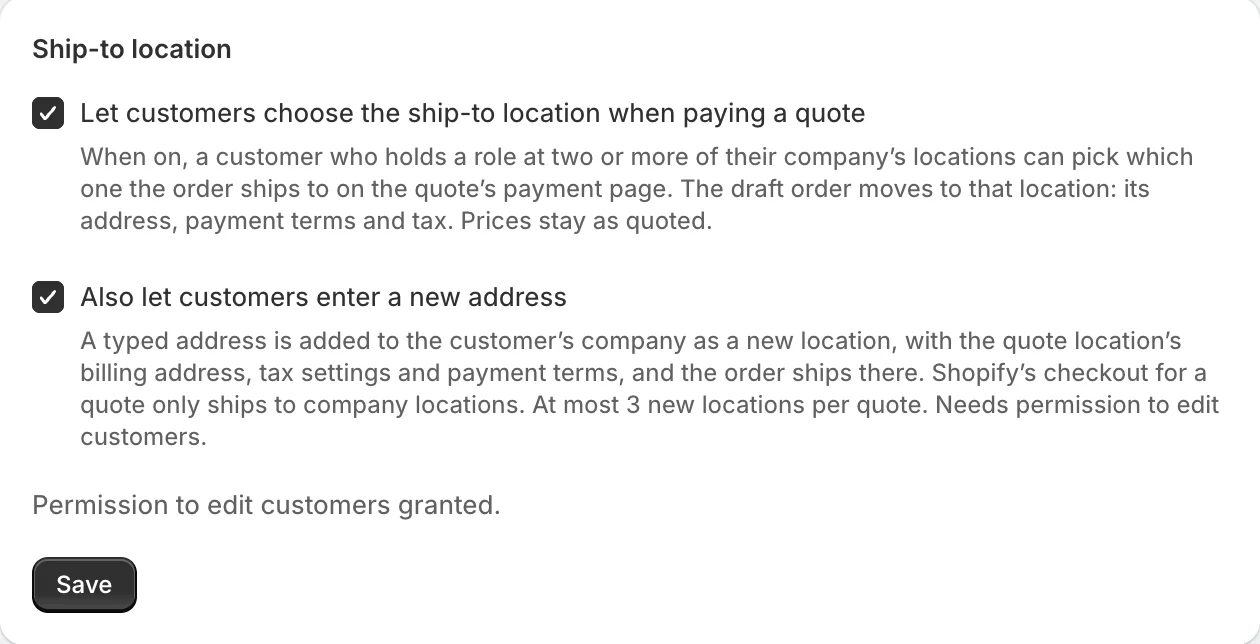
- In the app, open Settings and find Ship-to location.
- Tick Let customers choose the ship-to location when paying a quote.
- To also accept addresses that aren’t a location yet, tick Also let customers enter a new address.
- Click Save. If you ticked the new address option, Shopify asks you to let FieldB2B edit customers. Approve it: the app needs it to add locations to a company.
When the permission is in place, the section says Permission to edit customers granted. If you declined, it says customers won’t be offered a new address. Save again to grant it.
What the customer sees
With the setting on, the link in the quote email and the QR code on the PDF open the quote’s payment page instead of going straight to checkout. Reps open the same page from Open the customer’s payment link on the quote.
The page has a Ship to section. It lists the company locations where the quote’s contact holds a role in Shopify, each with its address. A location you added in Shopify is listed even if you haven’t clicked Sync from Shopify since. The quote’s own location comes first, marked on the quote, and is selected. The customer picks one and clicks Continue to checkout.
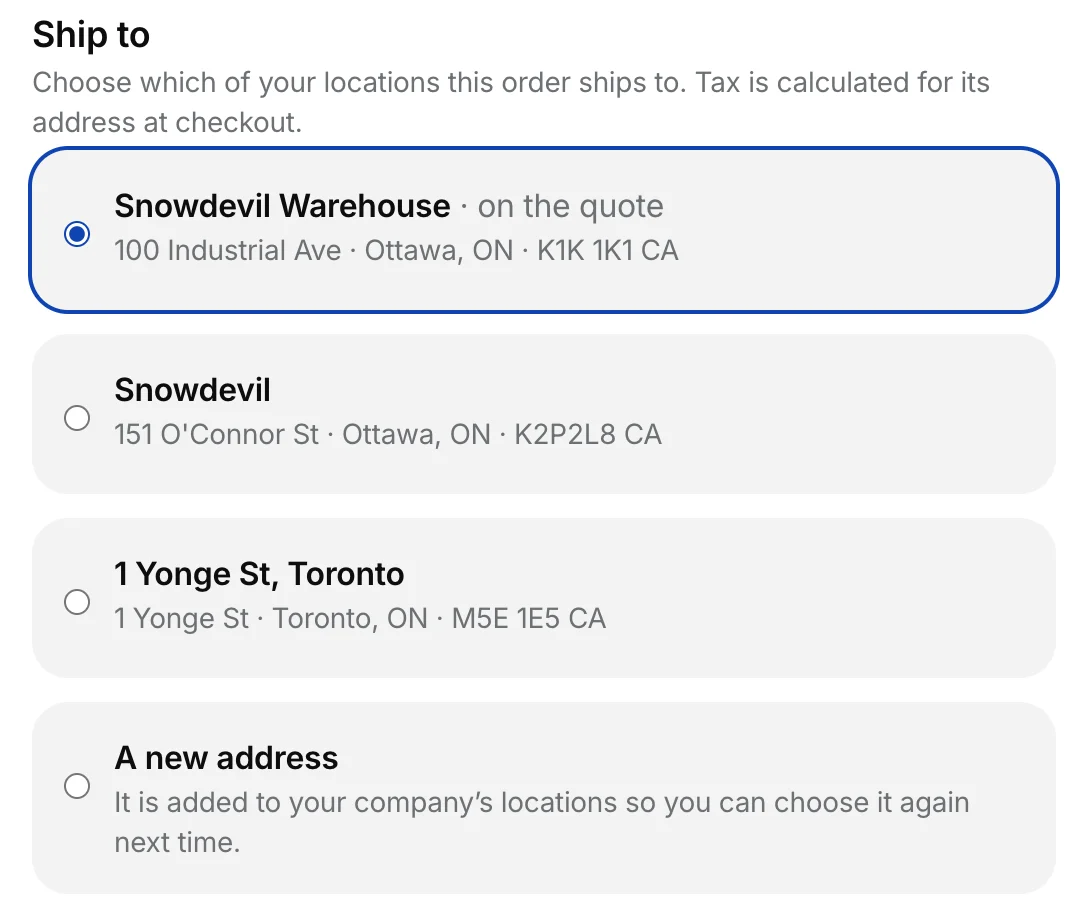
Some locations are left out:
- a location without a shipping address in Shopify;
- with Only allow products in the company’s catalogs on, a location whose catalogs don’t include every product on the quote.
If there is nothing to choose (one location and no new address option), the page goes straight on to checkout.
When the customer picks another location
The quote moves to that location before checkout opens:
- Prices stay as quoted. Nothing is repriced.
- Address. Checkout ships to the chosen location’s address.
- Tax. Tax is worked out at checkout for the new address.
- Payment terms. With Add payment terms to draft orders on, the quote takes the chosen location’s terms, or none if it has none.
The customer can come back to the page and choose again until they pay.
When the customer types a new address
With Also let customers enter a new address on, the list ends with A new address. The customer fills in Address line 1, City, the state or province where the country has them, ZIP / Postal code and Country, then clicks Continue to checkout.
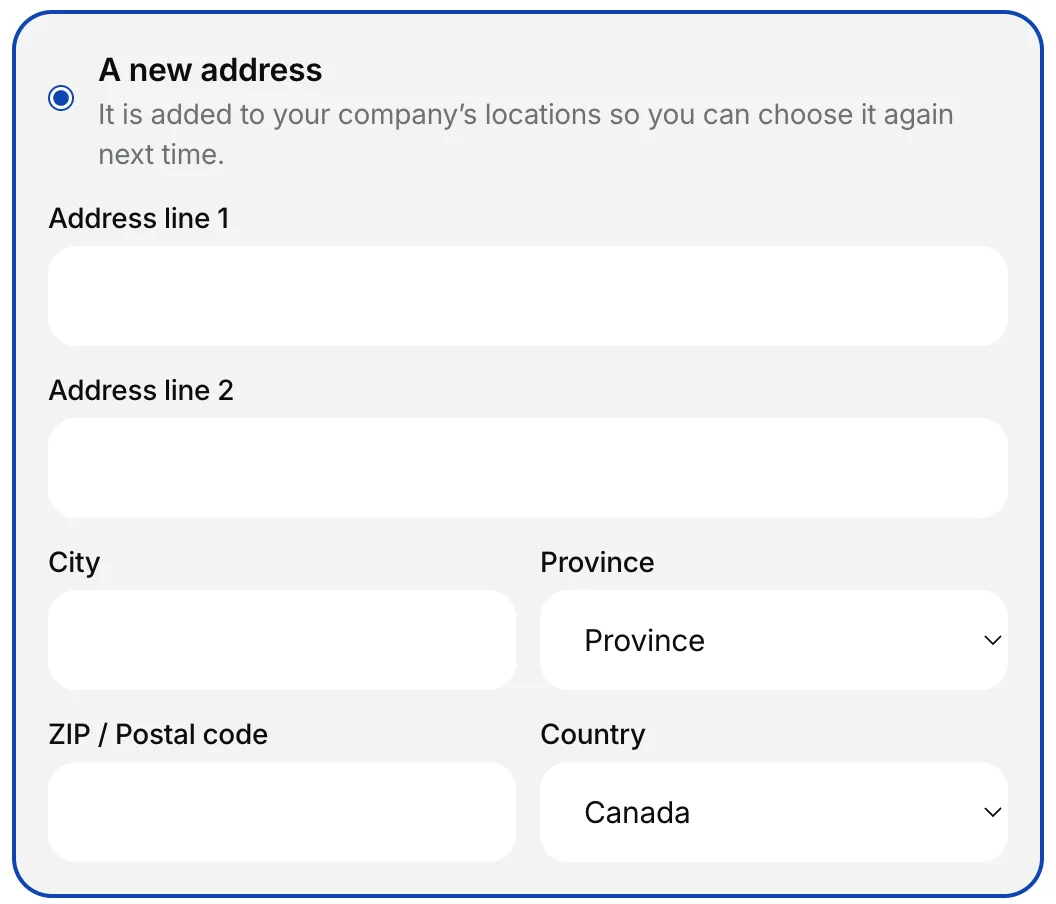
FieldB2B adds the address to the customer’s company in Shopify as a new location, named after the street and city (for example “1 Yonge St, Toronto”). The new location copies the quote location’s billing address, tax settings and payment terms. The contact gets the same role there as at the quote’s location. The order then ships there, and the customer can pick it from the list next time.
Some things to know:
- The location stays in Shopify. FieldB2B never deletes it. Remove it in Shopify if you don’t want it.
- At most 3 new addresses per quote. After that, the customer can only pick a listed location. Addresses a rep added when creating the quote don’t count.
- The same address twice is not added twice. An address that matches one of the contact’s locations moves the quote to that location.
What the rep sees
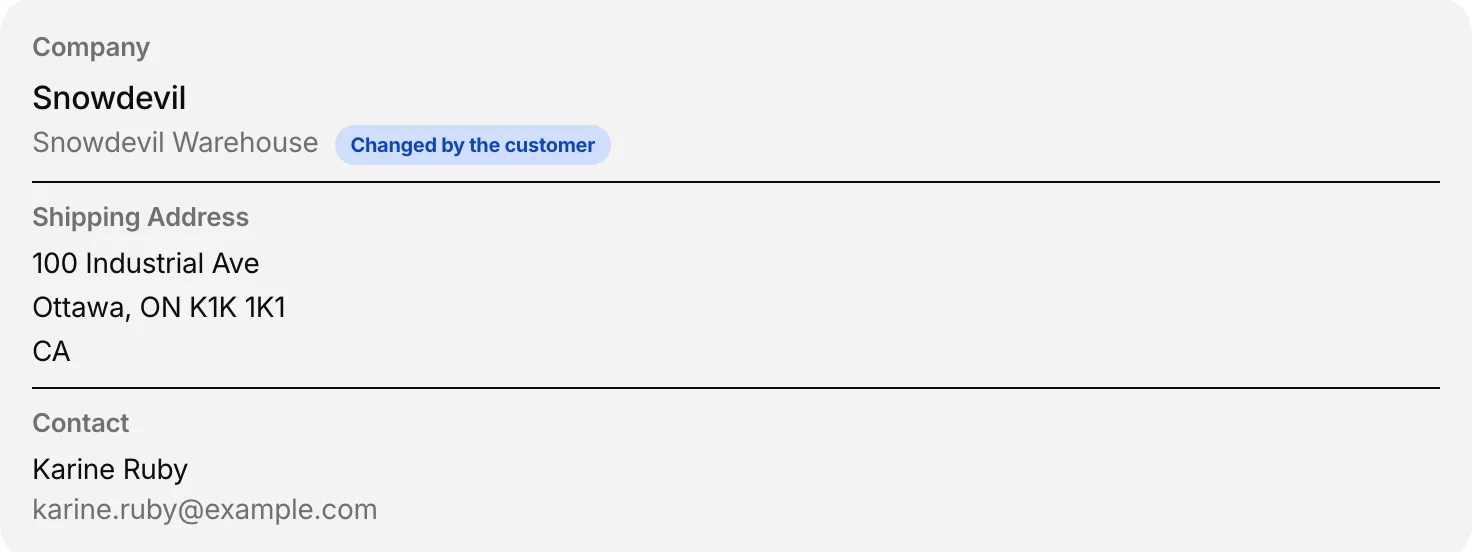
The quote page shows the new location and its address under Shipping Address, with Changed by the customer next to it.
Moving to a location without payment terms
Once Shopify’s checkout has shown payment terms, such as Net 30, it keeps showing them for that draft order, even after the terms are removed. So when Add payment terms to draft orders is on and a customer moves a quote that has terms to a location without terms, FieldB2B gives the quote a new draft order:
- The new draft order has the same products, prices and payment choice, at the chosen location, without terms. The old draft order is deleted, so it can’t be paid.
- The quote’s draft order number in Shopify changes, for example from #D17 to #D19. The quote itself, its link and its QR code stay the same.
- Checkout shows no payment terms.
Moves between two locations that both have terms, or to a location with terms, keep the same draft order.
Messages on the payment page
- “Enter the street address, city and country of the new address.”: fill in the missing fields.
- “Choose the state or province of the new address.”: pick one from the list.
- “This address could not be used. Check the postal code and the other fields.”: Shopify rejected the address. Check it and try again.
- “No more new addresses can be added for this quote. Choose one of the locations listed, or contact us.”: the quote already has 3 new addresses.
- “That location can no longer be chosen for this order. Please choose another.”: the location changed in Shopify since the page opened, for example the contact lost their role there.
- “We could not change the ship-to location. Choose again, or continue with the location on the quote.”: Shopify refused the move. Nothing changed; the customer can try again or keep the quote’s location.
Related
Related articles
- Charge a card fee on quotesAdd a fee for paying by card (for example 3%), let reps, buyers and customers choose how a quote is paid, and have the quote's checkout offer only that way to pay.
- Let reps add a ship-to address to a quoteIn Shopify B2B mode, let a sales rep type a new shipping address when creating a quote. It becomes a company location in Shopify, priced like the cart's location.
- How a rep creates a quote (cart to draft order)How a sales rep builds a cart for a customer in the portal, turns it into a quote, and sends it. Every quote is a Shopify draft order.