Assign reps to companies
A rep only sees the companies you assign to them. Until you assign at least one, the rep’s portal shows “No companies assigned”.
A company can have more than one rep, and a rep can have many companies.
Assign companies
- Open Assignments in the app.
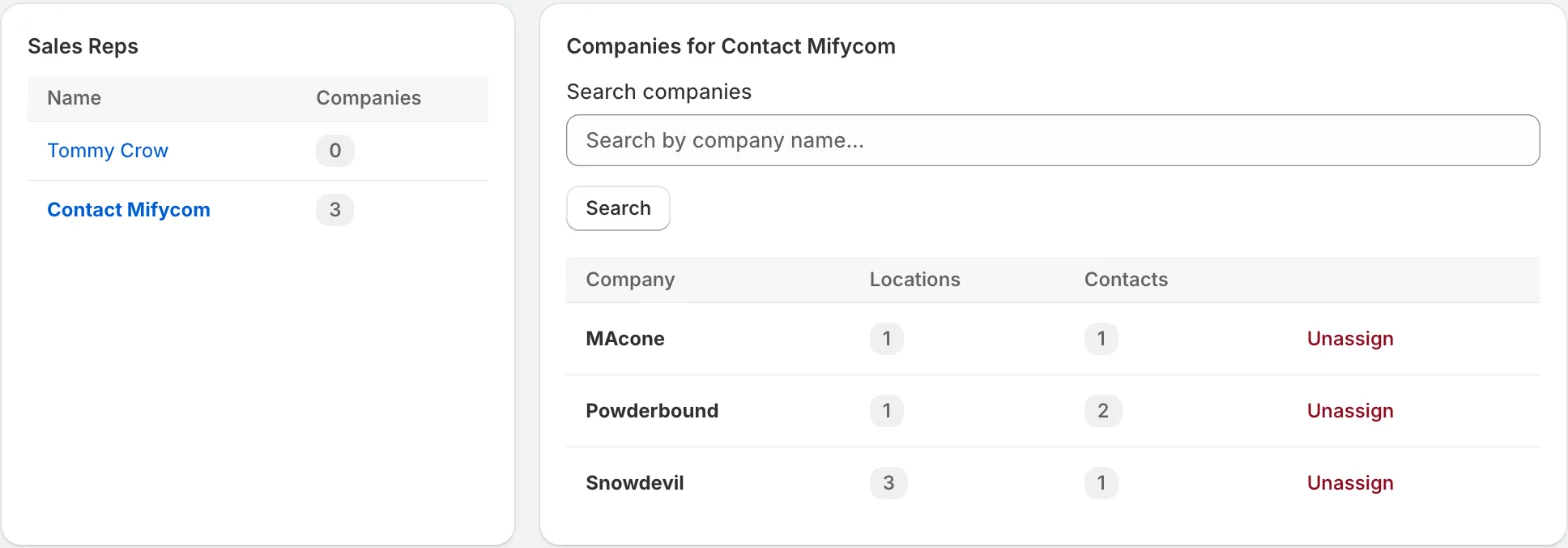
- Under Sales Reps, click the rep. The page shows Companies for that rep.
- Search by company name if the list is long, then click Assign next to each company.
To take a company away from a rep, click Unassign.
If the company list is empty
- In Shopify B2B mode, click Sync from Shopify to load your companies.
- In Manage in App mode, go to Companies and click Create company first.
What the rep sees
In the portal, the Companies page lists the rep’s companies with their contacts. The rep picks a company, a location if there is more than one, and a contact, then browses the catalog to build a quote.
An assigned rep is also needed before a company’s buyers can use the buyer portal, because every buyer order is credited to a rep. See Turn on the buyer portal.
Related
Related articles
- Choose a company mode: Shopify B2B sync or app-managedDecide whether FieldB2B reads your B2B companies from Shopify B2B or manages them in the app, and what each mode syncs.
- Add a sales rep and give them accessCreate a sales rep in FieldB2B, set their commission and discount limit, and share their login.
- Install FieldB2B and choose a planInstall Mify FieldB2B from the Shopify App Store and choose a plan, which you need to do before you can use the app.