Quote discounts: per line or on the whole quote
Reps can lower prices on a quote before they create it. Discounts are set in the cart and locked into the Shopify draft order.
Discount one line
- In the Cart, click Discount on the product.
- Choose how to enter it:
- %: a percentage off.
- Amount: an amount off each unit.
- Price: the agreed price per unit.
- Type the value. The cart shows the result as a percentage, an amount off each unit and a unit price, so the rep can check it any way they like.
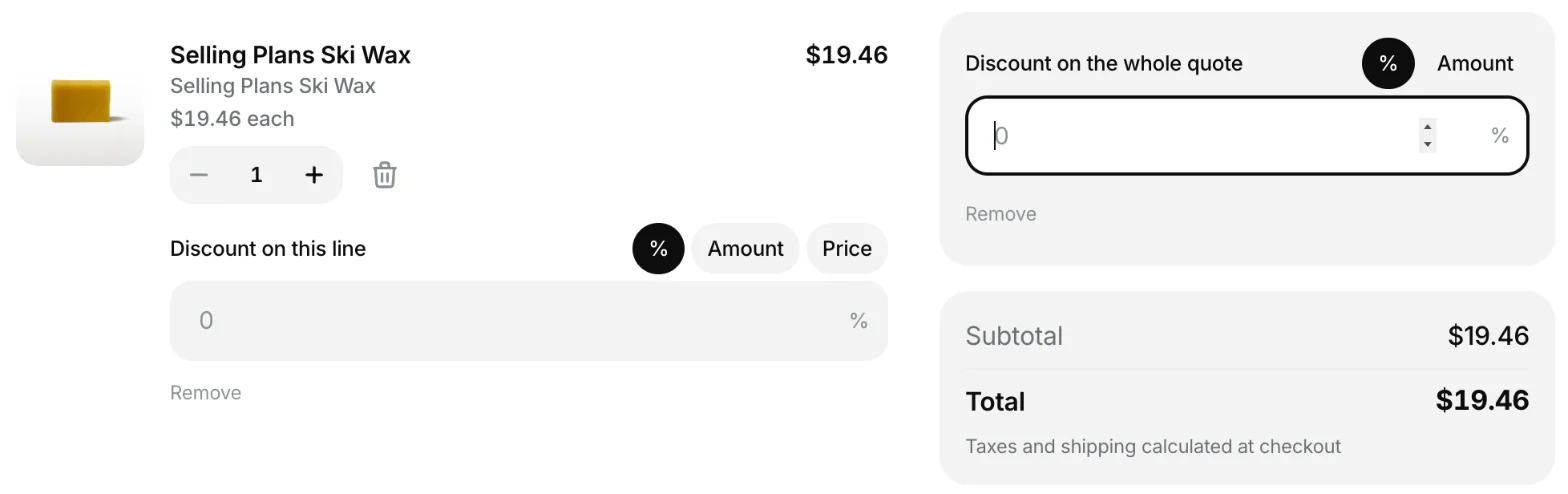
Discount the whole quote
Click + Discount on the whole quote and enter a percentage or an amount. It applies after any line discounts.
The rep’s maximum discount
Each rep can have a Max additional discount (%), set when you add the rep. The cart shows it as “Your maximum discount”.
- The limit is measured against the price before any rep discount. That price is the company’s Shopify B2B price, or your price minus the company’s default discount.
- Each line, including its share of a whole-quote discount, must stay within the limit. So must the quote as a whole.
- With no maximum set, there is no limit.
- With a maximum of 0%, the discount controls are hidden and the rep can’t discount.
Messages the rep may see
- “Above your maximum discount”: this line is discounted more than the rep’s limit.
- “The quote is above your maximum discount”: the whole quote is.
- “Can’t be more than the price”: an amount off or a set price is above the line’s price.
- “Can’t be more than the subtotal”: a whole-quote amount is larger than the quote.
Related
Related articles
- How a rep creates a quote (cart to draft order)How a sales rep builds a cart for a customer in the portal, turns it into a quote, and sends it. Every quote is a Shopify draft order.
- Quick Order: paste a SKU listFill a cart in one go by pasting a list of SKUs or barcodes with quantities, in the rep portal or the buyer portal.