Choose where gift options show
Gift options can show on the product page, the cart page and the cart drawer. Shoppers can wrap each item, the whole order, or both, depending on your settings. Set them on the Display page; everything there is saved with one Save.
Wrap each item, or the whole order
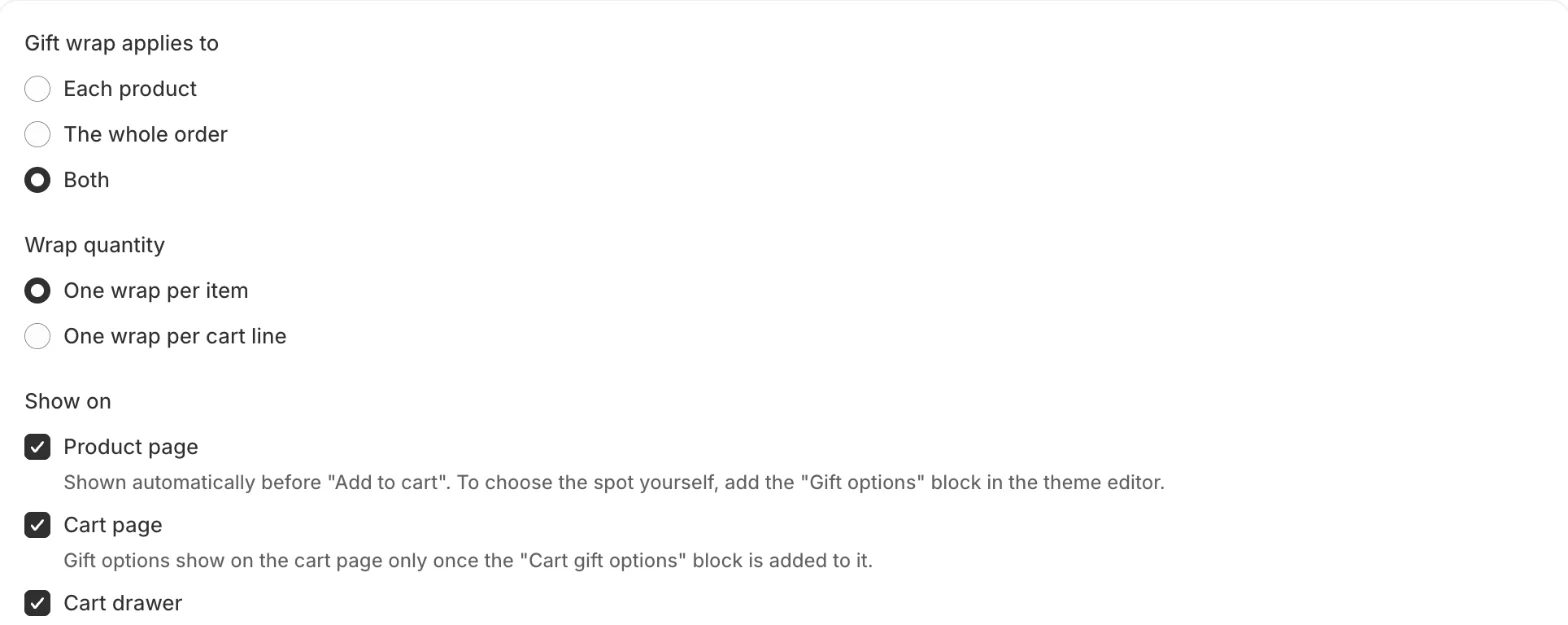
Under Gift wrap applies to, choose:
- Each product: shoppers add wrap to a product on its product page, or per item on the cart page. This is the default.
- The whole order: shoppers wrap everything in one go, from the cart page or the cart drawer. Product pages then offer a gift message only.
- Both.
A wrap for the whole order replaces wraps chosen for single items. The cart shows “Replaces the gift wrap chosen for single items.” under the checkbox when that applies. Unticking Gift wrap the whole order removes that wrap from the cart.
How many wraps per item
Under Wrap quantity:
- One wrap per item (the default): 3 mugs in one cart line get 3 wraps.
- One wrap per cart line: 3 mugs in one cart line get 1 wrap.
Product page, cart page, cart drawer
Under Show on, tick where gift options appear:
- Product page: shown automatically just before Add to cart. To choose the spot yourself, add the Gift options block to the product template in the theme editor.
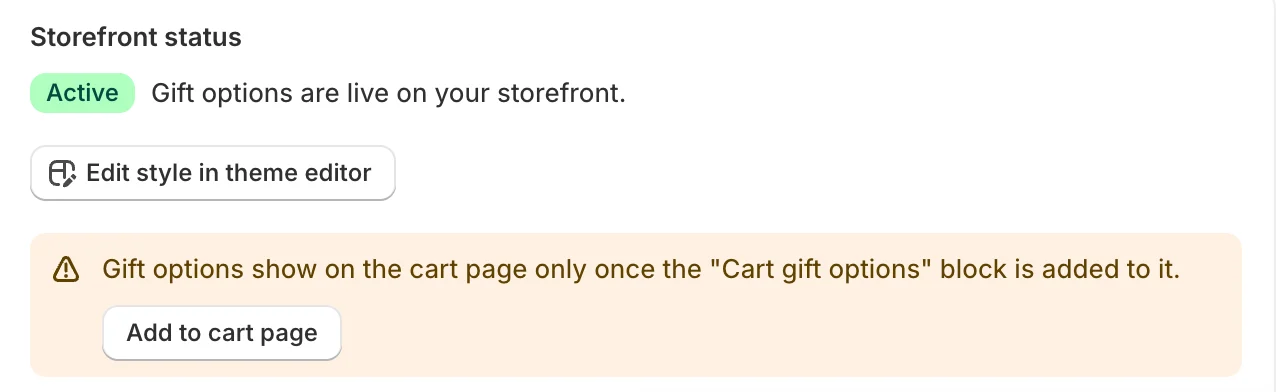
- Cart page: needs the Cart gift options block on the cart page. Until it’s there, Home shows a warning with an Add to cart page button that adds it for you.
- Cart drawer: shown automatically on supported themes.
The cart drawer is tested on Dawn and Horizon. On another theme, set Drawer container selector in the Gift wrap app embed settings, or contact us and we’ll help.
Add the blocks in the theme editor
- In Shopify, open Online Store > Themes and click Customize.
- For the product page: open a product template, click Add block in the product information section and choose Gift options under Apps.
- For the cart page: open the cart template and add Cart gift options.
- Click Save.
The Gift wrap app embed must be on for either block to work. See Install the app and set up gift wrap.
Match your theme’s style
The widget uses your theme’s fonts and colors. To adjust it, click Edit style in theme editor on the Display page. The Gift wrap app embed, and each block, have:
- Accent color: leave empty to use the theme’s text color.
- Corner radius: 0 to 24 px.
- Show wrap thumbnails.
- Layout: Expanded or Compact.
Related
Related articles
- Show gift wrap as a single lineWith one wrap option, show one checkbox with the option's picture, name and price instead of "Add gift wrap" and a list.
- Change the texts shoppers seeEdit any text of the gift widget, such as "Add gift wrap" or "Save gift options", in each of your store's languages.
- Install the app and set up gift wrapCreate your first wrap option, turn on the app embed in your theme and check gift options on your store, following the setup guide on Home.