Offer wrap choices
Choices let shoppers pick the paper, style or occasion inside one wrap option. The price stays the same whatever they pick. For example, one Gift box option can offer six papers and an occasion card.
Add a choice
- Open a wrap option and scroll to Choices.
- Click Add choice.
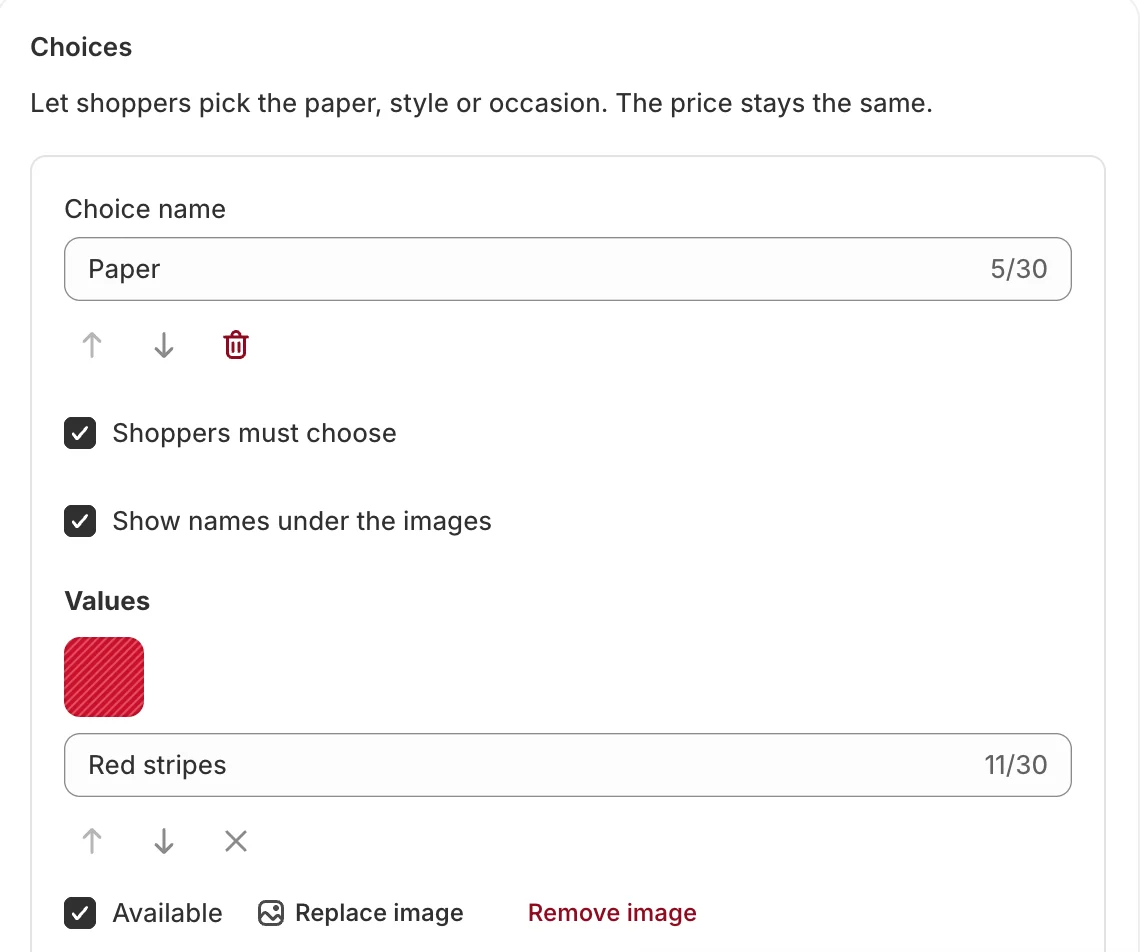
- Enter the Choice name, for example “Paper” or “Occasion” (up to 30 characters).
- Leave Shoppers must choose on if the shopper has to pick a value before adding to cart. Turn it off for an optional choice.
- Under Values, enter each Value, for example “Gold” (up to 30 characters). Click Add value for more.
- Save.
Each option can have up to 3 choices, and each choice up to 20 values.
A choice can’t use the same name as a gift message field, such as “Gift message”, “To” or “From”.
Add pictures or colours
For each value, click Add image (PNG, JPG, WebP or GIF, up to 5 MB). Without an image, you can set a Colour (if no image) instead, written like #D4AF37.
When values have pictures or colours, Show names under the images appears. Untick it to show only the pictures: the name of the picked value then appears next to the choice title, and the order still shows the name.
Pictures are stored on the Gift wrap product, which holds up to 250 images for all options and values together. Above 200, the page shows how many are used.
How shoppers see choices
The app picks the layout for you:
- Picture tiles when any value has an image or a colour.
- Buttons for up to 5 values without pictures.
- A dropdown for 6 or more values without pictures.
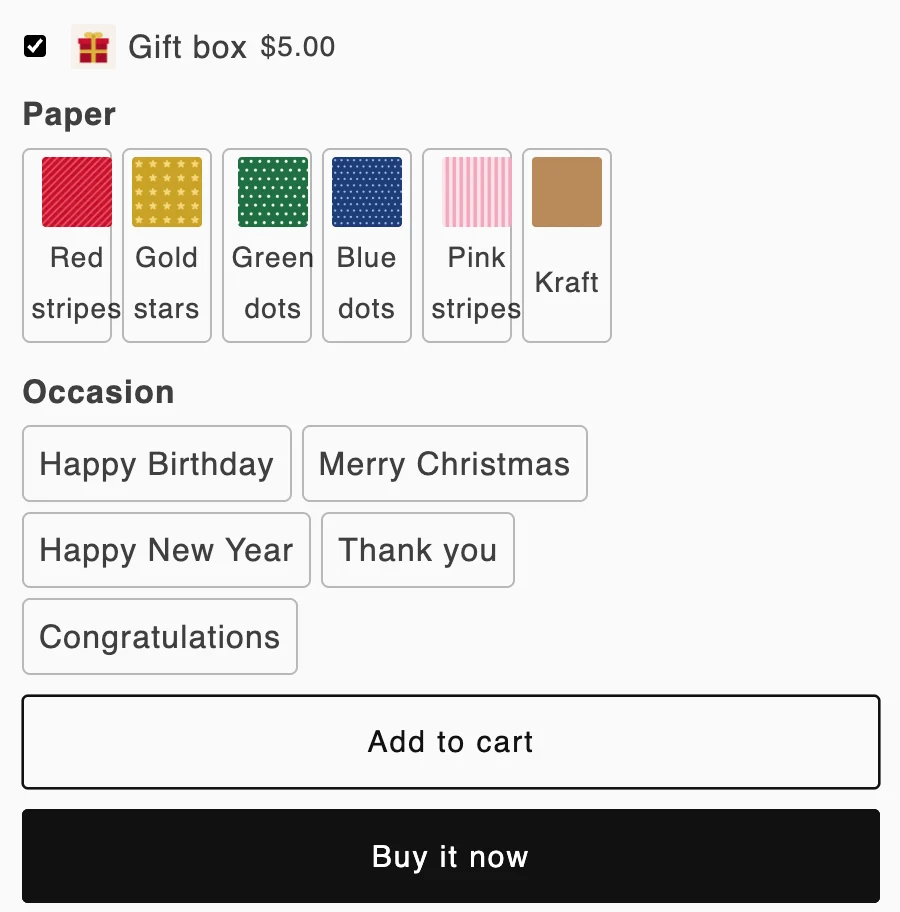
Choices appear when the shopper selects that wrap option. If a required choice is missing, the shopper sees “Paper: please choose one.” (with your choice name), and the wrap isn’t added until they pick.
Hide a value for a while
Turn off Available on a value to stop offering it, for example when a paper runs out. Turn it back on later.
On the order
Under the gift wrap line, each pick appears as the choice name and the value, for example “Paper: Gold”, in your store’s main language. It also prints on packing slips that show line item properties.
Related
Related articles
- Create a wrap optionAdd a wrap option from the gift box template or from scratch, set its name, price and image, and duplicate, reorder or delete options.
- Choose which products offer gift wrapOffer gift options on all products, only on selected products, collections or tags, or on all products except some.
- Show gift wrap as a single lineWith one wrap option, show one checkbox with the option's picture, name and price instead of "Add gift wrap" and a list.