Show gift wrap as a single line
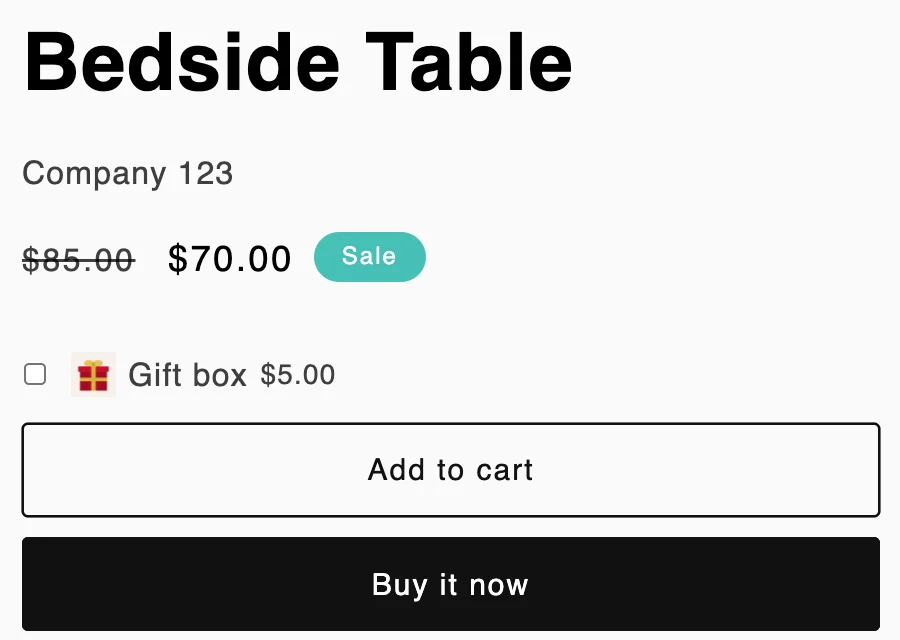
If you offer one wrap option, the Single line style shows it as one checkbox: the option’s picture, name and price. Shoppers tick it to add gift wrap. There is no “Add gift wrap” checkbox followed by a list with a single item in it.
Turn on Single line
- Make sure shoppers are offered one wrap option: on Wrap options, only one option is Active.
- Open Display and go to Wrap display.
- Choose Single line: one checkbox with the wrap option’s image, name and price.
- Save.

To go back, choose Default: a checkbox, then the list of wrap options to choose from.
What shoppers see
On the product page, the line shows the option’s picture, its name and its price, or Free for a free option.
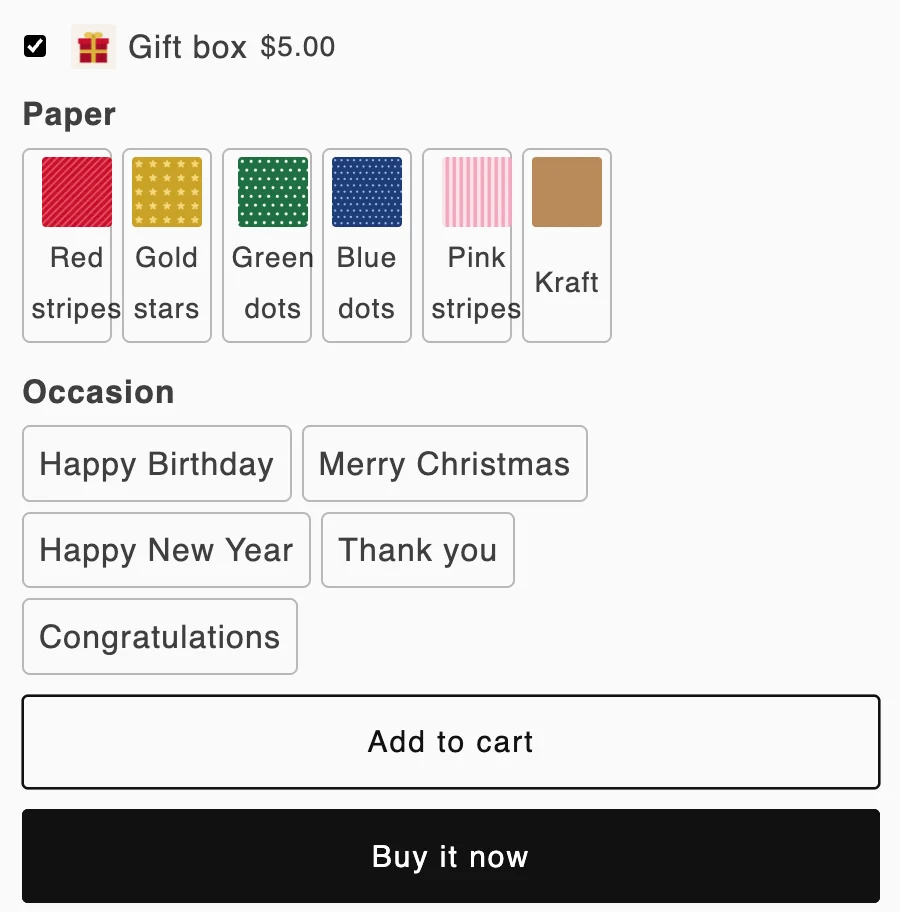
When the shopper ticks it, the option’s choices (such as paper) and the gift message fields open below. The wrap is added with the product when they click Add to cart.
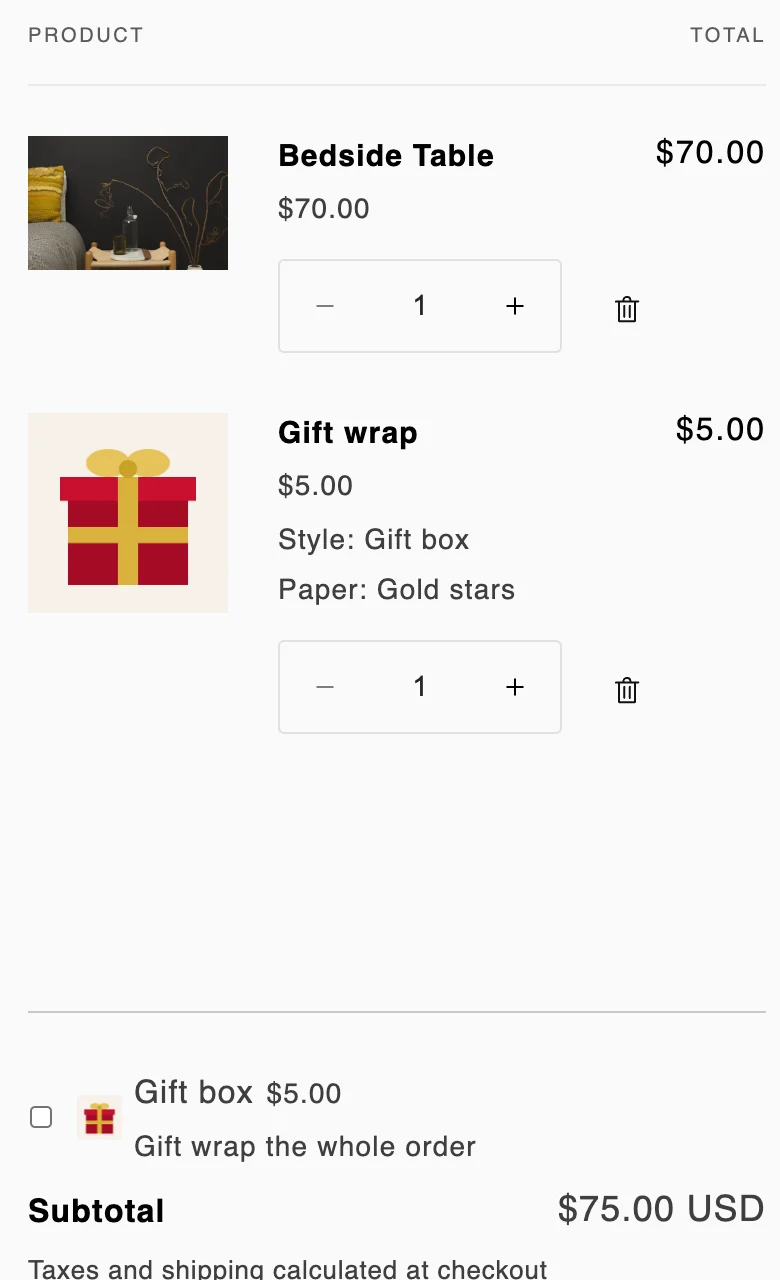
In the cart page and cart drawer, when Gift wrap applies to is The whole order or Both, the line also says “Gift wrap the whole order”, so shoppers know it wraps everything. They tick it and click Save gift options. Unticking it removes the wrap from the cart.
The line uses the option’s name, so to change its wording, rename the wrap option. The “Add gift wrap” text from Storefront texts isn’t used in this style.
When Single line isn’t available
- Two or more active options. Single line is greyed out with “Available when shoppers are offered one wrap option.” If you turn on a second option after choosing Single line, your store shows the Default list until only one option is active again.
- A message without wrap. Single line has no No wrap, message only choice: the message goes with the wrap. If shoppers should be able to send a message on its own, use Default. See Set up gift messages.
Related
Related articles
- Choose where gift options showOffer gift wrap per item, for the whole order or both, on the product page, cart page and cart drawer, and add the theme blocks.
- Change the texts shoppers seeEdit any text of the gift widget, such as "Add gift wrap" or "Save gift options", in each of your store's languages.
- Create a wrap optionAdd a wrap option from the gift box template or from scratch, set its name, price and image, and duplicate, reorder or delete options.