Create a wrap option
A wrap option is one thing shoppers can choose, such as a gift box or a paper bag. Each option has its own name, price and picture. You can offer as many as you like.
Start from the template
The quickest start is the ready-made gift box:
- With no options yet, open Wrap options and click Use template. It is added right away.
- With options already, click Add from template, then Add in the dialog.
The template adds an active option called Gift box with a picture and a short description, a required Paper choice with six papers (Red stripes, Gold stars, Green dots, Blue dots, Pink stripes, Kraft) and an optional Occasion choice (Happy Birthday, Merry Christmas, Happy New Year, Thank you, Congratulations). The price is a suggestion in your store’s currency. Change anything you like.
Create an option from scratch
- Open Wrap options and click Add option.
- Fill in the fields:
- Name: what shoppers see, up to 60 characters.
- Description: optional, up to 150 characters.
- Price: use 0 to offer it for free. Shoppers then see Free instead of a price.
- Active: inactive options are hidden from shoppers.
- Image: PNG, JPG, WebP or GIF, up to 5 MB. Square images look best.
- Optional: add Choices such as paper or occasion. See Offer wrap choices.
- Save.
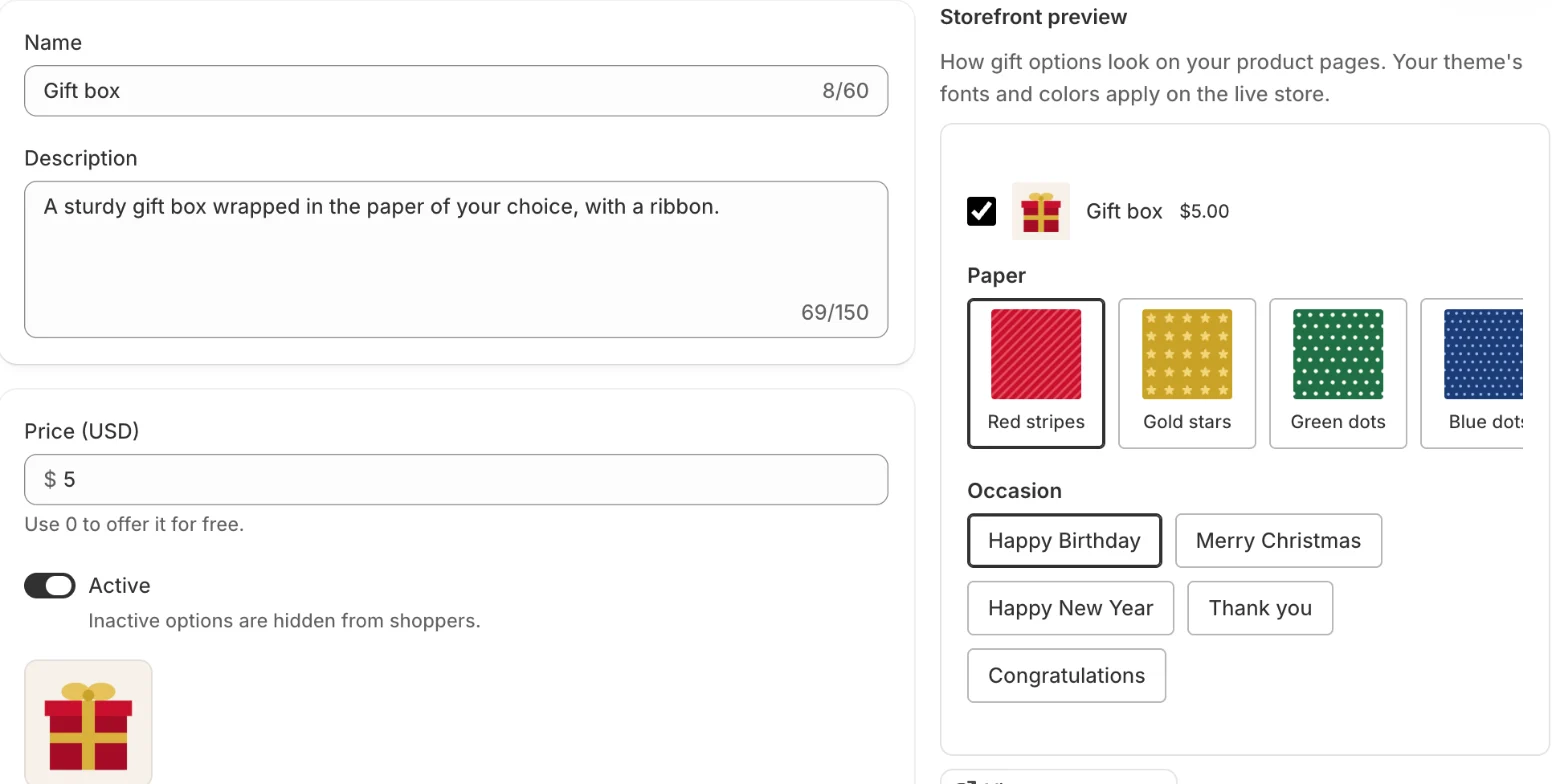
The Storefront preview on the right shows the option as shoppers will see it on a product page.
If your store sells in several languages, a Language picker appears at the top. Enter the name and description in each language; a language left empty uses your main language.
Duplicate an option
To make a similar option, for example a bigger box, open it and click Duplicate. Enter the Name of the copy and confirm. The copy gets the same description, price, choices and images, and is placed right after the original. It starts inactive, so shoppers don’t see it until you turn it on.
Change the order
On Wrap options, use the Move up and Move down arrows in the Order column. Each click saves at once. Shoppers see the options in this order, and the first one is selected for them.
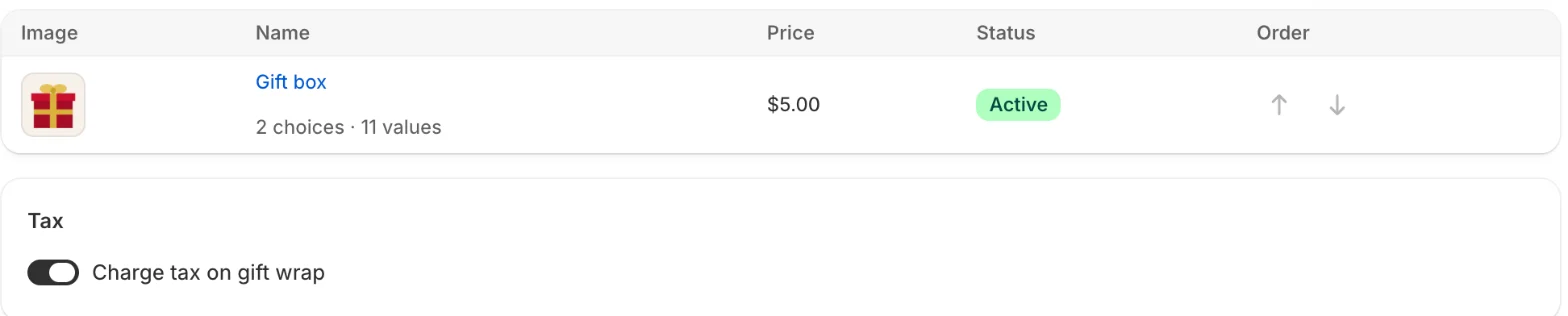
Tax
Under Tax on the Wrap options page, Charge tax on gift wrap is on by default. It applies to every option.
Delete an option
Open the option, click Delete and confirm. Shoppers no longer see it. Orders already placed are not affected.
Related
Related articles
- Offer wrap choicesLet shoppers pick the paper, colour or occasion inside one wrap option, with pictures or colour swatches, at the same price.
- Choose which products offer gift wrapOffer gift options on all products, only on selected products, collections or tags, or on all products except some.
- Install the app and set up gift wrapCreate your first wrap option, turn on the app embed in your theme and check gift options on your store, following the setup guide on Home.