Design a label template
A template matches one size of label stock and decides what’s printed on each label. Make one per label size you use.
Create a template
- In the app, open Barcode Labels. The Templates tab lists your templates with their Paper size and Verified for printer.
- Click New template.
- Pick your Label stock. Presets cover common Dymo, Brother, Zebra and Avery labels. For anything else, tick Use a custom paper size and enter Width (mm), Height (mm) and DPI.
- Enter a Template name and click Create template. The designer opens.
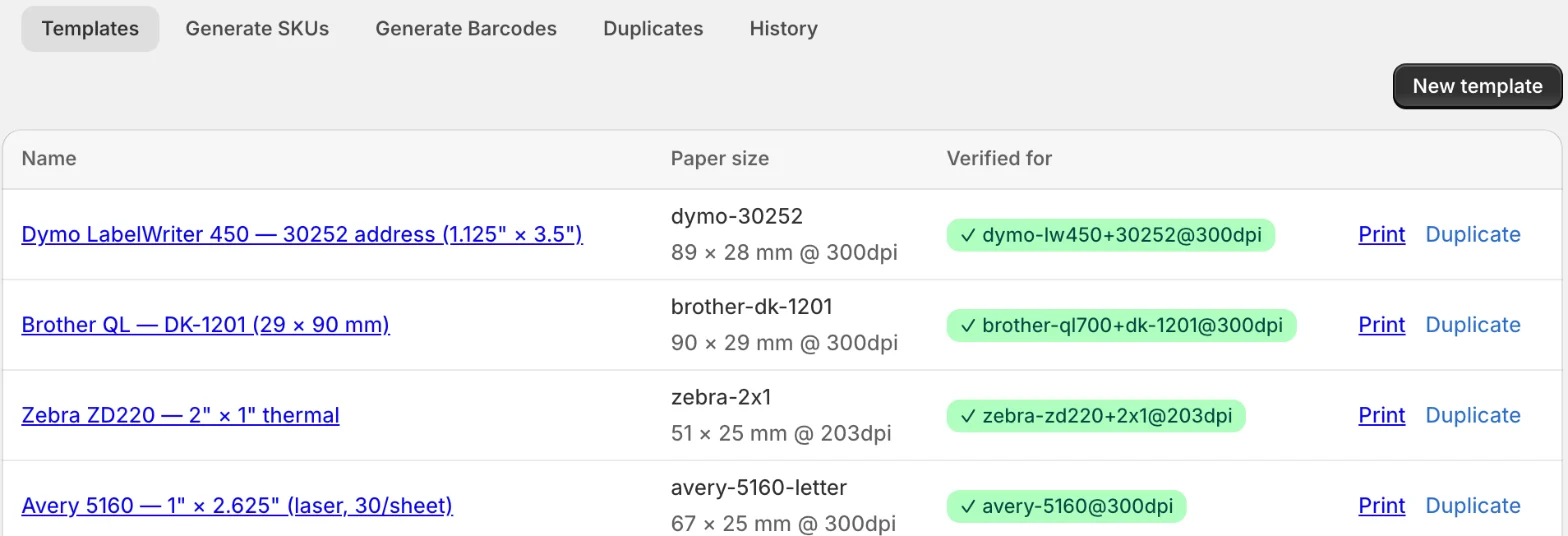
To start from an existing template, click Duplicate on its row.
Choose what’s on the label
The designer has two modes.
Simple: under What goes on this label?, tick SKU, Product title, Price, Vendor, Barcode (Code 128) or QR code, and pick a Spacing: Compact, Standard or Spacious. The layout is rebuilt from your choices.
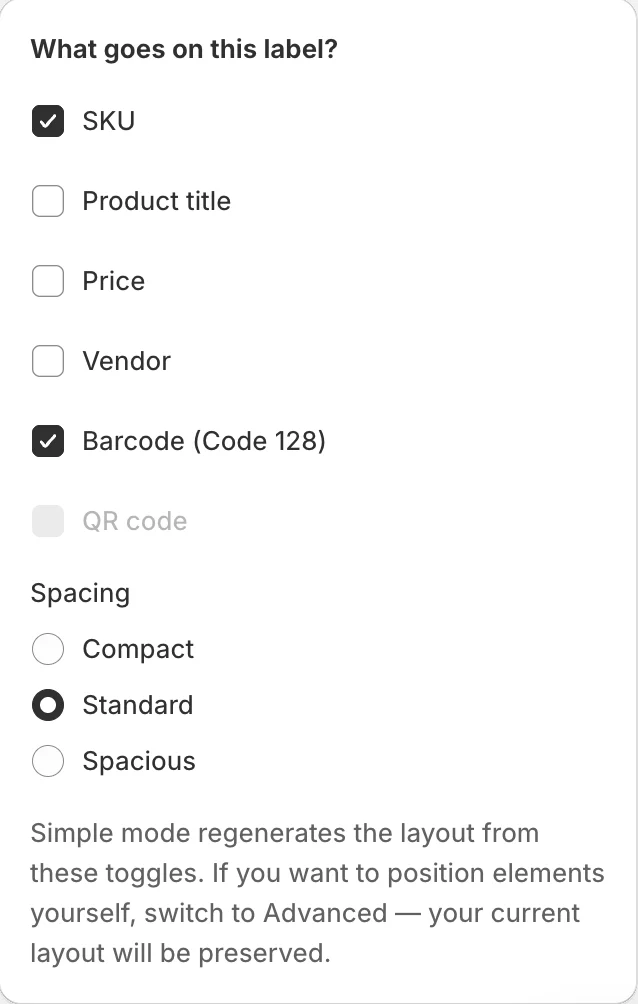
Advanced: click Add element to place text, barcodes, QR codes, lines or images, and drag them where you want. A text element can show fixed text or a product field: SKU, Product title, Variant title, Price, Vendor, Product type, Tags or the barcode number. Barcodes can be Code 128, Code 39, Code 93, EAN-13, UPC-A, ITF-14, Codabar or Data Matrix. Switching from Simple to Advanced keeps your current layout.
Click Preview as PDF to check the result with sample data, then Save.
Related
Related articles
- Print labelsPick a template and products, set how many labels each one needs, then print from the browser or download a PDF or ZPL file.
- Plans and limits comparedWhat the Free and Professional plans include, how the products-per-scan limit works, and which features need a paid plan.
- Update stock by scanning barcodesStart a scan session, add products with a scanner, the camera or the product picker, and commit the new quantities to one Shopify location.