Generate missing SKUs
Variants without a SKU are hard to scan, pick and label. The SKU generator fills them in from a rule you set.
Set the rule
- Open Barcode Labels → Generate SKUs.
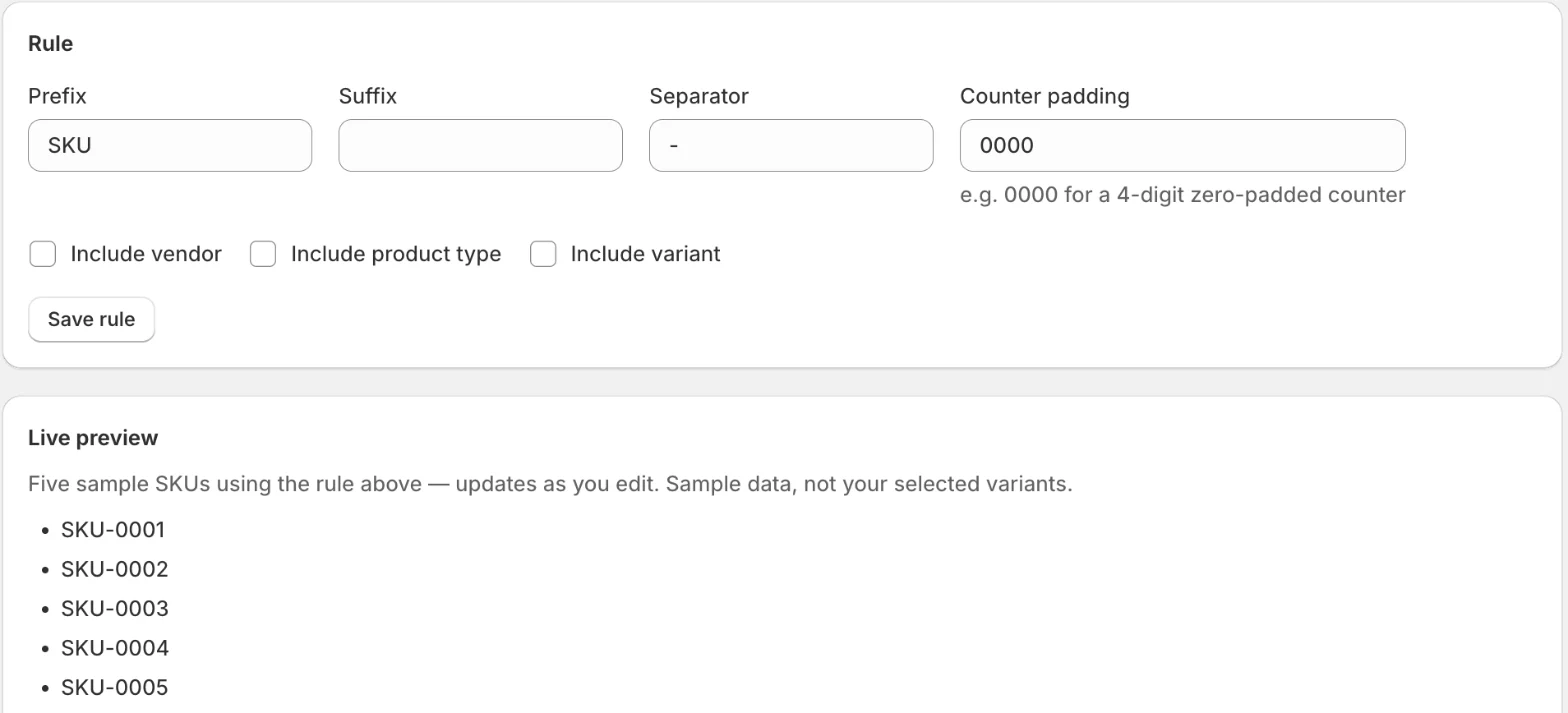
- Under Rule, fill in Prefix, Suffix, Separator and Counter padding (for example
0000for a 4-digit counter). - Tick Include vendor, Include product type or Include variant to add those to each SKU.
- Check Live preview, which shows five sample SKUs as you type, then click Save rule.
Generate
Under Apply to variants missing a SKU:
- Generate for all missing fills every variant whose SKU is empty.
- Generate for selected fills only the variants you chose under Selected variants with Choose products.
The generator never overwrites an existing SKU and skips values another variant already uses. The result reads “Applied X of Y candidate variant(s)”. If some variants couldn’t get a unique SKU, the result says so; widen the counter or add parts to the rule.
Undo a run
Every run is a batch. Click Undo this batch in the result, or open Barcode Labels → History, find it under Generation batches and undo it there.
To set SKUs you already have, see Import SKUs or barcodes from a CSV.
Related
Related articles
- Generate missing barcodesCreate valid GTIN-13, GTIN-12 or GTIN-8 barcodes for variants that have none, with your GS1 company prefix, a live preview and per-run undo.
- Import SKUs or barcodes from a CSVDownload your variants as a CSV, fill in the new SKUs or barcodes, upload the file, check the preview and apply. Up to 2,500 rows per file.
- Find duplicate SKUs and barcodesSee every barcode and SKU that more than one variant shares, so a scan always finds the right product, and print labels once they're fixed.