Share a scan with warehouse workers
Available on: Professional
Warehouse staff can scan into one of your scan sessions from their own phone or tablet. They don’t need the app or a Shopify account. Workers can only add counts; you review them and you commit.
Create the link
- Open a saved scan session (save a new one first) and go to the Worker scans tab.
- On Share with warehouse workers, choose Valid for: 8 hours, 24 hours or 7 days.
- Click Create link. A QR code and the link appear, with Copy.
- Workers scan the QR code or open the link on their device.

The card shows Link active and when it expires. On later visits the QR code is folded away; click Show QR code and link to see it again. New link replaces the current one, and Revoke link stops it straight away. A link also stops working when it expires, when you commit the session, or if your plan no longer includes worker links.
What workers do
-
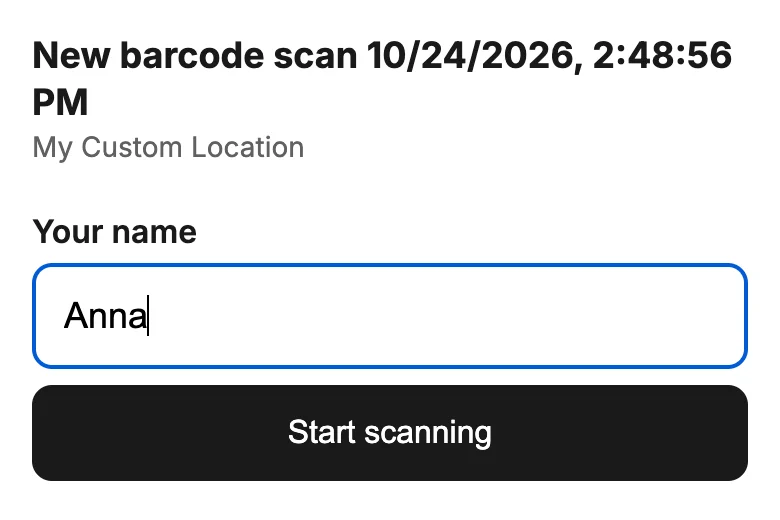
They enter Your name and tap Start scanning. A name is required, and it’s how you tell workers apart.
-
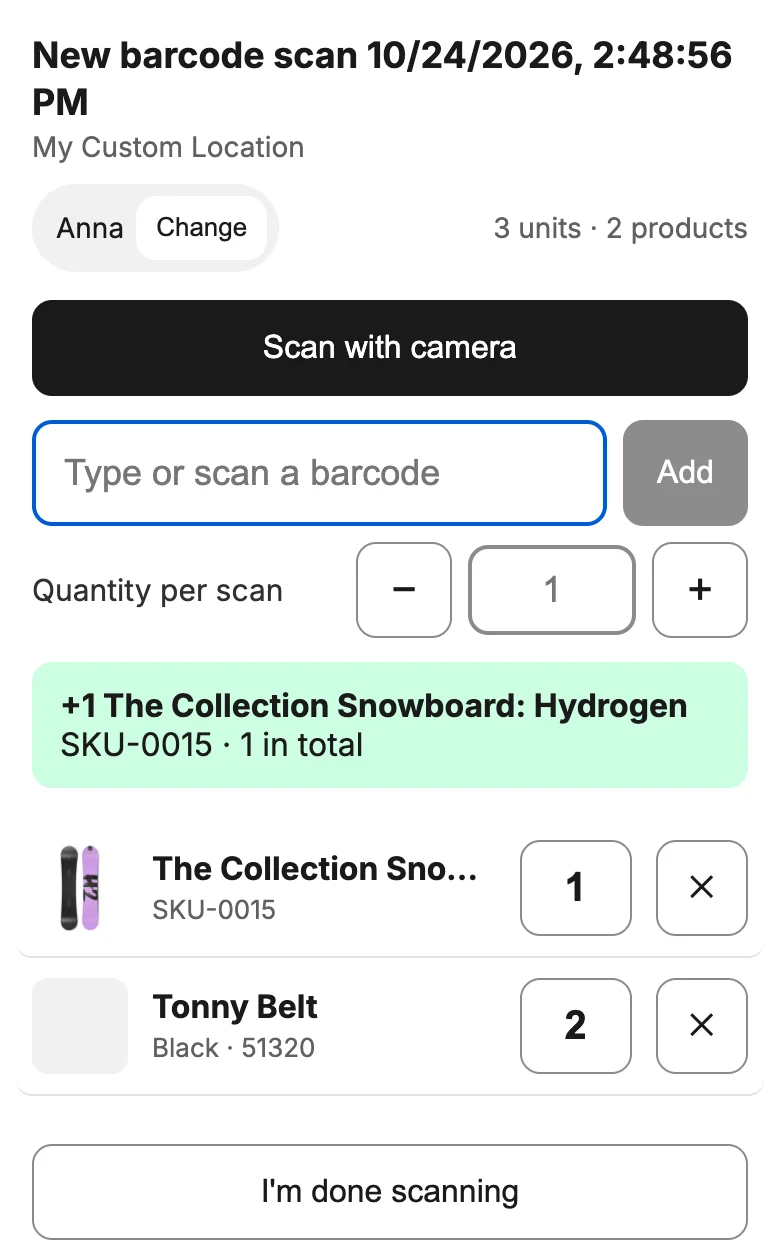
They scan with Scan with camera, with a Bluetooth scanner, or by typing a barcode and tapping Add. Quantity per scan sets how many the next scan adds. Each scan beeps and shows the product and its running total.
-
To fix a mistake, they tap a count to change it, or tap ✕ and then Remove.
-
When finished, they tap I’m done scanning and confirm with Yes, I’m done. The page shows their final count. Scan more items lets them carry on.
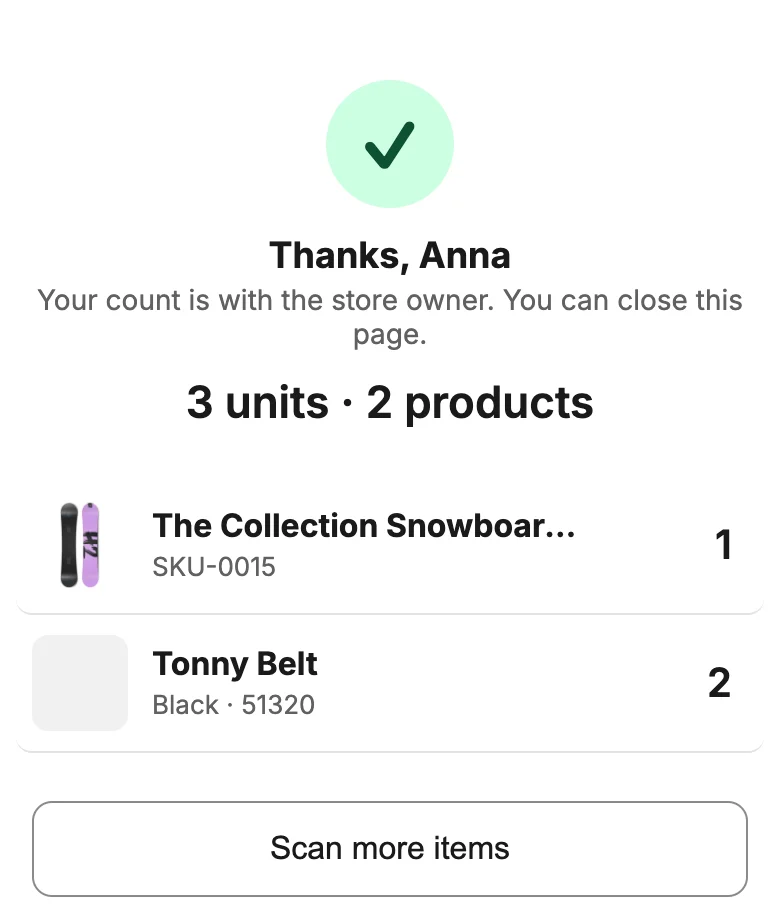
Workers only see their own lines: product, variant, SKU, image and quantity. They never see prices. If the connection drops, scans wait on the device and are sent when it’s back.
Review the counts
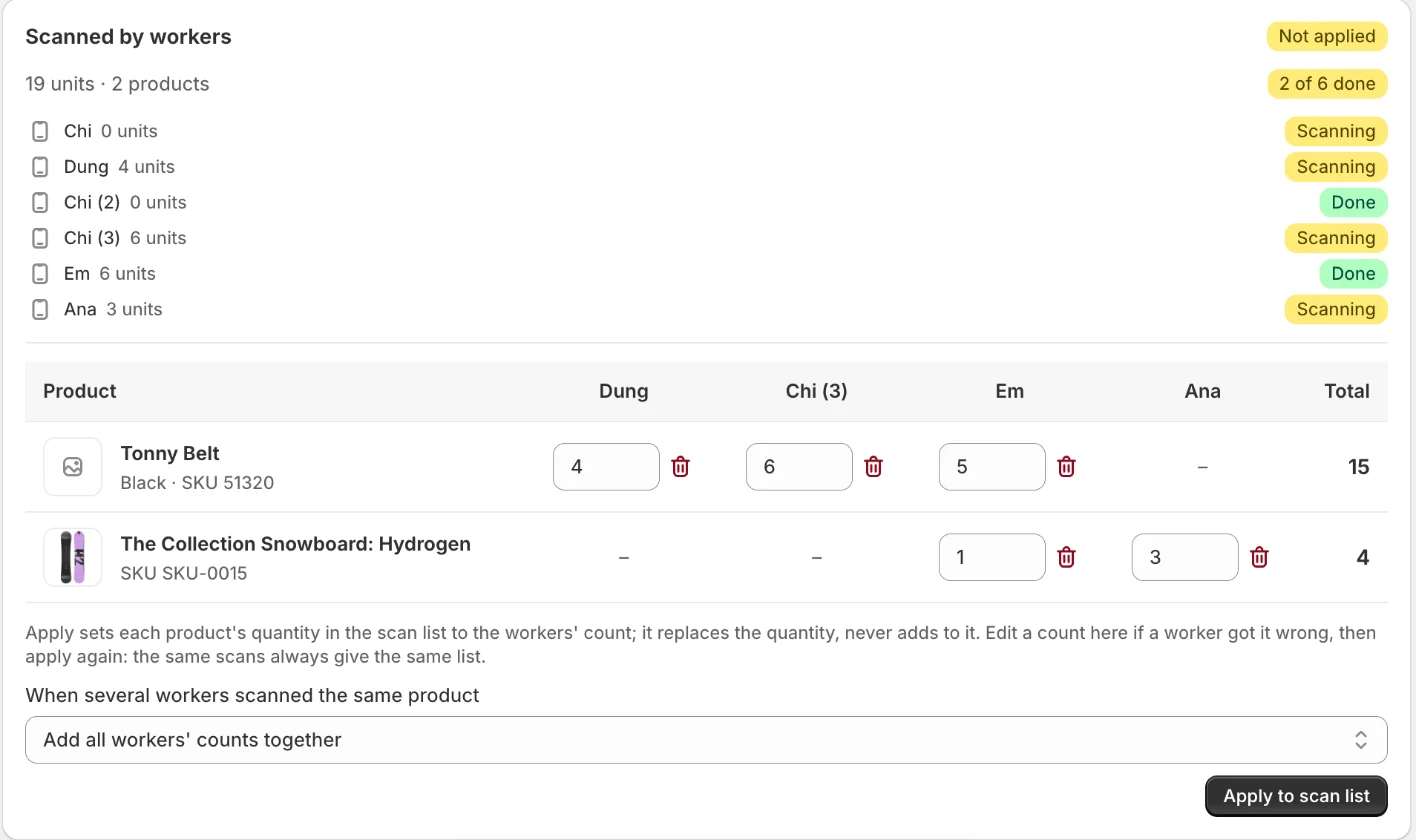
On the Worker scans tab, Scanned by workers lists each worker by name with their units and a Scanning or Done badge, and refreshes while the link is live. The table has one row per product and one column per worker. You can change or delete any worker’s count there.
Apply the counts to your scan list
Worker counts don’t reach Shopify until you apply them. If several workers scanned the same product, choose how to combine them under When several workers scanned the same product:
- Add all workers’ counts together
- Use the latest scan
- Use the earliest scan
- Use one worker’s count (products that worker didn’t scan use the others’ total)
Then click Apply to scan list. Each product’s quantity in the list is replaced by the workers’ count, never added to, so applying again gives the same list. Those lines get a Workers badge on the Scan details tab.
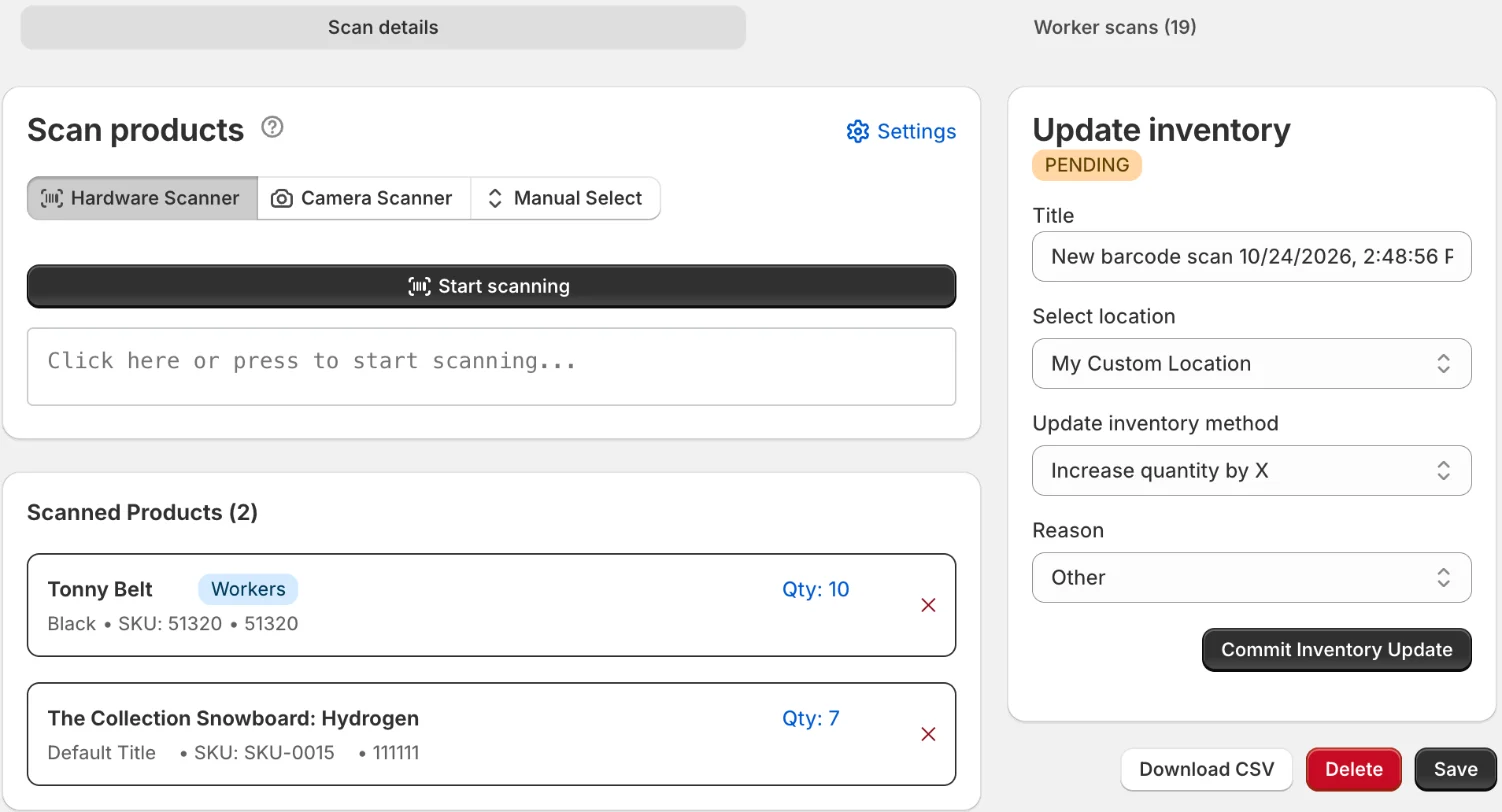
To change a worker’s number, edit it on the Worker scans tab and apply again; an edit to a Workers line on Scan details is overwritten by the next Apply. If you delete a worker’s count for a product you had also scanned yourself, applying again puts your own quantity back.
The card shows Not applied when workers have scanned something since the last Apply, and the commit dialog warns you too. When the list looks right, commit it as usual from Scan details.
Good to know
- Anyone with the link can add counts until it expires or you revoke it. Names aren’t verified.
- The products-per-scan limit counts your products and the workers’ together.
Related
Related articles
- Update stock by scanning barcodesStart a scan session, add products with a scanner, the camera or the product picker, and commit the new quantities to one Shopify location.
- Scan history and CSV exportFind past scan sessions, reopen one, and download the scanned items for a date range or for a single session as a CSV file.
- Set a default location and row detailsChoose the location new scan sessions open at, and which product details appear on each scanned row.