Print labels
Print labels for any products in your catalog, on any printer your computer can print to.
Choose the template and products
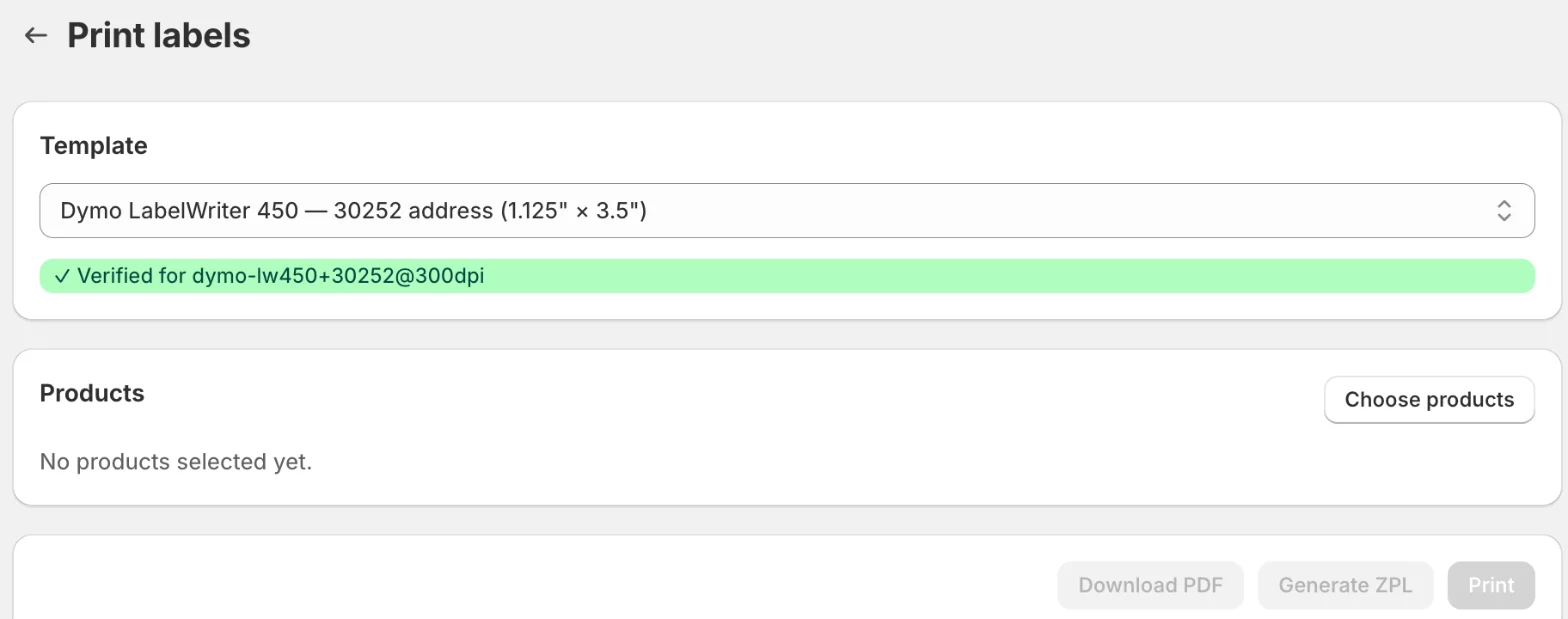
- Open Barcode Labels and click Print on a template’s row. The Print labels page opens with that Template selected; you can change it there.
- Click Choose products and pick the products and variants to label.
- Set the Qty (number of labels) on each row, from 1 to 1000. To use the same number for every row, enter it in Set all qty to and click Apply. Remove takes a row off.
Print or download
- Print opens a preview. Click Print in it to open your computer’s print dialog, and print at 100% scale (turn off “fit to page”) so labels line up.
- Download PDF saves the labels as a PDF to print later or on another computer.
- Generate ZPL downloads a ZPL file for Zebra and other printers that accept ZPL.
You can also print labels for products listed in the duplicates report; see Find duplicate SKUs and barcodes. Recent print jobs are listed under Barcode Labels → History, in Print jobs.