Scan history and CSV export
History sessions lists every scan session in the store, newest first, so you can reopen a draft or check what a committed session changed.
Find a session
Open History sessions. Each row shows the Title, Location, Barcodes (how many products), Action, Status and Last updated. Click a title to open the session. To start a new one from here, click New Barcode scan.
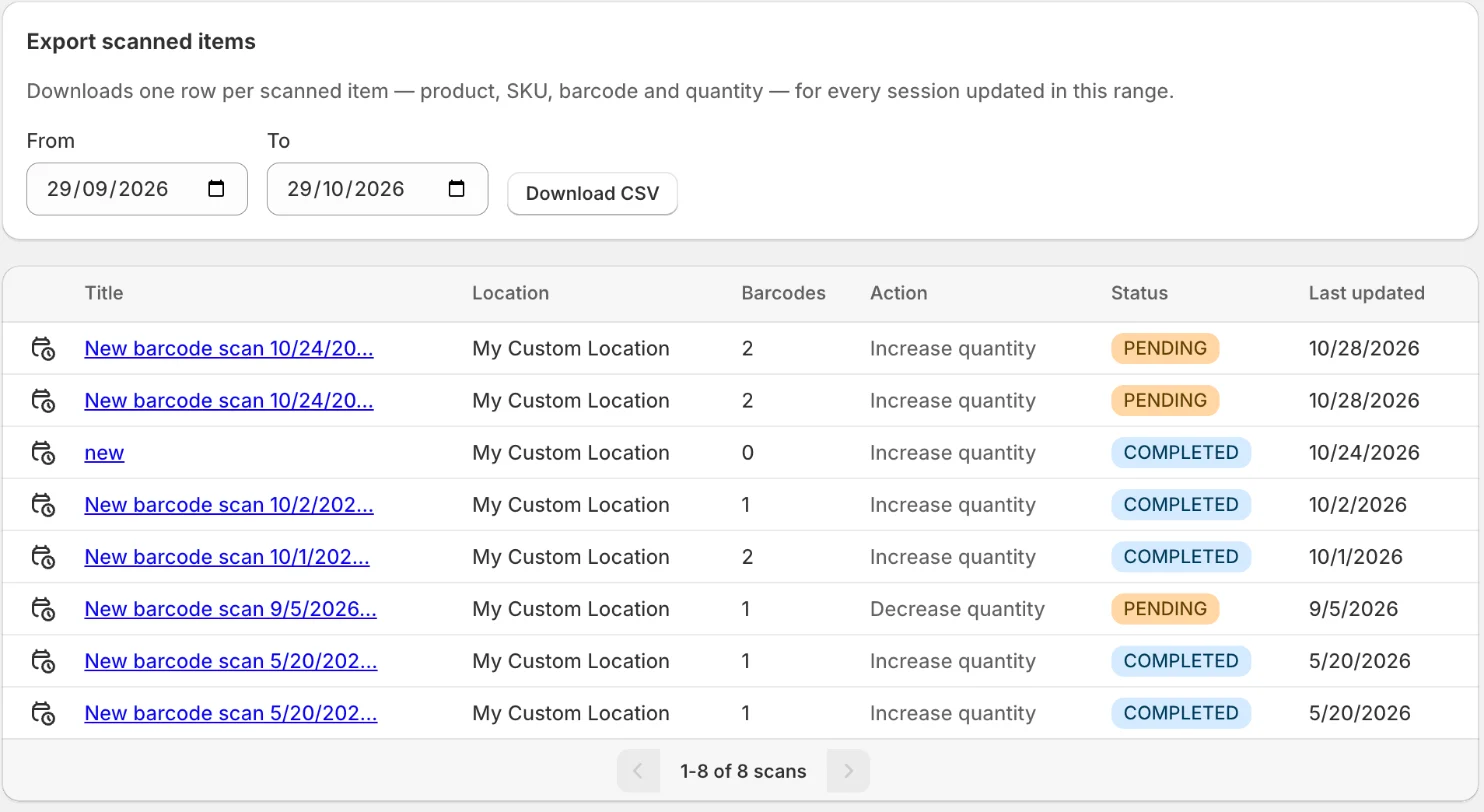
Export scanned items for a date range
- On History sessions, find the Export scanned items card.
- Set From and To. The range starts as the last 30 days.
- Click Download CSV.
You get one row per scanned item, with the product, SKU, barcode and quantity, for every session updated in that range. From must be on or before To.
Export one session
Open the session and click Download CSV at the bottom of the page.
Related
Related articles
- Update stock by scanning barcodesStart a scan session, add products with a scanner, the camera or the product picker, and commit the new quantities to one Shopify location.
- Set a default location and row detailsChoose the location new scan sessions open at, and which product details appear on each scanned row.
- Share a scan with warehouse workersLet staff count on their own phone or tablet with a link and QR code, no Shopify login, then review their counts and apply them to your scan list.