Show metafields on the product page
Product info fields show values you already keep in Shopify metafields on the product page in the rep portal and the buyer portal. Common uses are a restock date for a sold-out size, a material, a size chart link or a case quantity. Values are read live from Shopify each time the page opens; nothing is copied into the app.
Before you start
The app shows metafields that have a definition in Shopify. If you don’t have one yet, create it in Shopify Admin under Settings → Custom data, on Products or Variants, and fill in the values on your products as usual.
The app can show these metafield types:
- Single line text and multi-line text
- Integer and decimal
- Date, and date and time
- True or false (shown as Yes or No)
- URL
- Dimension, weight and volume
- Lists of any of the types above
- Rich text
Other types appear in the list as “Not supported yet” and can’t be chosen.
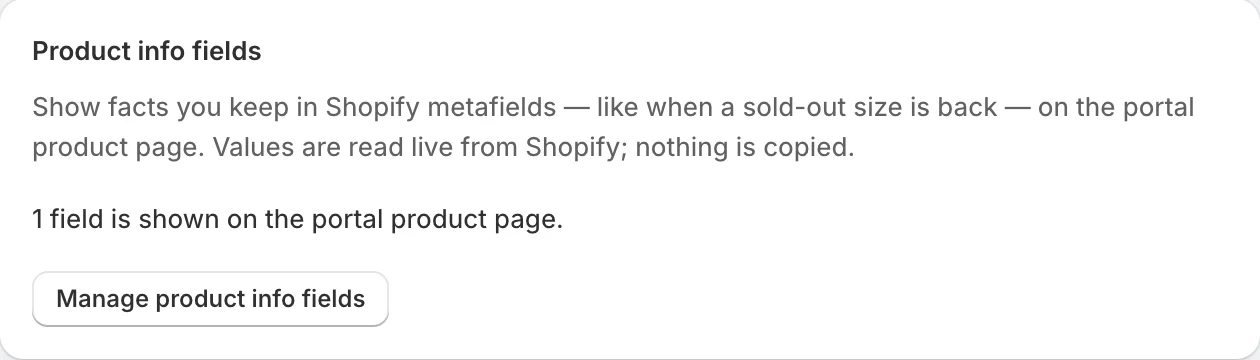
Open the product info fields
- Open Settings in the app.
- Under Product info fields, click Manage product info fields.
Add a field
- In Add a field, choose a metafield. Product metafields and variant metafields are listed in separate groups.
- Click Add field.
The field is saved straight away with these settings: its label is the metafield’s name in Shopify, it shows Always, and it’s visible to Reps and buyers. Change any of them with Edit.
You can show up to 10 fields. Each field appears once in the list with its settings as badges, an Edit button, arrows to move it up or down, and a delete button. Fields show on the product page in the order of the list.
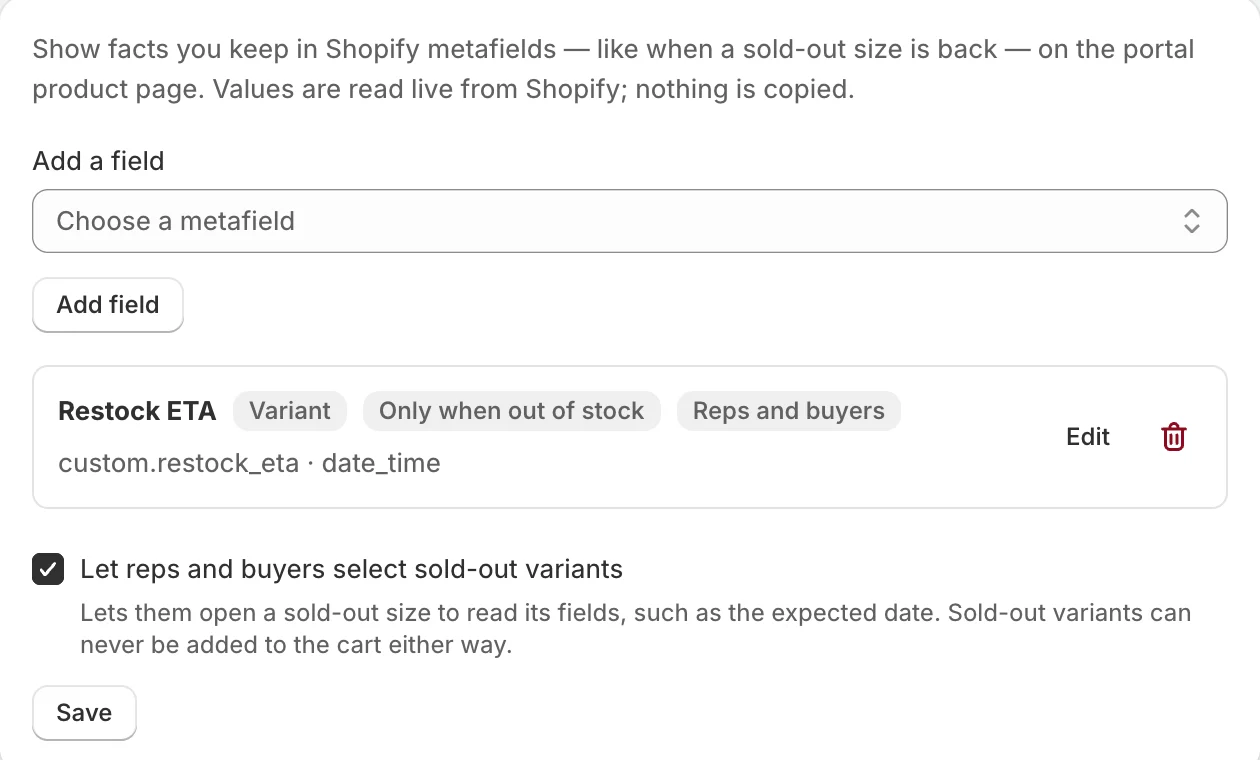
The delete button removes a field at once, without asking. To show it again, add it back.
Change a field
Click Edit next to a field, change what you need and click Save.
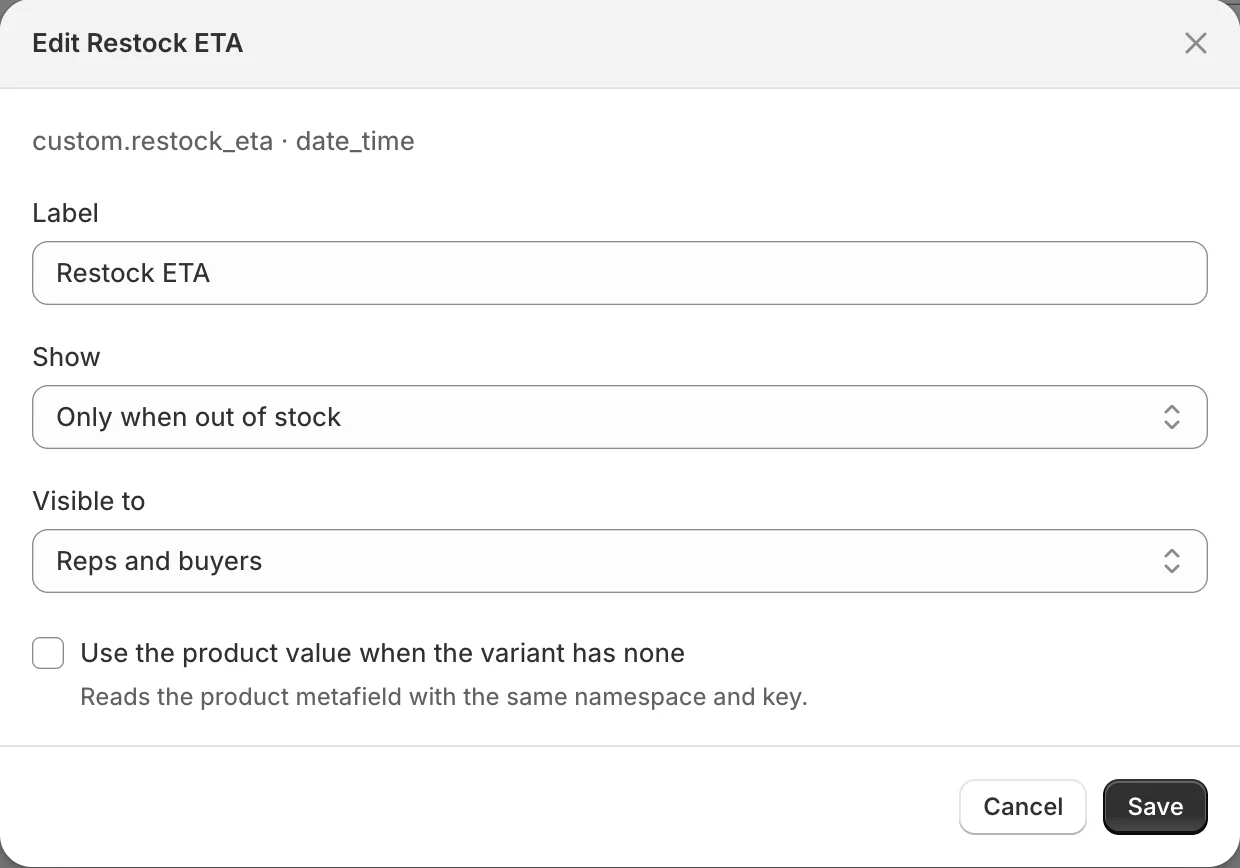
- Label: the name shown next to the value on the product page.
- Show: Always, or Only when out of stock. A product field set to Only when out of stock shows when every variant of the product is sold out. A variant field shows when the selected variant is sold out.
- Visible to: Reps and buyers, Reps only or Buyers only. A Reps only field never reaches the buyer portal, so it’s safe for notes meant for your team.
- Use the product value when the variant has none: only on a variant field, and only when a product metafield with the same namespace, key and type exists. A variant with no value of its own then shows the product’s value. Use it for a restock date that is the same for most sizes, and set a date on a variant only when it differs.
What reps and buyers see
- Product fields appear in a Details box on the product page.
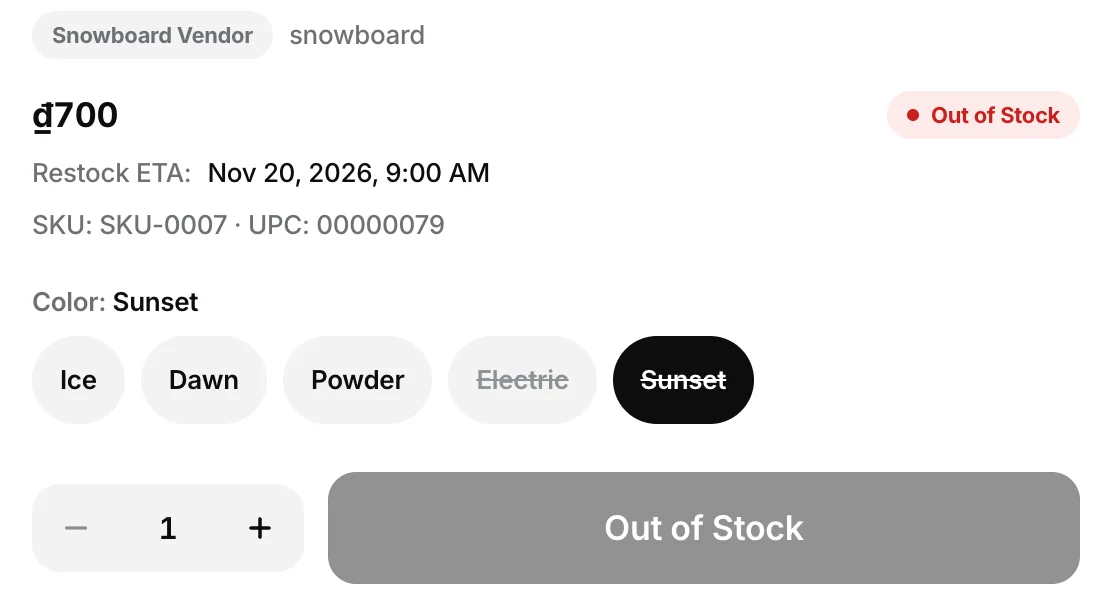
- Variant fields appear under the price and change when the rep or buyer picks another option.
- The Select Options sheet in the catalog shows variant fields only.
- A field with no value on that product or variant is left out.
- Dates and times are shown in your store’s time zone. Numbers and dates are written the way the viewer’s language writes them.
- Links open in a new tab.
Let reps and buyers open sold-out variants
By default, sold-out options in the variant picker are greyed out and can’t be selected, so a variant field set to Only when out of stock can’t be seen per size.
To change that, tick Let reps and buyers select sold-out variants at the bottom of the page and click Save. Sold-out options stay greyed out but can be selected, and the page shows that variant’s fields, such as its restock date. The add button reads Out of Stock and stays disabled: a sold-out variant can never be added to the cart. Options that don’t exist as a variant stay disabled either way.
The setting applies to both the rep portal and the buyer portal.
If something looks wrong
- “No longer in Shopify” on a field: its metafield definition was deleted in Shopify. Remove the field, or create the definition again.
- “Type changed in Shopify”: the definition’s type changed after you added the field, and its values are no longer shown. Remove the field and add it again.
- “Your metafield definitions could not be loaded from Shopify.”: Shopify didn’t answer. Your saved fields are kept and still show on product pages; try again later to add or check fields.
- The metafield isn’t in the list: check it has a definition in Shopify under Settings → Custom data. Metafields without a definition can’t be chosen.
Related
Related articles
- Install FieldB2B and choose a planInstall Mify FieldB2B from the Shopify App Store and choose a plan, which you need to do before you can use the app.
- Add a sales rep and give them accessCreate a sales rep in FieldB2B, set their commission and discount limit, and share their login.
- Choose a company mode: Shopify B2B sync or app-managedDecide whether FieldB2B reads your B2B companies from Shopify B2B or manages them in the app, and what each mode syncs.