Install FieldB2B and choose a plan
Mify FieldB2B runs inside your Shopify admin. Your sales reps never use the admin: they work in their own portal, which you set up from the app.
Install the app
- Open Mify FieldB2B on the Shopify App Store and click Install.
- Approve the permissions Shopify asks for. The app opens in your Shopify admin under Apps.
Choose a plan
Until you choose a plan, every page of the app shows Choose Your Plan and the message “Please select a plan to start using Field B2B.” This includes the Free plan: you still pick it once.
- Click Select a Plan. Shopify’s plan page opens.
- Choose Free, Starter, Growth or Business and confirm. Paid plans are charged by Shopify on your Shopify bill.
- You return to the app, and the menu (Dashboard, Sales Reps, Companies, Assignments, Analytics, Commissions, Billing, Settings) is ready to use.
All plans have the same features, except that Free doesn’t include the buyer portal. Plans differ in how many sales reps you can have and how many companies can use the buyer portal. See Plans and limits compared.
Change your plan later
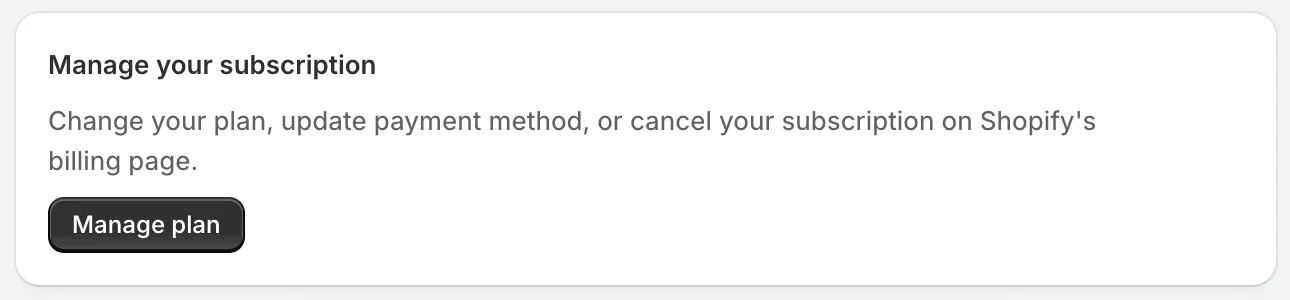
Open Billing in the app to see your current plan, then click Manage plan. Shopify’s billing page opens, where you can switch plans, update your payment method or cancel.
What to do next
- Choose a company mode: sync companies from Shopify B2B, or manage them in the app.
- Add a sales rep.
- Assign reps to companies.
Related articles
- Plans and limits comparedWhat each FieldB2B plan includes, how the sales rep and buyer portal limits work, and what happens when you reach one.
- Add a sales rep and give them accessCreate a sales rep in FieldB2B, set their commission and discount limit, and share their login.
- Choose a company mode: Shopify B2B sync or app-managedDecide whether FieldB2B reads your B2B companies from Shopify B2B or manages them in the app, and what each mode syncs.