Charge a card fee on quotes
Charge a fee only when a quote is paid by card, for example 3%. The fee is added to the quote as its own line, and the quote’s checkout only offers the way to pay that was chosen.
How it works
- In Settings, you list the payment methods that carry a fee, such as Credit card at 3%. Methods without a fee need no entry.
- In the cart, the rep or buyer picks one of those options, or Other payment methods (no fee), which comes last and is the default.
- With a fee option, the quote gets a fee line and its checkout offers only that option’s payment methods.
- With Other payment methods (no fee), there is no fee and the checkout hides every method that carries one.
- The customer can still change the choice before paying. See The customer chooses before paying.
Turn it on
- In the app, open Settings. Under Payment options, click Manage payment options.
- Tick Offer payment options on quotes and click Save.
- Shopify asks you to let FieldB2B manage payment customizations. Approve it. This is what lets the app hide payment methods on a quote’s checkout.
- A Credit card option at 3% is added for you. Set it up as described below.
When everything is in place, the page says The checkout lock is active.
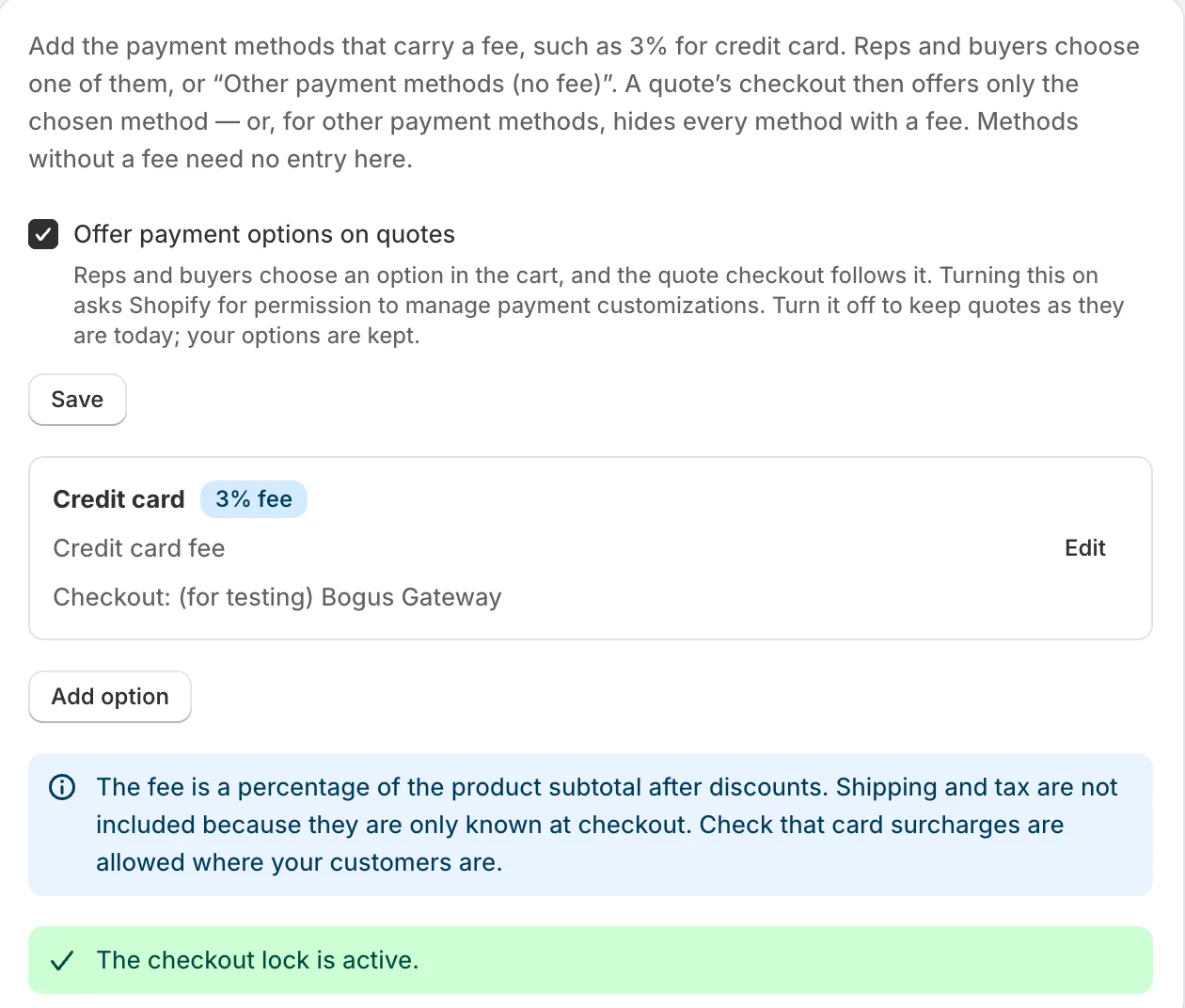
Set up a fee option
Click Edit on an option, or Add option for a new one.
- Name shown to reps and buyers: for example “Credit card”.
- Fee (%): up to 10%, with up to two decimals.
- Fee line title: the line the customer sees on the quote and at checkout, for example “Credit card fee”.
- Charge tax on the fee: tick it if tax applies to the fee where you sell.
- Shopify payment methods: one per line, every way to pay that this fee is for.
You can have up to 6 options, and a payment method can belong to only one of them.
Name the payment methods the way Shopify does
The checkout calls card payments “Credit card”, but Shopify knows them by the payment provider’s name. Enter that name instead, for example Shopify Payments or PayPal. Manual methods use the name your checkout shows, for example Bank Deposit. Names already seen on your recent orders are listed under the field.
List every method you want the fee on, including wallets like Apple Pay if they are separate methods in your checkout. A method you don’t list counts as having no fee, so a quote on Other payment methods (no fee) still offers it.
To check, open the checkout of a test quote that uses the option. Only the methods you listed should be there. If every method is still shown, a name doesn’t match; correct it and save.
What reps and buyers see in the cart
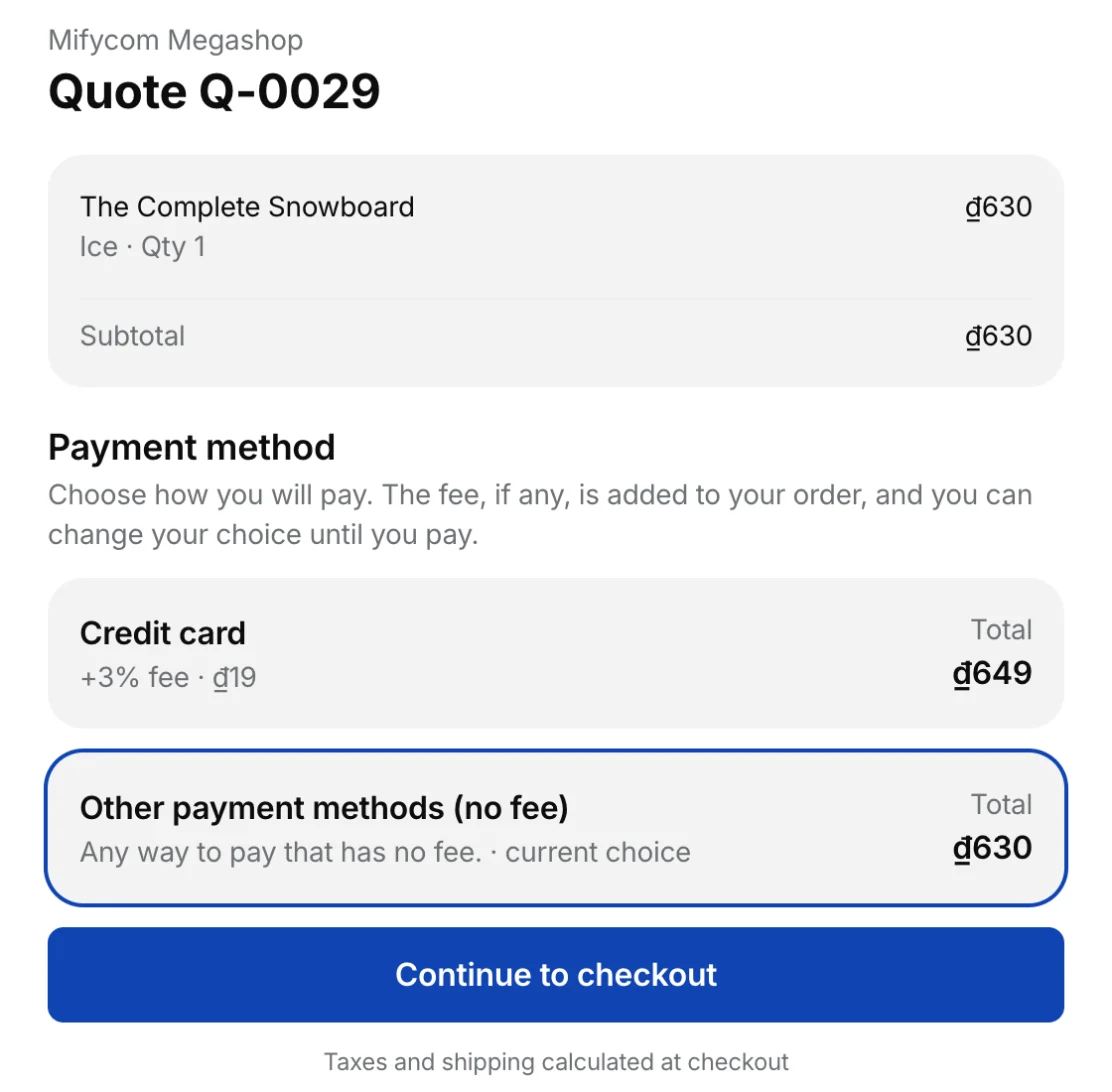
The cart has a Payment method list. Each fee option shows its fee on the current cart, for example +3% fee · $15.00; picking one adds the fee row to the totals. Other payment methods (no fee) is last and chosen by default.
The fee is a percentage of the product subtotal after discounts. Shipping and tax are not part of it, because they are only known at checkout.
On the quote, the PDF and the email, the fee is its own row under the subtotal, and the quote page shows Payment method: Credit card.
The customer chooses before paying
When payment options are on, the link in the quote email and the QR code on the PDF open a payment page instead of going straight to checkout. The customer sees the quote, each fee option with its total, and Other payment methods (no fee). Choosing one updates the quote and opens checkout. They can come back and change it until they pay.
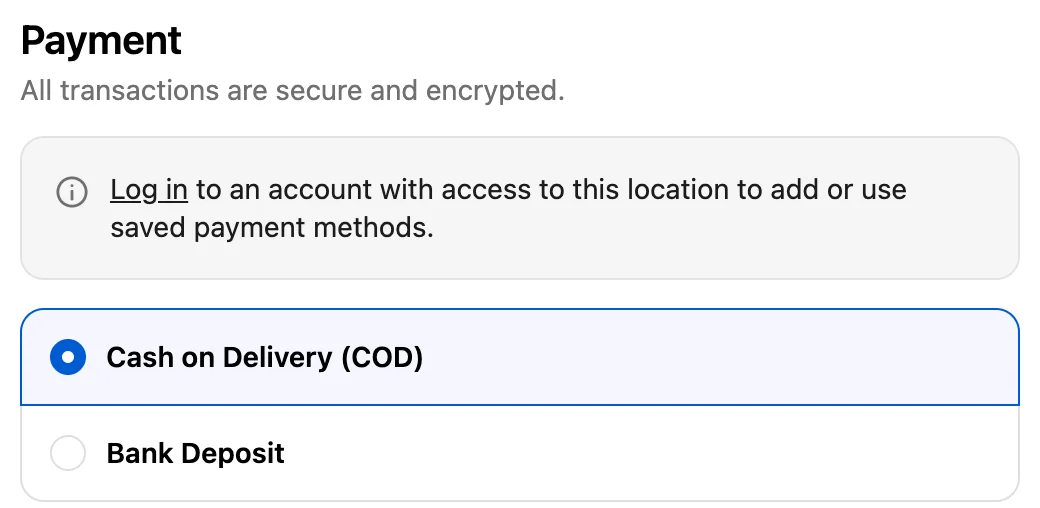
At checkout
| Chosen on the quote | Checkout offers |
|---|---|
| A fee option, such as Credit card | Only the payment methods listed on that option |
| Other payment methods (no fee) | Every method except those listed on a fee option |
FieldB2B never hides every method: if nothing you listed matches the checkout, it shows all of them. Storefront checkouts are never changed. Shopify doesn’t let apps change the methods inside Shop Pay, and on some plans and in some countries it doesn’t let apps hide certain methods.
Commission
The fee is left out of the rep’s commission. See How commissions are calculated.
Turn it off
Untick Offer payment options on quotes and click Save. New quotes work as before, the checkout stops hiding payment methods, and your options are kept for later. Quotes that already have a fee line keep it.
Messages on the Payment options page
- “FieldB2B needs permission to manage payment customizations. Save again to grant it.”: the permission was not approved. Click Save and approve it.
- “The checkout lock is not active on your store yet. Save again to retry.”: click Save again.
- “Shopify did not accept the checkout lock. Try saving again.”: save again. If it keeps happening, contact us.
- “No payment methods mapped”: the option has no payment methods yet. Click Edit and add them.
Related
Related articles
- How a rep creates a quote (cart to draft order)How a sales rep builds a cart for a customer in the portal, turns it into a quote, and sends it. Every quote is a Shopify draft order.
- Quote discounts: per line or on the whole quoteHow reps discount a quote, line by line (percent, amount off or a set price) or on the whole quote, and how the rep's maximum discount limits it.
- Quick Order: paste a SKU listFill a cart in one go by pasting a list of SKUs or barcodes with quantities, in the rep portal or the buyer portal.