Add payment terms to draft orders
In Shopify, a company location can have payment terms, such as Net 30. Shopify doesn’t put them on a draft order an app creates, so FieldB2B can add them for you. It’s off until you turn it on, and it’s only available in Shopify B2B mode.
Turn it on
- In the app, open Settings. Under Payment terms, tick Add payment terms to draft orders and click Save.
- Shopify asks you to let FieldB2B read and set payment terms. Approve it.
The section then says Permission to read and set payment terms granted — draft orders carry the location’s terms.
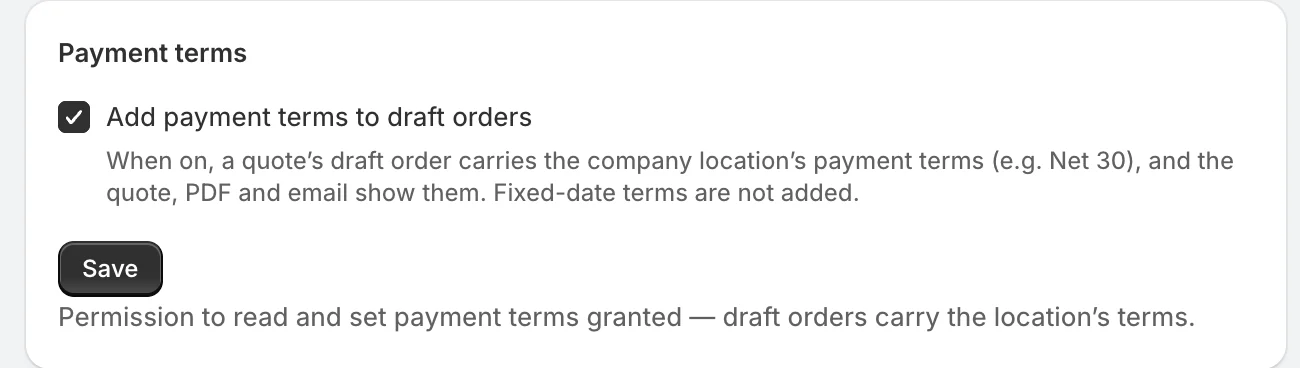
If you saved the setting but didn’t approve, the section says Permission needed: until you grant access to payment terms, draft orders are created without them. Click Grant permission.
What changes
From the next quote on, when the quote’s company location has payment terms:
- The draft order in Shopify carries them, with the issue date set to the day the quote was created, so the due date counts from then.
- The quote page, the PDF and the quote email show Payment terms: Net 30 (the name of the terms in Shopify).
- At checkout, the customer sees the terms Shopify shows for them, and can confirm the order to pay later.
Terms with a fixed due date are not added, because the quote has no date to put on them. Quotes made before you turned the setting on are unchanged.
The quote shows terms only when the draft order received them. If Shopify refuses them, the draft order is still created, without terms, and the quote shows none.
Related
Related articles
- Only allow products in the company's catalogsStop reps and buyers from quoting products that a company location's Shopify B2B catalogs don't include.
- Choose a company mode: Shopify B2B sync or app-managedDecide whether FieldB2B reads your B2B companies from Shopify B2B or manages them in the app, and what each mode syncs.
- Company locations: prices, addresses and termsIn Shopify B2B mode, the company location a rep picks sets the quote's prices, the addresses on the draft order, and its payment terms and tax exemption.